

Release notes
Vol 3 | May 6, 2026
Product updates across orders, menus, and discounts
- Tax percentage overrides by location for Online Ordering Profiles
- Popular items section on your online menu
- Advanced rules for manual discounts on Square Point of Sale
- Automatic discounts on Profiles online orders
- Preauthorization for bar tabs available in Standard mode
- Cash App Pay QR code removed from buyer-facing displays
- Compact tickets and font size options for printed kitchen tickets
- Team Management permission includes Authorized Representative profiles
- Fulfillment workflows for food and beverage sellers on Square POS
- Real time check view for food and beverage sellers (open beta)
- Service-level appointment deposits to reduce no-shows
- Time-based availability for menu groups on Square Online
- UPS shipping with discounted rates available on Square Dashboard
Tax percentage overrides by location for Online Ordering Profiles
What changed: You can define tax percentage overrides by country, state, or ZIP code for online sales through Online Ordering Profiles. These seller-defined rates apply at checkout based on the buyer's location, giving you direct control over tax configuration for different jurisdictions. All overrides are managed natively within Square Dashboard — no third-party tools required.
Why it matters: Default tax rates based on your business location don't always reflect the rates required for every buyer's jurisdiction. Special districts, local surcharges, and varying state rules mean you may need to configure different rates for different areas. This update lets you set those overrides yourself so your checkout totals reflect the rates you've determined are appropriate. Note: Square doesn't provide tax advice. You're responsible for researching and configuring the correct tax rates for your sales.
Access: Available to all Online Ordering Profiles merchants. Configure your overrides by country, state, or ZIP code. No opt-in is required.
Learn how to create and manage sales tax settings.
Popular items section on your online menu
What changed: A new "Popular items" section appears at the top of your online ordering Profile, automatically surfacing your best-selling items based on real order history. The section refreshes on its own as your sales patterns change — no manual curation required.
Why it matters: Customers browsing your online menu often want to know what other people are ordering. Instead of scrolling through your full menu, they see your proven best-sellers right at the top. That means faster decisions for customers and free merchandising of your top items without you having to rearrange your menu or tag favorites.
Access: Available to all Profiles merchants on web, iOS, and Android. You can toggle Popular items on or off from your Profiles settings. New brands onboarding to Profiles have it on by default.
Advanced rules for manual discounts on Square Point of Sale
What changed: Manual discounts on Square Point of Sale support advanced rules — including category targeting, buy-one-get-one (BOGO) offers, and conditional logic. These rule types were previously available only for automatic discounts. You can apply them manually at checkout with the same level of control.
Why it matters: If you run a promotion like "buy two entrees, get a dessert free" or offer a percentage off a specific category, you no longer need to set it up as an automatic discount. Staff can apply these structured discounts at the register when the situation calls for it — keeping pricing flexible without sacrificing accuracy.
Access: Available on Square Point of Sale for iOS and Android. To create a manual discount with advanced rules, go to Square Dashboard → Items → Discounts, then configure your discount with the desired category, BOGO, or conditional logic rules.
Automatic discounts on Profiles online orders
What changed: Automatic discounts apply to Profiles online orders across web, iOS, and Android. Eligible discounts — percentage off, dollar off, BOGO, and time-windowed promotions — display inline on menus, item pages, and in the cart without requiring manual application per order.
Why it matters: Customers see discounted prices and promotion details before they place an order, so there's no confusion about what's on sale at checkout. You can run online promotions confidently knowing every eligible order gets the correct discount applied automatically — no staff intervention needed.
Access: Available to all Profiles sellers. Configure discounts in Square Dashboard under Items > Discounts; eligible discounts then apply automatically at Profiles checkout.
Learn how to set up and manage your online ordering profile.
Preauthorization for bar tabs available in Standard mode
What changed: Preauthorization (bar tabs) is available in Standard mode on Square Point of Sale for both iOS and Android devices running app version 7.3 or later. Previously, preauthorization was restricted to Full Service, Quick Service, and Bar modes. The feature is opt-in, runs on the Free tier, and no longer carries a beta label or warning dialogs.
Why it matters: If you run a bar, service business, or any operation that holds a card on file before closing out a transaction, you no longer need to switch to a food and beverage mode just to use preauthorization. You get the simpler Standard mode workflow while still being able to open and close tabs — no plan upgrade required.
Access: On Square POS version 7.3 or later, go to Settings and enable preauthorization in Standard mode.
Learn how to preauthorize payments.
Cash App Pay QR code removed from buyer-facing displays
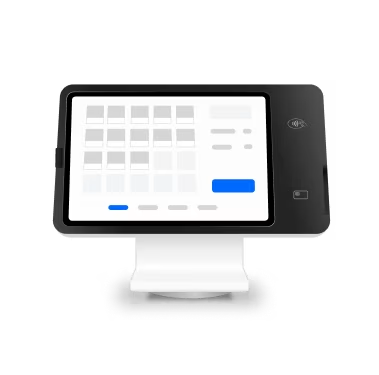
What changed: The automatic Cash App Pay QR code no longer appears on the customer-facing display of Square Register and Square Stand. Cash App Pay remains fully available as a payment method — sellers select it as a tender type during checkout, and customers scan and pay to complete the transaction.
Why it matters: Removing the automatic QR code from the buyer-facing display reduces visual clutter at checkout, so customers see a cleaner screen focused on their transaction details, loyalty prompts, and receipt options. No payment capability is lost — Cash App Pay works the same way when initiated by the seller.
Access: No action is required. The QR code is removed automatically from the customer-facing display on Square Register and Square Stand. To accept Cash App Pay, select it as a tender type during checkout — customers then scan the QR code presented at that step to complete payment.
Learn how to accept payments with Cash App Pay.
Compact tickets and font size options for printed kitchen tickets
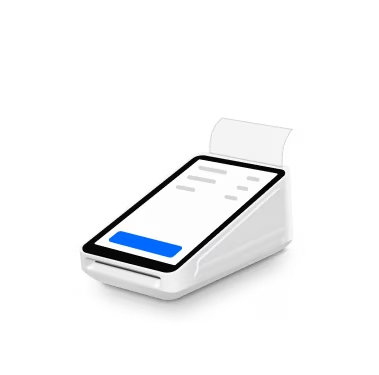
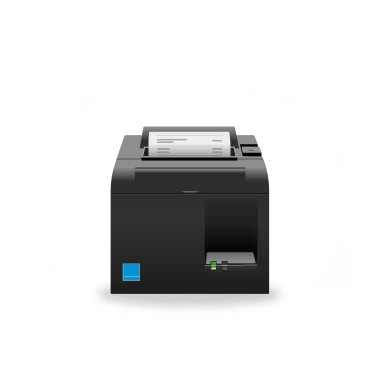
What changed: Printer profiles include two new customization options — font size (small, medium, or large) and compact tickets. Font size controls how large text prints on kitchen tickets, while compact tickets use a tighter layout with reduced top padding, designed for sticky labels on cups and to-go containers. Both options work on thermal printers only (not impact printers). Large font requires 80mm paper. These options apply to both in-person and online order tickets on iPad, Android, Square Register, Square Terminal, and Square Handheld.
Why it matters: Baristas and kitchen staff can read tickets at a glance when font size matches the environment — large text for a busy expo line, smaller text when space is tight. Compact tickets fit on coffee cup labels and to-go stickers without wasted whitespace, so your team spends less time squinting and more time making drinks.
Access: On your POS, go to Settings → Hardware → Printers → Profiles tab. Create or select a printer profile, then choose your preferred font size or toggle Remove Top Padding for the compact layout.
Learn how to print order tickets from your point of sale.
Learn how to set up printer profiles.
Learn how to connect a printer to your point of sale.
Team Management permission includes Authorized Representative profiles
What changed: Team members with the Team Management permission can manage all staff profiles, including Authorized Representative profiles. Previously, only account owners could view or edit Authorized Representative details — that restriction has been removed for team members who hold this permission.
Why it matters: If you're an owner who isn't involved in day-to-day operations, you can delegate staff management entirely to a trusted team member. They can handle onboarding, profile updates, and Authorized Representative changes without needing you to step in.
Access: Grant the Team Management permission to any team member via Square Dashboard → Staff → Permissions. Once enabled, that team member can edit all staff profiles, including Authorized Representatives, from the same Staff section.
Learn how to add and manage authorized representatives.
Fulfillment workflows for food and beverage sellers on Square POS
What changed: Square Point of Sale in Restaurant mode supports structured fulfillment workflows for in-store, pickup, and delivery orders. Cashiers select a fulfillment method at order start or before payment, and recipient details — name, phone number, and delivery address — are captured directly in the cart. Paid orders on POS get the same status updates, search, and filtering as online and third-party orders, with KDS changes flowing through to Order Manager. Sellers can send "order ready" text notifications from Order Manager or POS without requiring a KDS. Customer details (name, phone, address) print on kitchen tickets and receipts for delivery, pickup, and in-store orders across thermal and impact printers, reprints, and digital receipts. Existing dining options are mapped to the new structured fulfillment types with no seller action required.
Why it matters: Phone-in pickup and delivery orders no longer require sticky notes or workarounds — recipient details live in the order itself and print on every ticket. The mandatory fulfillment prompt prevents packaging mistakes and tax miscalculations in jurisdictions where dine-in and takeout carry different tax rates. Delivery orders with printed addresses remove a major blocker for sellers running in-house delivery, and unified order tracking means pickup and delivery orders appear in the correct Order Manager views instead of getting stuck under dine-in.
Access: Available to sellers using Square POS in Restaurant mode (Full Service, Quick Service, and Bar) in the US, Canada, Australia, the UK, and Ireland. To configure fulfillment methods, go to Square Dashboard → Settings → Fulfillment. Order-ready texts can be triggered from Order Manager or directly from POS — no KDS setup is required.
Real time check view for food and beverage sellers (open beta)
What changed: Real Time Check View introduces a split-pane checkout experience for F&B modes. Item details stay on the left while the cart updates in real time on the right as items are configured. You can switch between items while customizing and have edits saved automatically — no need to confirm or back out before moving to the next item.
Why it matters: During a rush, switching back and forth between item configuration and the cart slows service and introduces errors. With the full order visible alongside item details, you can verify selections, quantities, modifiers, and prices as you build each order. This layout also supports upcoming nested modifiers for more complex item customization.
Access: Real Time Check View is available as an open beta through Early Feature Access on your Square Dashboard. Go to Square Dashboard → Early Feature Access to enable it.
Learn how to set up and manage Real Time Check View for restaurants.
Learn how to customize item details settings.
Service-level appointment deposits to reduce no-shows
What changed: Appointment deposits can be configured per service rather than as a single global setting. You can require different deposit amounts for different services — so a 30-minute consultation and a two-hour session don't have to carry the same deposit requirement.
Why it matters: When clients put money down at booking, they're far more likely to show up. Service-level deposits let you match the deposit to the value of the appointment, so you're not over-charging for quick visits or under-protecting your time on longer, higher-value services.
Access: Go to Square Dashboard → Appointments → Settings to configure deposits on a per-service basis. Deposits are collected from clients at the time of booking.
Time-based availability for menu groups on Square Online
What changed: Menu groups on Square Online support time-based availability hours. You can configure individual menu groups — such as "Brunch" or "Happy Hour" — to display only during specific days and times. Buyers see orderable items by default based on the current time, with an "All Items" option to browse the full menu.
Why it matters: You can control which menu groups appear to buyers based on time of day and day of week, using the same group-level scheduling that works across other ordering channels.
Access: Go to Square Dashboard → Items → Items & menus → Menus, then select a menu group to configure its availability hours.
Learn how to create and update menus.
UPS shipping with discounted rates available on Square Dashboard
What changed: Square sellers can create a UPS account directly from Dashboard and ship with UPS's pre-negotiated rates as a built-in benefit of integrated shipping. Previously, accessing UPS rates required bringing your own UPS account and connecting it through a third-party integration — this removes that step and offers discounted rates without any separate negotiation.
Why it matters: If you've been shipping at retail rates or managing a separate UPS account outside of Square, you can consolidate your shipping workflow in Dashboard and pay lower rates on UPS shipments. You don't need to call UPS or negotiate a contract — the discounted rates are available as part of your Square integrated shipping setup.
Access: Available to all U.S. Square sellers using integrated shipping. To enable, go to Dashboard → Account & Settings → Fulfillment methods → Shipment → Shipping carriers, select UPS, and follow the account connection flow.