

Release notes
Vol 16 | November 5, 2026 | v 7.32
Draggable ticket reordering, Expo course firing, faster account switching, and more
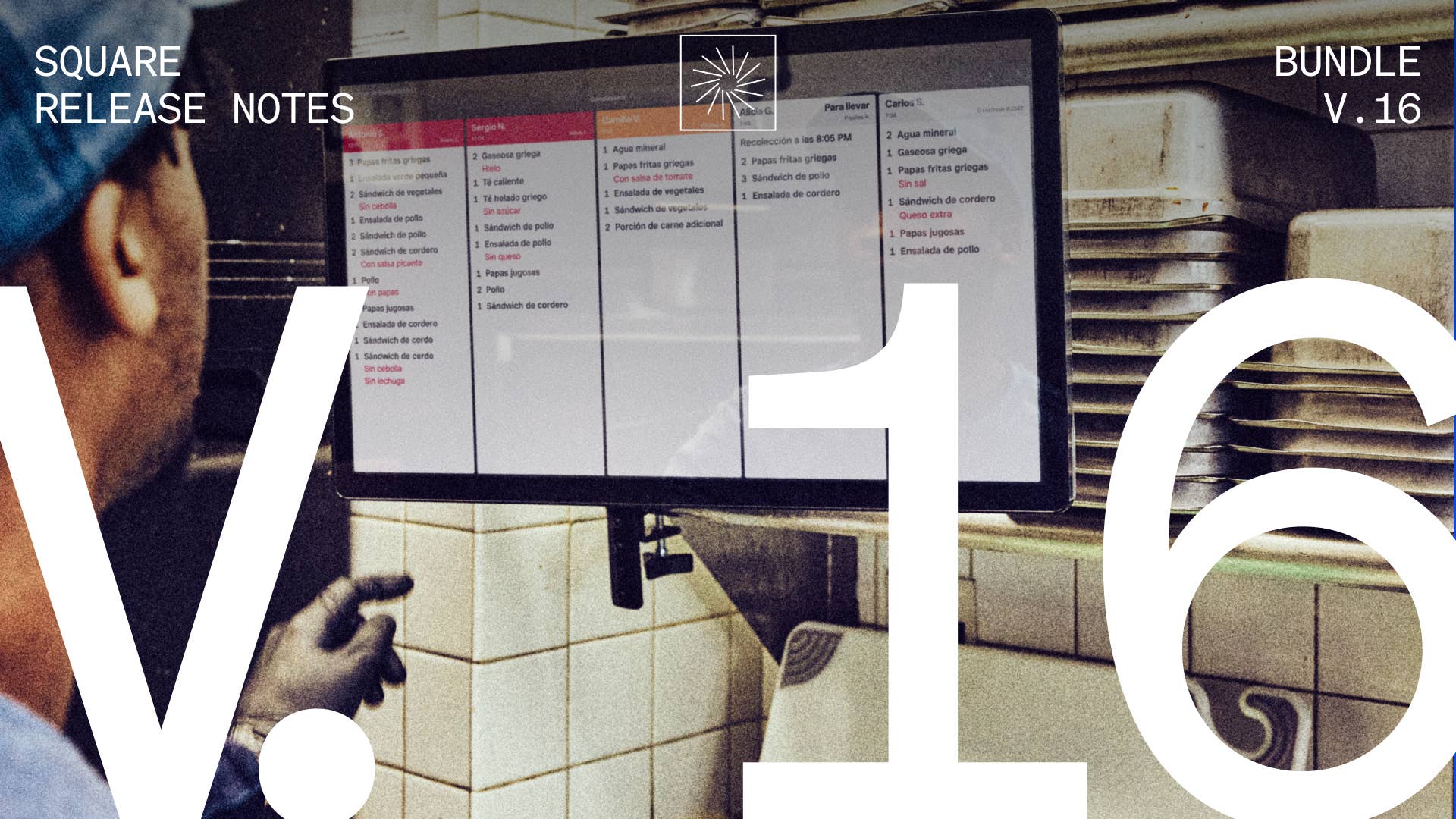
- Drag kitchen tickets into a new sequence on Kitchen Display System (KDS)
- Fire held courses from an Expo Kitchen Display System (KDS)
- Switch faster between Square accounts in Dashboard
- Sync reservations, guests, and checks with Resy Powered by Tock
- Accept bank payments on Payment Links
- Set item option colors from the item page
- Split pooled tips by points assigned to each role
- Hide $0 items from printed customer receipts
- Select a Treasury Tipped Occupation Code on the Tax forms page
Drag kitchen tickets into a new sequence on Kitchen Display System (KDS)
What changed: Kitchen staff drag a ticket to a new position on the KDS screen, and the screen shows the ticket moving as it’s dragged. The new sequence is saved and syncs to other KDS devices at the same location that use the same sort mode. Dragging works on Prep and Expo KDS screens.
Why it matters: The sequence tickets arrive in doesn't always match prep priority. Moving the ticket that has to go first to the top lets the kitchen work it next while the rest of the line stays in sequence.
Access: On each KDS device, go to Settings > Layout > Ticket sequence and select Manual. Select Default to turn off dragging on that device. Sequence changes made on other devices still sync to it.
See how to set ticket sequence on KDS: Video / Article
Fire held courses from an Expo Kitchen Display System (KDS)
What changed: Kitchen staff fire a held course from an Expo KDS by tapping the course header. A short countdown runs before the course fires, and a second tap during the countdown cancels it.
Why it matters: The expeditor watches the pass and decides when the next course should start cooking. Firing a held course from the Expo KDS keeps that call at the station where it's made, without stepping away to Point of Sale mid-service.
Access: In Dashboard, go to Service Settings > Courses > Hold/Fire and turn on Allow Firing from Expo KDS. The setting is turned on separately for each location.
See how to fire held courses from an Expo KDS: Video / Article
Switch faster between Square accounts in Dashboard
What changed: An always-visible account selector in Dashboard switches directly between Square accounts.
Why it matters: Switching between multiple businesses no longer requires a return to Launchpad.
Access: The account selector appears automatically for owners and team members added to two or more Square accounts. No setup is needed.
See how to switch between Square accounts in Dashboard: Video / Article
Sync reservations, guests, and checks with Resy Powered by Tock
What changed: Once the integration is turned on, marking a party seated in Resy Powered by Tock opens a Square check with the guest name, party size, table, and server (if assigned) already on it. Reservation, guest, table, item, check, tax, and payment details stay in sync between the two systems in real time. Work on that check updates course progression in the Tock dashboard app, and closing it marks the reservation paid. Guest notes, tags, dietary restrictions, deposits, and prepayments carry into Square as well.
Why it matters: A restaurant's reservation book and its checks are two separate records of the same table. Keeping the two in sync means nobody retypes a guest's details at the counter or closes out the reservation by hand.
Access: A Square Premium plan is required in order to access floor plans. To get started, head to the Resy Powered by Tock listing on the Square App Marketplace. Available in the US.
See how reservations and checks move between Square and Resy Powered by Tock: Article
Accept bank payments on Payment Links
What changed: Customers pay a Payment Link from their bank account with an Automated Clearing House (ACH) bank payment, in addition to paying by card. The customer connects and authorizes their bank account through Plaid as part of paying the link.
Why it matters: Larger payments are often collected remotely, and some customers pay those from a bank account rather than by card. A Payment Link that takes bank payments lets a seller send one link and collect the full amount without a card involved.
Access: On by default for eligible US sellers. To turn off bank payments, go to Payment Links settings in Dashboard. The setting also applies to Payment Links created through the Checkout API. Subscription Payment Links don’t offer bank payments.
See how bank payments on Payment Links work: Video / Article
Set item option colors from the item page
What changed: A color picker sits next to each color-based option on the item page, so sellers set swatch colors while creating or editing the item.
Why it matters: Products sold in several colors need a swatch for each one. Choosing those colors on the item page keeps color setup part of creating the item, so the catalog entry is finished in one sitting.
Access: In Dashboard, open an item and add or edit a color-based option to choose its colors.
See how to set item option colors in Dashboard: Video / Article
Split pooled tips by points assigned to each role
What changed: Sellers assign a point value to each role in a tip pool, and pooled tips are divided in proportion to those points. At the end of a shift, the points for participating team members are added together, and each person's share of the pool follows their own point total. Points-based splitting sits alongside equal, percentage-by-job, and hours-worked splits.
Why it matters: Responsibility varies from one role to the next, and sellers want the tip split to follow it. Weighting each role with points lets the split track the roles a seller has already defined.
Access: In Dashboard, go to Staff > Tips settings and set a point value for each role in the pool.
See how points-based tip pooling works: Article
Hide $0 items from printed customer receipts
What changed: Sellers choose whether items added at $0, like a complimentary basket of bread or a glass of water, print on customer receipts. Printed receipts list $0 items unless a seller turns this off. Paid items, items discounted or comped to $0, and $0 items with a paid modifier still print. Kitchen tickets, merchant copies, transaction records, reports, exports, and email and text receipts include $0 items either way.
Why it matters: Free items get added to an order so they reach the kitchen. Keeping those $0 lines off the printed receipt shows the customer what they paid for, while the kitchen still gets the full order.
Access: Available to a limited group of sellers in the US and the UK. In Dashboard, go to Settings > Account & Settings > Payments > Receipts and turn off Show $0 Items. The setting applies to printed customer receipts from Point of Sale on iOS and Android and on Square hardware.
See how to hide $0 items from printed receipts: Video / Article
Select a Treasury Tipped Occupation Code on the Tax forms page
What changed: You can select your tipped occupation in Square Dashboard to prepare your 2026 tax forms for the federal No Tax on Tips deduction.
Why it matters: If you qualify, the deduction could lower your federal income taxes on tips earned. Selecting an occupation helps ensure tax forms include the information needed to claim it.
Access: Available to US individual and sole-proprietor sellers. In Dashboard, go to Account & Settings > Business > Tax forms and select an occupation in the Treasury Tipped Occupation Code section by December 31, 2026.
This message is for informational purposes and isn’t tax or legal advice. Eligibility for the No Tax on Tips deduction depends on individual circumstances. For guidance specific to you or your business, consult a tax or legal professional.
See how to select a Treasury Tipped Occupation code: Video / Article