



Release notes
Vol 9 | July 30, 2026 | v 7.18
EBT payments, scheduled feature installs, deeper POS customization, and more
- Accept EBT/SNAP payments at checkout
- See new releases and schedule installs from Point of Sale and Dashboard
- Add more applets to the Point of Sale bottom navigation
- Align prep times across stations on Kitchen Display System
- Choose how identical items appear in the cart on Point of Sale
- Customize barcode label layout and content
- Assign printer profiles directly to new printers
- Reopen paid checks in Square for Restaurants on Android
- Reorder modifier sets per item on Kitchen Display System
Accept EBT/SNAP payments at checkout
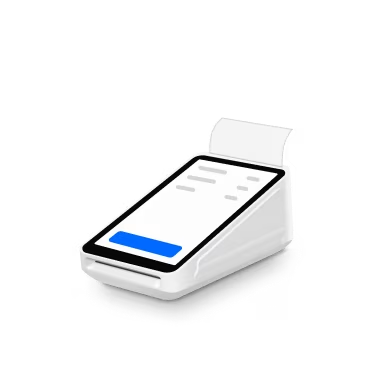
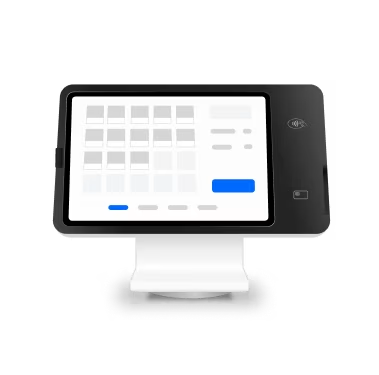
What changed: SNAP EBT payments can be accepted at checkout on Square Register, Terminal, or Handheld in Retail mode. Square detects EBT cards automatically, removes taxes from SNAP-eligible items, and splits the tender when a cart mixes eligible and non-eligible items. If a customer's EBT balance falls short, Square automatically charges the available amount and prompts for another payment method for the rest.
Why it matters: Sellers can serve EBT customers on the same device as everyone else, and Square handles the taxes and split tenders automatically. Checkout stays quick and simple for staff and customers.
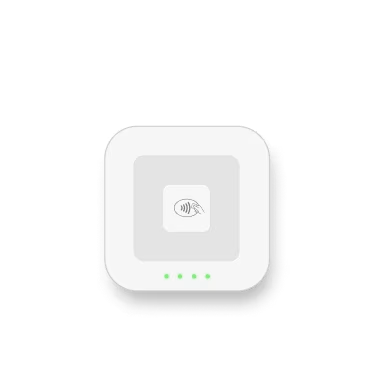
Access: This feature is in open beta for US sellers with an active FNS number issued by the USDA. To get started, run devices in Retail mode and tag items as SNAP-eligible in the item catalog — EBT then appears as a payment option at checkout. Swiping EBT cards requires a compatible Square Reader alongside chip-and-tap devices. Valid USDA FNS authorization required. Terms apply.
See how to enable EBT per location and mark SNAP-eligible items: Article
See new releases and schedule installs from Point of Sale and Dashboard
What changed: Release notes, recent launches, and upcoming features all live in one place: a What's New section on Point of Sale and Dashboard. Updates can also be scheduled to install at a chosen time within a given window.
Why it matters: Staying on top of what's new is the easiest way to get more out of Square — it's quick to check right where the work already happens, and when timing matters, there's the option to choose when updates go live for your business.
Access: Find the What's New section after logging in to Dashboard or opening the Point of Sale app.
See how to schedule feature installs: Video
Add more applets to the Point of Sale bottom navigation
What changed: The bottom navigation bar on Point of Sale can hold more applets, putting frequently used tools one tap from the main screen. Any applet from the More menu can be pinned.
Why it matters: Sellers who rely on specific tools throughout the day — whether for managing orders, checking reports, or handling team tasks — previously had to tap into the More menu each time. Pinning those applets to the bottom navigation keeps them one tap away, so staff can get to the right tool instantly — even mid-rush.
Access: Tap More in the Point of Sale bottom navigation bar, then choose which applets to add.
See how to pin applets to the bottom navigation: Article
Align prep times across stations on Kitchen Display System
What changed: Staggered item prep times on Kitchen Display System (KDS) coordinate across every station, timing each item against the whole order — not just one station's screen. Quick items wait on longer dishes, expeditor screens match prep-station timing, and the order finishes together. If a dish finishes early or drops off the order, waiting stations get an orange alert to start right away.
Why it matters: Food for the same order comes up together — the salad hits the pass as the steak comes off the grill — so everything goes out hot and customers get their whole order at once.
Access: Square for Restaurants with KDS devices is required. Turn on Staggered item prep times on each device under Settings > Prep timing, and set prep times on items in Dashboard or use a default prep time for the location. If the setting is already on, cross-station timing applies automatically.
See how to align prep times across stations: Video
Choose how identical items appear in the cart on Point of Sale
What changed: Sellers can turn off the Consolidate identical items in cart setting on Point of Sale so each instance of the same item appears on its own line rather than merging into a single grouped line. The setting is configurable per mode — a quick-service counter mode can show items individually while a table-service mode keeps them consolidated.
Why it matters: When a customer orders three of the same sandwich with different modifications, staff tap straight into the one that needs changing — each item already has its own line.
Access: All Food & Beverage modes are supported — full service, quick service, bar, and drive-thru. Item grouping is on by default. To show identical items on separate lines, go to More > Checkout > Cart on Point of Sale.
See how to manage item grouping per mode: Article
Customize barcode label layout and content
What changed: Fields on barcode labels printed from Square Register — item name, SKU, price, supplier info, and more — can be chosen and arranged to match how the operation runs. Font size and label sizing are adjustable, so each label can be as dense or as readable as the shelf calls for.
Why it matters: A store stocking items from dozens of suppliers can put the supplier code and unit price on every shelf label, right where staff expect them — the whole workflow, from catalog to printed label, stays in Square.
Access: On Square Register, set up label layouts from the barcode printing options. Available on Square Plus plans and above.
See how to customize barcode labels: Video / Article
Assign printer profiles directly to new printers
What changed: The quick setup option for printers only appears when no printer profiles exist. Sellers who already have profiles assign one directly to a new printer instead of seeing the quick setup prompt.
Why it matters: A restaurant with profiles for the bar, kitchen, and expeditor station keeps its printer list exactly as configured — adding a printer means assigning an existing profile, not cleaning up a generic default.
Access: No action is needed. Sellers with printer profiles see the profile assignment option when connecting a new printer; sellers without any still see quick setup.
Reopen paid checks in Square for Restaurants on Android
What changed: A recently paid check can be reopened from the order's details on Square for Restaurants for Android. Staff add or edit items, then keep the check open or close it again. The new total settles against the original card authorization — no need to ask for the customer's card.
Why it matters: A table orders another round after the check closes, or a server catches an item rung up late — everyday moments at full-service restaurants and bars. Staff reopen the check, make the change, and settle against the original payment.
Access: This feature requires the Reopen and keep check settlement setting on Square for Restaurants for Android. Reopen a check from the Paid tab in Order Manager while the original payment is still awaiting settlement.
See how to reopen a paid check: Video / Article
Reorder modifier sets per item on Kitchen Display System
What changed: Modifier sets can display in a custom order per item, set from Dashboard. The sequence applies to both Kitchen Display System (KDS) screens and KDS printed tickets, so modifiers appear in the same position on every ticket regardless of how they were rung in on Point of Sale.
Why it matters: When modifiers hold the same order on every ticket no matter how they were rung in, cooks know exactly where to look, and that keeps the line moving.
Access: In Dashboard, go to Item Library and select an item, and then set the modifier set order in the Kitchen Display System section under Modifiers.
See how to arrange modifiers on kitchen tickets: Video / Article