



Release notes
Vol 2 | April 23, 2026
Product updates across inventory, orders, and payments
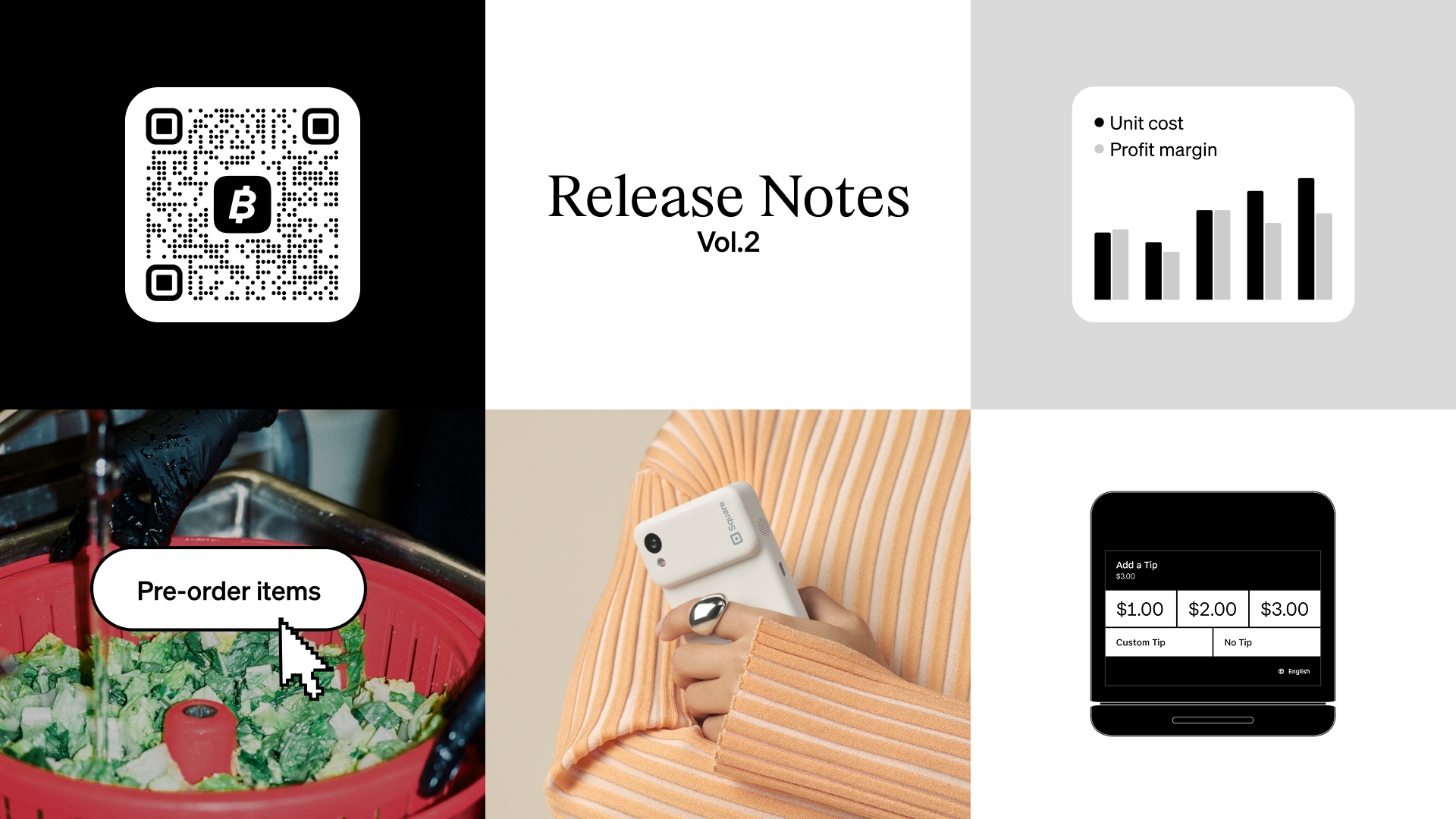
- Item pre-ordering configuration for online ordering profiles
- Item and menu editing now respects team member location permissions
- Item availability status visible in your Item Library on Dashboard
- Full inventory counts now available on Square Terminal
- View price and profit margin in the POS inventory receive flow
- Faster order syncing on Square Point of Sale for iOS and Android
- Tip prompts now appear before payment for US sellers
- Bitcoin payments auto-enabled for new Square sellers
- Redeem Square Credit Card rewards directly to Square Savings
Item pre-ordering configuration for online ordering profiles
What changed: You can now configure item pre-ordering directly from the add/edit item page in your Square Dashboard. When items require advance preparation or have specific fulfillment windows, you can set pre-order availability so buyers know upfront when those items can be picked up or delivered. The system also alerts buyers at checkout if items in their cart can't be fulfilled together — for example, when two pre-order items have non-overlapping fulfillment windows.
Why it matters: If you sell items that need lead time — like custom cakes, catered platters, or specialty dishes — your customers need to know before they check out whether their order can actually be fulfilled. Without pre-ordering configuration, a buyer might add a made-to-order item and a same-day item to the same cart with no indication that they'll arrive at different times (or that the combination isn't possible at all). This update gives buyers clear fulfillment expectations and reduces orders you'd otherwise need to cancel or manually coordinate.
Access: Go to Items on your Square Dashboard, then select the item you want to configure. Pre-ordering settings are available from the items edit page. This feature applies to orders placed through your online ordering profiles.
Item and menu editing now respects team member location permissions
What changed: If your business operates across multiple locations, item and menu editing now respects each team member's assigned location permissions. Team members can only edit items, assign modifier sets, update price overrides, create new items, and run bulk actions for the locations they have access to. Menus also follow these same location restrictions, so a team member who manages one location won't accidentally change menu configurations for another.
Why it matters: For businesses with multiple locations, a menu change intended for one spot could previously affect another — like a manager at your downtown café updating a price override and unintentionally changing it at your airport location too. Now, item and menu edits stay scoped to the locations each team member is responsible for, so your locations can operate independently without stepping on each other.
Access: These permissions apply automatically based on the location access you've already configured for each team member. To review or update location assignments, go to Staff > Team members on your Dashboard and select a team member to adjust their location access. No additional menu setup is required — menus will follow the same location restrictions as your item catalog.
Item availability status visible in your Item Library on Dashboard
What changed: Your Item Library on Dashboard now displays availability status pills for each item, giving you a quick view of whether items are available, sold out, or hidden — without opening each item individually. Clicking on a status pill opens a popover (or a modal for multi-location and multi-variation items) where you can update availability and inventory tracking settings directly from the list view.
Why it matters: Previously, updating item availability meant opening each item's detail page one at a time. Now you can scan your full catalog and make bulk availability changes right from the Item Library list view, which is especially useful when you need to mark seasonal items as sold out or quickly hide items across locations during a rush.
Access: Go to Dashboard > Items > Item Library. Look for the status pills in the Status column. If you don't see the Status column, click the + icon above the item list to view hidden fields and enable it. Click any status pill to open the popover or modal and update availability from there.
Full inventory counts now available on Square Terminal
What changed: You can now perform full physical inventory counts directly on Square Terminal. Scan items, reconcile quantities, and finalize counts — all from your handheld device. Previously, full inventory counts were only available on iOS devices, which meant you needed a separate iPad or laptop to complete them.
Why it matters: If you've been pulling out a laptop or borrowing an iPad every time you need to do a full count, this update removes that extra step. You can walk your stockroom or sales floor with your Square Terminal in hand, scan barcodes, update quantities, and finalize the count on the same device you use to check out customers.
Access: Full inventory counts on Square Terminal are available in open beta.
View price and profit margin in the POS inventory receive flow
What changed: When you receive inventory on Square Point of Sale, you can now see price and profit margin columns alongside your stock details. These margin and price fields appear in two places within the inventory applet: the receive flow (where you log incoming stock) and the stock overview page. Both are view-only for now — you can reference your margins as you receive items, but editing prices directly from this screen will come in a future update.
Why it matters: Knowing your margin at the moment you're receiving new inventory helps you spot pricing issues before items hit the shelf. If a supplier raises costs, you'll see the impact on your margin right away — so you can decide whether to adjust your retail price before you start selling, rather than discovering the squeeze in your reports weeks later.
Access: Open the inventory applet on Square POS, then go to the receive flow or the stock overview page to see the new price and margin columns. This feature is available on the Square Plus plan.
Faster order syncing on Square Point of Sale for iOS and Android
What changed: Orders now sync to Square Point of Sale much faster than before on both iOS and Android devices. Whether an order comes in from Square Online, a delivery app, or another sales channel, it will appear on your POS significantly faster than it did previously. This improvement applies across all POS modes — Standard, Quick Service, Full Service, Bar, and Services.
Why it matters: When online or pickup orders are slow to appear on your POS, your team may not see them in time to acknowledge or act on them. Faster syncing means orders show up closer to real time, so your staff can stay on top of incoming volume without refreshing screens or wondering whether something came through.
Access: This update applies automatically to Square Point of Sale on iOS and Android — no setup or configuration changes are needed. Pickup orders are now visible on your POS as part of this update.
Tip prompts now appear before payment for US sellers
What changed: Customers will soon select a tip amount before they pay, not after. Previously, tips were collected after the payment was completed — or not at all. With this update, the tip screen appears earlier in the checkout flow, while the customer is still at the counter and engaged.
Why it matters: When tipping happens after checkout, customers have often already walked away or moved on — which means missed gratuities for your team. Tip before payment captures tips in the moment, when customers are most likely to add one.
Access: Tip before payment is now available for all US sellers who collect tips on a screen. Over the coming months, this will become the default checkout flow — no action needed. If you only collect tips on paper receipts, nothing changes. For more details on managing tips, visit https://squareup.com/help/us/en/article/8375-settle-payments-and-manage-tips.
Bitcoin payments auto-enabled for new Square sellers
What changed: Starting March 16, bitcoin is automatically enabled as a payment method for all new Square sellers. When a customer pays with bitcoin, the payment is converted to US dollars and deposited into your Square balance — you don't hold bitcoin unless you choose to. Bitcoin payment acceptance, conversion details, and a marketing kit are now part of the onboarding experience in Business Hub, and a new spotlight in the Bitcoin section of your Dashboard highlights the next step to take.
Why it matters: Accepting bitcoin gives your customers another way to pay at checkout without changing how you receive your funds. Since payments are converted to USD by default, you can offer an additional payment method without managing cryptocurrency yourself.
Access: Access: New sellers will find bitcoin payments enabled automatically. This feature is not available to sellers based in New York.
Redeem Square Credit Card rewards directly to Square Savings
What changed: If you have a Square Credit Card, you can now redeem your cash back rewards as a deposit directly into your Square Savings account. Rewards are transferred instantly and begin earning APY as soon as they land in your Savings balance.
Why it matters: Previously, redeeming credit card rewards meant moving them to your Square balance and deciding what to do with them from there. Now you can send rewards straight to Savings, where they earn interest automatically. Over time, this gives your rewards a chance to grow — without any extra steps on your part.
Access: You'll need an active Square Credit Card and a Square Savings account to use this feature.