

Table of contents
Our digital economy has made it easier than ever to sell online. But with this convenience comes increased risk of payment fraud, particularly for card-not-present transactions. For Australian businesses, having robust fraud prevention isn’t just nice to have, it’s essential for protecting your revenue and reputation.
Here’s how Square Risk Manager helps you stay ahead of fraudsters while keeping legitimate sales flowing smoothly.

What is Risk Manager?
Risk Manager is Square’s integrated fraud prevention tool that lives directly in your Dashboard. It uses advanced machine learning to monitor transactions across all your Square payment channels including Online Store, Payment Links, eGift Cards, Invoices, Buyer Subscriptions, Appointments and Virtual Terminal, to help detect and stop suspicious activity before it impacts your business.
Square also runs internal fraud prevention rules on all payments by default. Risk Manager is free for all sellers and adds an additional layer of protection, giving sellers more control to calibrate their risk tolerance and tailor fraud defenses to their business needs.
How Risk Manager Protects Your Business
Powered by advanced machine learning, Risk Manager analyses multiple risk signals in real time to help you proactively detect and prevent fraud before it impacts your business.
-
Smart Signals
Every Square Online, Ecommerce API and Egift payment is automatically screened for suspicious activity, with real-time results available in your Dashboard. -
Custom Flexibility
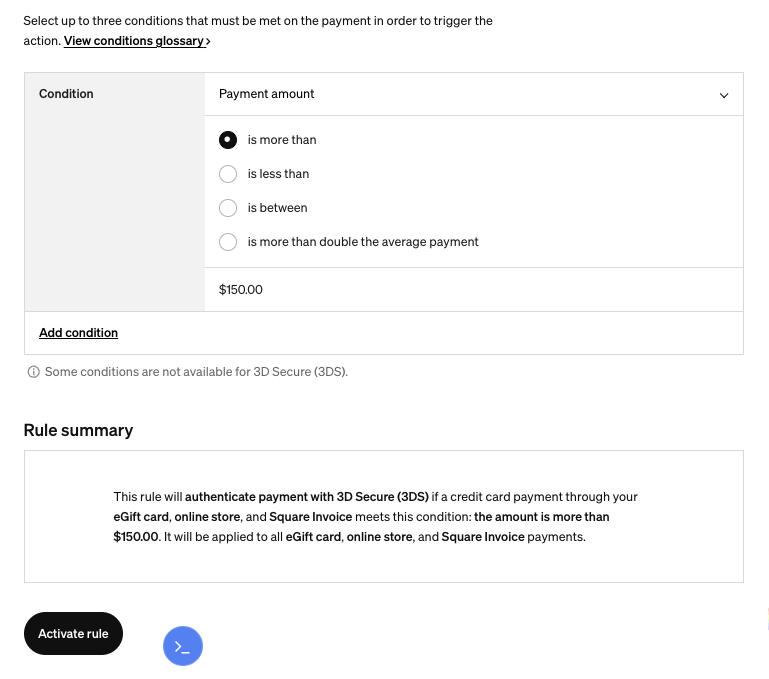
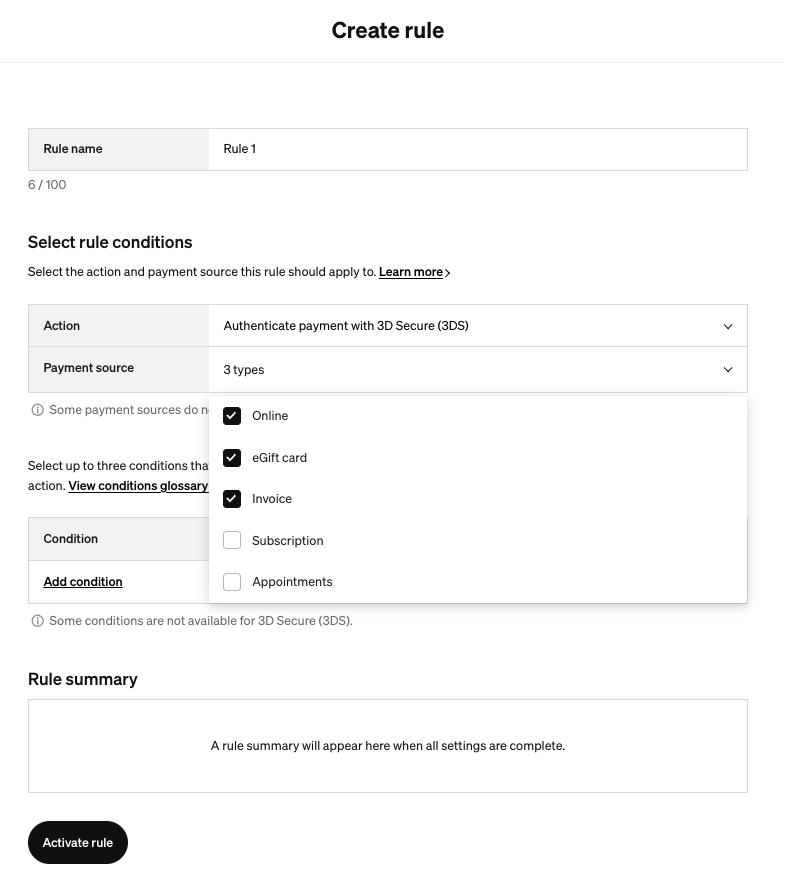
You’re in control. Set up rules that automatically decline, Invoke 3DS or flag payments based on the signals best for your business.
For example, an online clothing store might choose to invoke 3D Secure (which we will explore further down) for ecommerce transactions that exceed its typical order value or when billing and shipping addresses do not match. A café or restaurant may require 3D Secure for card-not-present payments that are above its average ticket size, such as prepaid group bookings or larger online orders, to help reduce the risk of chargebacks.
The right configuration depends on your business model and your risk tolerance. Some businesses may apply stricter rules to minimize chargebacks, while others may take a lighter approach to maintain a smoother checkout experience.
-
Cost-Effective Security
-
No additional fees
-
Reduced risk of costly chargebacks
-
Protection across all card-not-present Square payment channels like online store payments and invoice payments
Strengthen Your Protection with 3D Secure
Want even stronger protection against fraud?
Another common form of fraud occurs when a stolen or compromised card is used to complete a legitimate-looking transaction, which later results in a chargeback.
3D Secure (3DS) is a powerful feature that helps protect your business from fraud chargebacks. With 3D Secure, the card issuer verifies the customer’s identity before payment completes. You may have seen this in some of your online purchases – a bank or card verification pops up requesting you to log in or sending you a one-time pin code to verify that you are in fact making the purchase. If a chargeback ever arises from a 3D Secure-verified transaction, liability shifts to the issuer, meaning you’re not out of pocket for that dispute.
|
Step 1: Customer starts the payment |
Step 2: Card issuer verifies the customer’s identity The card issuer may prompt the customer to complete one or more authentication steps |
Step 3: Payment is authorised Once authentication is successful, the transaction proceeds to authorization. If a chargeback occurs, liability shifts to the card issuer. |
How to set up Risk Manager
Setting up Risk Manager is free for all Square account users and can be enabled in just a few clicks. Once enabled, you can start customising fraud prevention rules to help protect your business.
-
Access your Square Dashboard
-
Navigate to Payments & Invoices → Risk Manager
-
Activate the service (free for Australian sellers)
-
Configure your preferred rules and alerts
Setting Up 3D Secure
Enable 3D Secure directly from your Square Dashboard under
Payments & invoices > Risk Manager > Rules