

リリースノート
Vol 1 | 2026年4月9日
Product updates across payments, menus, and sign-in
- Expanded card surcharging support for bar tabs
- Modifier sets assignable by sales channel
- Time-based menus on Square Point of Sale for food and beverage sellers
- Offline payments enabled by default so you can keep accepting payments without a connection
- Refreshed Item Details
- Passkey sign-in on the web for faster, more secure access
Expanded card surcharging support for bar tabs¹
What changed: Card surcharges now apply to bar tabs. When you open a tab by preauthorizing a card, your configured surcharge will be applied to the final payment when that tab is closed.
Why it matters: If you run a bar or restaurant with open tabs, you've likely noticed that card surcharges weren't being applied to those transactions — meaning you were absorbing processing fees on some of your busiest sales. With this update, card surcharges work consistently, whether a tab stays open for five minutes or five hours.
Access: If you've already set up card surcharging, no additional set up is required — your surcharge will apply to bar tabs automatically. Card surcharging on bar tabs is now available in the US and Australia (regional limitations apply).
Learn more about card surcharges and preauthorized bar tabs.
Modifier sets assignable by sales channel
What changed: Modifier sets can now be assigned to specific sales channels (e.g., Point of Sale, Square Online, and delivery apps).
Why it matters: Not every modifier makes sense in every channel. Now you can keep in store only options off your online menu (and vice versa) without creating separate modifier sets.
Access: Go to Items > Modifiers on your Dashboard and choose which channels each modifier set applies to. Disabling the Point of Sale sales channel will only affect POS versions 7.2 and later.
Learn more about assigning channels to your modifiers.
Time-based menus on Square Point of Sale for food and beverage sellers
What changed: Time-Based Menus on POS brings automatic menu scheduling to F&B modes (Full Service, Quick Service, and Bar). The POS now auto-selects the right menu based on the time of day, restricts off-hours access to manager overrides, and keeps menus in sync across every channel.
- Auto Menu Selection — POS defaults to the first available menu based on the current time. No manual switching.
- Off-Hours Access Control — Team members without "Configure service settings" permission are blocked from off-hours menus. Manager passcode override required.
- Item Search Still Works — Staff can always find and add individual items via search, even from inactive menus — great for accommodating special requests.
- Full Channel Parity — Same menu hours now enforced across POS, Square Online, Kiosks, Ordering Profiles, and delivery apps (DoorDash, Uber Eats, Grubhub).
Why it matters: No more staff accidentally ringing up breakfast items during dinner service, or happy hour pricing outside of happy hour.
Access: Go to Items > Items & menus > Menus on your Dashboard. Find the menu you want to schedule, then click the three-dot menu (⋯) and select Edit menu details to set the menu hours.
Offline payments enabled by default so you can keep accepting payments without a connection
What changed: Starting April 12, offline payments will be enabled by default for all Square customers. If your internet connection drops or there is a Square outage, your device will automatically process card payments offline. Payments are submitted once your device reconnects. Previously, the setting had to be enabled manually on each device.²
Why it matters: Offline payments keeps your business running during internet outages or Square service disruptions. Your devices will automatically process payments even when connectivity drops, so you never have to turn customers away.
Access: Starting April 12, offline payments will be enabled by default for all sellers unless you've chosen to keep your existing settings via the Dashboard modal. You can always turn it off by going to Settings > Checkout > Offline Payment on Point of Sale or Dashboard.
Learn more about Offline Payments.
Refreshed Item Details
What changed: Starting April 9, we've updated your Item Details in the POS to have fewer taps, automatic scrolling, and more flexible item options that allow you to add quantities, create detailed customizations, and view option stock.
Why it matters: This refresh will allow a faster, more responsive checkout.
Access: Square POS in Standard and Services mode. If you're already using item details for items you sell, no additional setup is required.
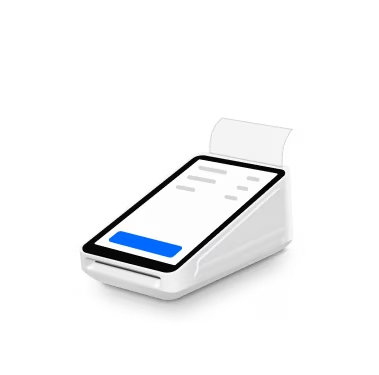
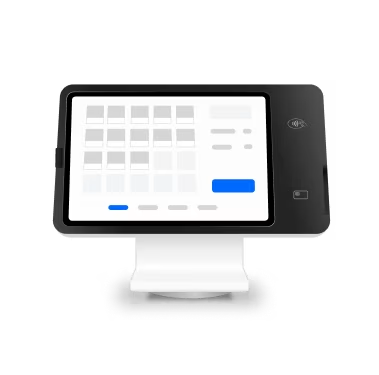
Learn more: Accept payments with Square Stand or Accept payments with Square Register
Passkey sign-in on the web for faster, more secure access
What changed: The next time you log in to Dashboard, we will automatically create a passkey to make future logins more secure.
Why it matters: Passkeys protect your account from unauthorized access.
Access: Now that a passkey is created for your account, when you visit Square from this device, we'll automatically detect your passkey and prompt you to authenticate using your device's biometric features (like fingerprint or facial recognition).
Learn more about Passkey sign-in on the web: create a passkey
¹Limitations apply. Surcharging available on Square Point of Sale, Square for Restaurants and Square for Retail. Surcharge must not be higher than your cost of acceptance. See our Payment Terms for more details.
²Offline payments are processed automatically when you reconnect your device to the internet and will be declined if you do not reconnect to the internet within 72 hours of taking your first offline payment. By enabling offline payments, you are responsible for any expired, declined, or disputed payments accepted while offline. Square is unable to provide customer contact information for payments declined while offline. Offline payments are not supported on older versions of Square Reader for contactless and chip (1st generation, v1 and v2). For help identifying your hardware, click here.