Create and sell combos
About combos
Combos are groupings of items and/or categories of items offered together at a discounted price. They can contain options across different categories, like choosing a main, side, and drink. Combos allow you to group menu items together to be sold as one, ensuring accurate inventory tracking and modifier control for each item. They are flexible so that your customers can choose which items they'd like as part of their combo at the time of checkout.
You can use combos to offer a set of items together at a discounted price, which can drive higher average order values and simplify the buying process.
There are many different ways you can use combos to help streamline and increase sales, for example:
A meal discount for a pizza and soda combo, or a sandwich, side and a drink
A big meal bundle that includes enough food to feed 3-4 people
A breakfast special with eggs, toast, and side
A flight of different wines or beers
A box of donuts or cookies
Before you begin
You can create combos using your existing items from your Square Dashboard. Before you set up combos, you need to create items. Learn how to create and edit items.
You can sell combos through:
Square Point of Sale app and Square Restaurants POS app
Square Kiosk in self-service mode
Square Websites
Online order profiles
Delivery and pickup apps like DoorDash, Uber Eats, or Grubhub
To sell combos on delivery and pickup apps, you need to set up the integration. Learn how to:
Modifiers and combos have different use cases:
Use modifiers if you need individual item customizations within the combo. Learn how to create and edit modifiers.
Use combos when you want to provide a simplified, bundled purchasing experience with predefined options and allow selection within specific categories.
[Beta] With nested modifiers, you can now build multi-level customization flows (e.g., choose a crust then choose a stuffing) without using combos. Use combos when bundling separate standalone items that need to track inventory; use nested modifiers when offering layered customization within a single item.
Create a combo
Sign in to Square Dashboard and go to Items & services (or Items & menus or Items & inventory > Items.
Click Create item.
Click Combo > Next.
-
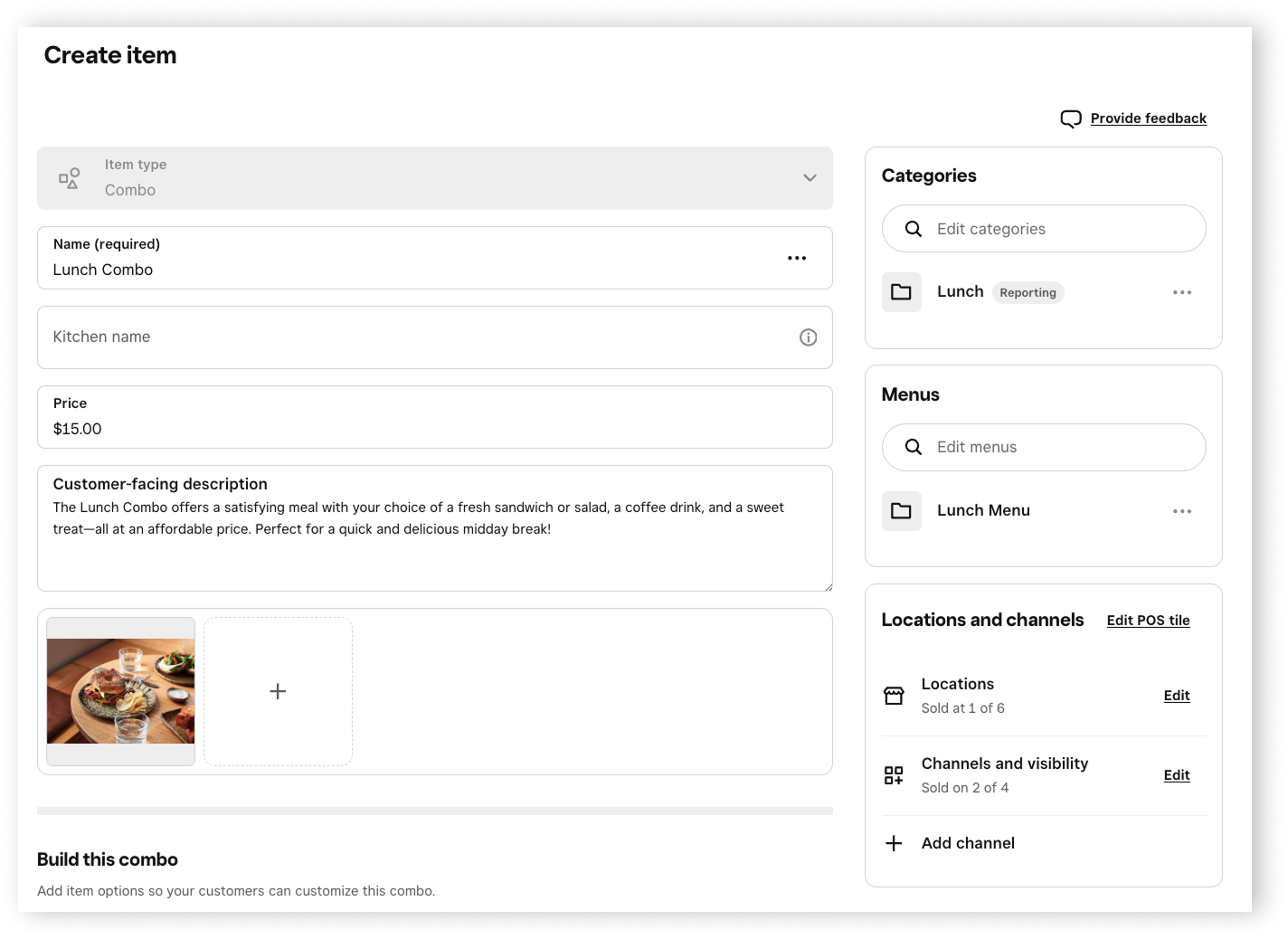
Enter the combo details: Name, Kitchen name, Price, and Description.
-
Select which Menus and Categories to assign the combo to.
-
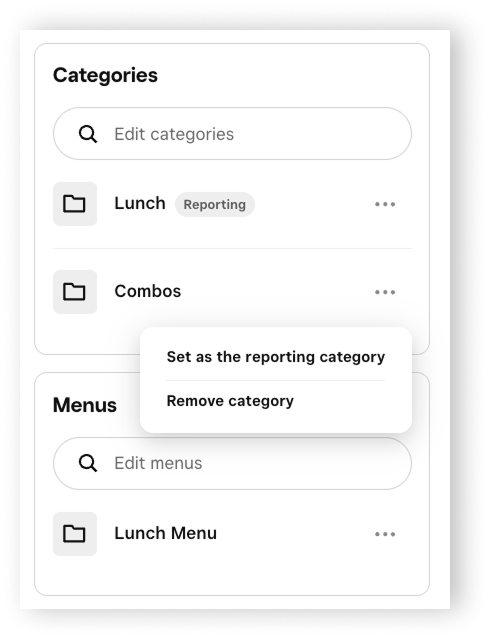
If you assign the combo to multiple categories, you can choose which category to use as the reporting category by clicking ••• > Set as the reporting category.
-
Set the Locations and channels you want the combo to be sold at.
Under Build this combo, click + Add options.
-
Check the box next to the items or categories you want to add to the option. You can add multiple options to group items and categories.
For example, if you are creating a Lunch Combo that includes a drink, a sandwich or salad, and a side, you can add each as an option with their own set of items.
Click Next.
Add discounts or upcharges for the items in the option. For example, enter "$1.00" to charge extra, or enter "-$1.00" to offer a discount. Click Next.
-
If applicable, configure the following for the combo option:
Display name. For example, enter “Drinks” as the name of the first option in a Lunch Combo.
Number of required selections. Your customer must select this number of items from this group of options.
Default option
Click Add.
-
Click + Add options to create other options for the combo. For example, add the Sandwich & Salads, and Side options for a Lunch Combo.
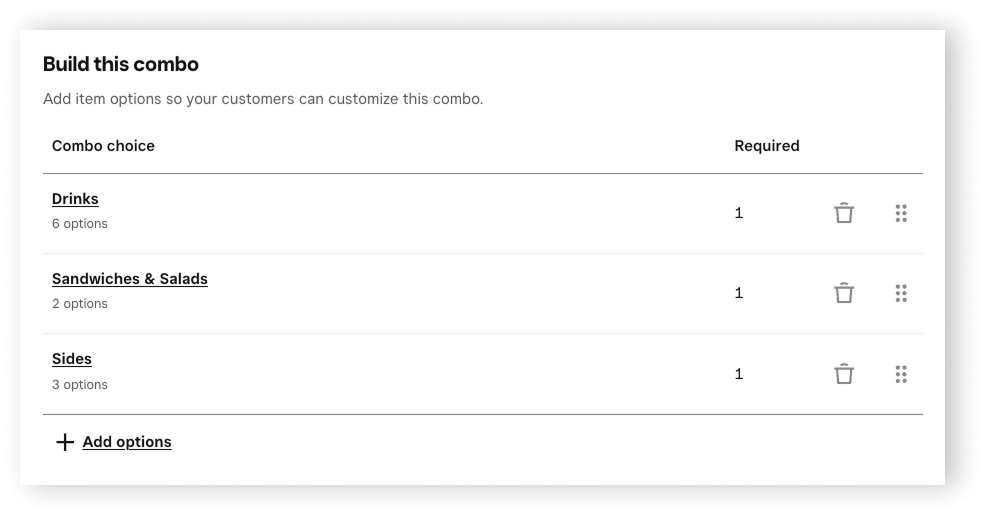
Review your combo details and click Save.
Add a combo to your POS layout
Once your combo is created, you can add it to your POS layout.
Sign in to Square Dashboard and go to Items & services (or Items & menus or Items & inventory) > Menus.
Select your menu and click Edit POS Layout.
Click any + plus icon on your menu grid then select Item.
Tick your newly created combo from the list, then click Add item.
Click Save.
Sell a combo
From the Square Point of Sale app in full service, quick service, or bar mode or from the Square Restaurants POS app:
- Open your app and tap Menu.
- Tap your combo, select Modify to make modifications, see the summary to make any changes. Tap Seat to choose a seat or tap More options to change dining options or apply a discount to the full combo.
- Tap Add to check.
- Continue with order or select Pay/Send to complete the order.
If items within a combo have modifiers, those modifiers will still be displayed and applied. For example, if a burger within a combo has toppings, those toppings (modifiers) will still appear and be applicable, even though the burger is part of the combo.
Note: If an order containing a combo item was created in full service, quick service, or bar mode, you can complete the payment using the Square POS app in standard mode.
However, in standard mode, you cannot:
- Add new combo items to the order.
- Repeat or modify an existing combo item on that order.
To make any modifications to a combo item, you must return to full service, quick service, or bar mode. Learn how to create and assign modes.
To sell combos on your self-serve station on Square Kiosk, the following must be assigned to the Kiosk:
- The combo
- The items that make up the combo
- The menu (or category) the combo is assigned to
Assign combos and items to Kiosk:
- Sign in to Square Dashboard and go to Items & services (or Items & menus or Items & inventory > Items > Item library.
- Click the item or combo you want to add to your Kiosk.
- Go to Location and channels, then click Edit next to Channels and visibility.
- Select Kiosk.
- Click Done > Save.
Repeat for all items within the combo in addition to the combo itself.
Assign an individual menu to Kiosk:
- Sign into your Square Dashboard and go to Items & menus (or Items & services or Items & inventory) > Menus.
- Click the ••• next to the menu name and click Edit menu details.
- Under Menu availability, click Edit next to Channels and select Kiosk.
- Click Save.
To sell combos from your website:
- Sign in to Square Dashboard and go to Items & services (or Items & menus or Items & inventory > Items > Item library.
- Select a combo.
- Go to Location and channels, then click Edit next to Channels and visibility.
- Select the website you want to sell combos from.
- Set Site visibility to Visible.
- Click Save.
Repeat for all items within the combo in addition to the combo itself.
To sell combos from your online ordering profile:
- Sign in to Square Dashboard and go to Items & services (or Items & menus or Items & inventory > Items > Item library.
- Select a combo.
- Go to Location and channels, then click Edit next to Channels and visibility.
- Select Ordering profile.
- Set Site visibility to Visible.
- Click Save.
Assign combos to delivery apps:
- Sign in to Square Dashboard and go to Items & services (or Items & menus or Items & inventory) > Items > Item library.
- Click the combo you want to add to the app.
- Go to Location and channels, then click Edit next to Channels and visibility.
- Select the delivery app, then click Save.
The combo should automatically sync to your delivery app. You may need to check that the combo is assigned correctly from your menus.
- From Menus, click ••• next to the menu the combo was assigned to, then click Edit menu details.
- Under Menu availability, make sure the delivery app is listed.
- If the delivery app isn’t listed, click Edit next to Channels and select the delivery app.
- Click Save.
Fulfill combos
Combos are routed to kitchen stations based on the individual components selected within the combo. Each item is sent to the station it’s configured to route to based on the printer profile settings. For example:
If a combo includes a burger, crinkle fries, and a soda:
The soda will be routed to the drink station, where the ticket will indicate it is part of the Burger Combo, and only the soda will be listed there.
The burger will be routed to the grill or hot station, also showing it is part of the Burger Combo.
The crinkle fries will go to the fry station, again marked as part of the same combo.
This setup ensures each station only sees and prepares the components relevant to them. If there’s an expo station (where everything is assembled and bagged), the full combo with all its components will be visible there for final packaging.
View combo sales in your reports
The Item Sales report shows the individual items from combos sold. Learn how to view item, category, and modifiers sales reports.
The Sales Summary report shows combo transactions, which contribute to Gross Sales & Net Sales. Learn how to view sales summary, sales trends and payment methods reports.