Set up customer accounts for your online store
About customer accounts
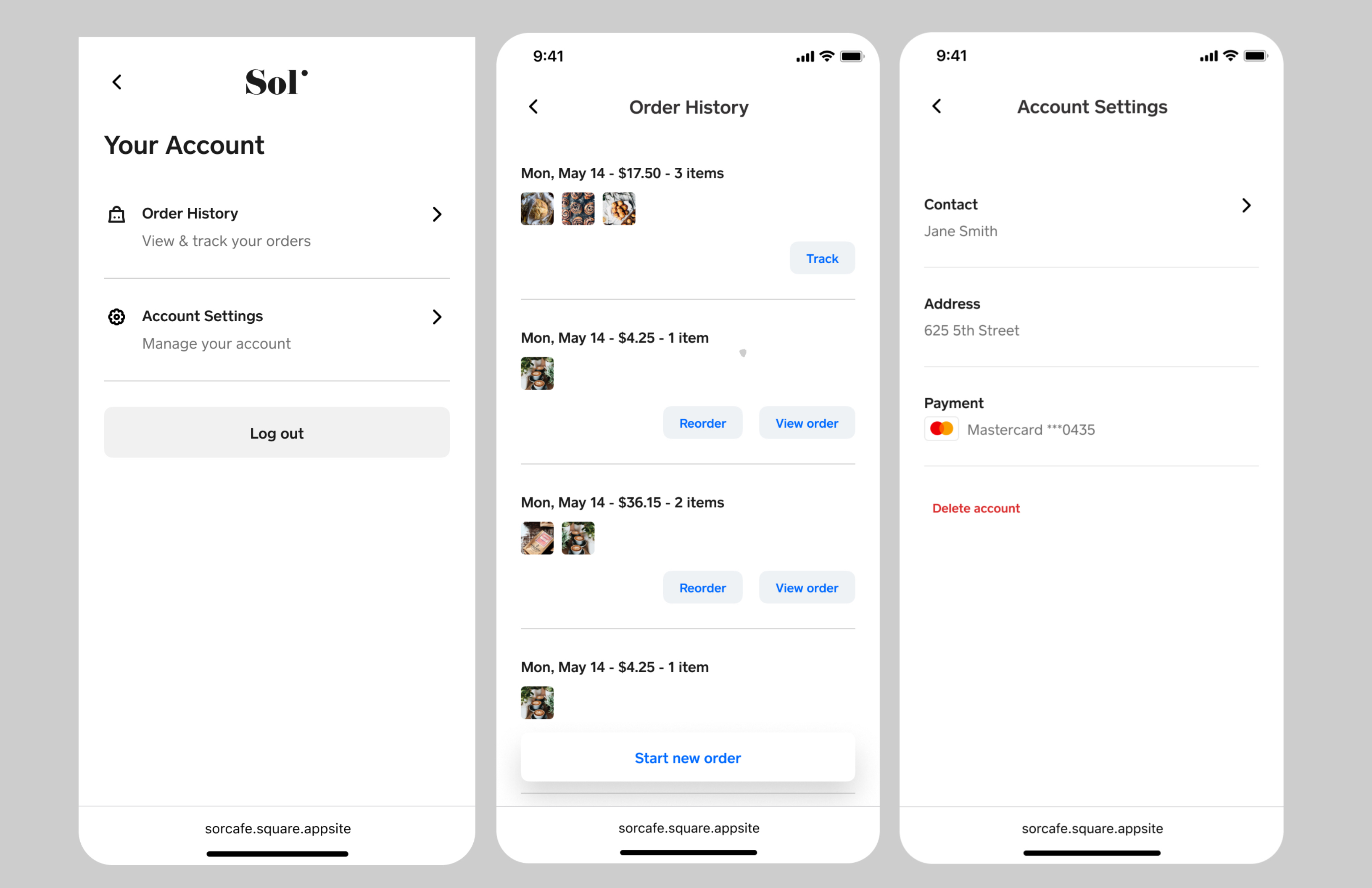
Customer accounts for Square Online is a buyer-facing feature that provides a more personalized buyer experience and helps drive repeat purchases. When buyers create a customer account, they establish a buyer account with Square that makes it easy to manage their relationship with your online business, including the ability to:
Track the status of existing orders.
Reference past orders and easily reorder their favorites.
View and edit Square Pay information for a faster checkout experience on future orders.
Before you begin
You can set up customer accounts from Square Dashboard.
To set up customer accounts, you need to take orders from a Square Online site. Learn how to set up your website.
The customer account page is in the same style as the rest of your website, including colors, fonts, and buttons. Learn how to choose styles for your website.
Customer accounts are available to buyers in the language you've chosen to publish your site in. This includes any buyer facing account terms. If your site needs to be in multiple languages, explore our integration with Weglot. Learn how to translate your Square Online site.
Turn on customer accounts
Sign in to Square Dashboard and go to Websites.
Click Settings (or Shared Settings) > Customer Accounts.
Toggle on Enable Customer Accounts.
Turn off customer accounts
When you disable customer accounts, buyers can no longer view their order history, saved addresses, or payment information on your site. Existing customer accounts are saved and accessible to buyers if you choose to re-enable customer accounts in the future.
Sign in to Square Dashboard and go to Websites.
Click Settings (or Shared Settings) > Customer Accounts.
Toggle off Enable Customer Accounts.
Buyer experience
Buyers can manage their customer accounts, as well as their Square Pay and Square profile information, whenever they log in.
Customer accounts
Every time your buyer logs in to their customer account, they can:
Confirm their card information by reviewing the last 4 digits of their saved card.
View the saved address associated with their account.
View order history from your site since the creation of their account.
View their order confirmations.
Reorder previous orders (customers can always edit the order in their cart).
Delete their account.
Square profile
Square profile interacts with customer accounts and Square Pay. From their profile at profile.squareup.com, buyers can:
View the basic details of their Square Pay card, as well as their associated phone number and shipping address.
Change which card is their primary card to be used for Square Pay (if they have multiple cards).
Add, update, or delete their phone number and email address used for Square Pay (or set a primary one if they have multiple).
Add, update, or delete their physical address used for Square Pay (or set a primary one if they have multiple).
Delete their Square Profile (requests to delete Square Profiles will also delete all linked Square Pay cards).
Delete a specific Square Pay card (deleting a card also makes the deleted card inaccessible and removes it from their Square Pay account).
Edit or delete their saved shipping address.