Manage payment options for your website
About accepting payments on your website
Square Websites works with any US-issued and most internationally-issued magstripe or chip cards, and supports mobile wallets such as Apple Pay, Google Pay, and Afterpay. Square processes all card types with the same standard rates.
Before you begin
Learn more about Square processing fees.
You can manage online payment options from Square Dashboard.
Before accepting payments online, you'll need to set up your website.
From the site editor, you can display your accepted payment methods on the footer section of your website. Learn how to manage sections on your website.
Displaying payment methods on the footer is a requirement to set up Google free and local product listings.
Accept payments on your website
Your website is automatically set up with Square’s payment processor to accept card payments during the checkout flow of your site. You can set up the following additional payment methods at any time.
Apple Pay and Google Pay make checking out from online stores quick and easy, especially on mobile devices. You can enable these digital wallets on your website at any time.
- Sign in to Square Dashboard and go to Online > Websites.
- Click Website settings > Checkout.
- Under Square, toggle on Accept Apple Pay and/or Accept Google Pay.
If you’ve enabled Apple Pay and/or Google Pay for your website but don’t see the payment options appear during checkout, try these troubleshooting methods:
- Republish your site from the site editor and refresh your live site. If you have multiple sites, you can republish one of them to update the settings on all of them.
- Disable the payment methods and re-enable them by going to your Square Dashboard > Online > Websites > Website settings > Checkout.
Note: Apple Pay will only appear if you’re using Safari as your web browser.
Afterpay gives your customers the flexibility to pay for orders between $1–$2,000 in four interest-free installments over six weeks. You get paid the full amount right away. You’re automatically enabled to use Afterpay to help boost online sales, increase average cart size, and attract new customers.
- Sign in to Square Dashboard and go to Settings > Account & Settings > Payments > Payment methods.
- Under Afterpay, click ••• > Edit settings.
- Toggle on the Online option and click Save.
The setting for online payments with Afterpay is global and will apply across all Square products that can also take Afterpay payments online.
If you want to change your accepted price range from $1–$2,000 to something different, you can do so from Square Online.
- Sign in to Square Dashboard and go to Online > Websites (or Online store).
- Click Settings (or Shared Settings) > Checkout.
- Under Afterpay, Edit the eligible range.
- Enter amounts for both items and orders. Afterpay will be shown as an option to buyers for items and orders that fall within the ranges you enter.
- Click Save.
Cash App Pay provides a simple way to accept online payments with Cash App.
- Sign in to Square Dashboard and go to Online > Websites.
- Click Website settings > Checkout.
- Under Cash App, toggle on Accept Cash App.
Learn more about how to accept payments with Cash App Pay.
Buyers can use their Square Gift Cards to make purchases on your website. Learn how to set up and order gift cards.
You can also sell gift cards from your Square Online site to drive repeat business. Learn how to sell and send gift cards.
Automatically save buyer payment details with Square Pay
Square Pay offers a convenient way for buyers to save and reuse their payment and contact details when making purchases on any Square website. When checking out, buyers can opt in to Square Pay by providing their email and mobile phone number. This links their saved information—including their name, address, payment card details, and preferred payment method—to their Square profile.
Once a buyer has opted in, they can easily access their saved information for future orders on any Square website via a confirmation email. Buyers have full control over their data and can delete their information at any time.
Disable online payments
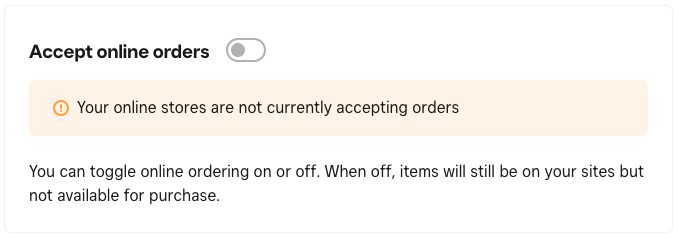
You can temporarily suspend accepting payments for all orders (regardless of fulfillment method) made on your website.
Sign in to Square Dashboard and go to Channels > Square Online.
Click Website settings > Checkout.
Toggle off Accept online orders.
When this switch is off, items will still be visible on your site but won't be available for purchase. This is helpful when you want to put your online business in vacation mode for any reason so new online orders don't come in while you're away. The toggle also makes it easy to turn things back on once you're ready to get back to business.
If you only want to suspend accepting payments for specific fulfillment methods, you'll need to turn off that specific fulfillment type in your fulfillment settings.