

Release notes
Vol 12 | 10 September 2026 | v 7.24
Item grid with visible cart, unlinked refunds, and kitchen ticket controls

- Add items from an updated Checkout grid on Square Point of Sale
- Customise barcode label layouts on Point of Sale for iOS
- View Square Invoices in dark mode
- Refund a card with no original sale on record
- Drag tickets into a new sequence on Kitchen Display System
- Set variation preselection and customisation skipping separately for each item
- Set the modifier sequence on printed kitchen tickets
- Sort kitchen ticket items by seat on printers and Kitchen Display System
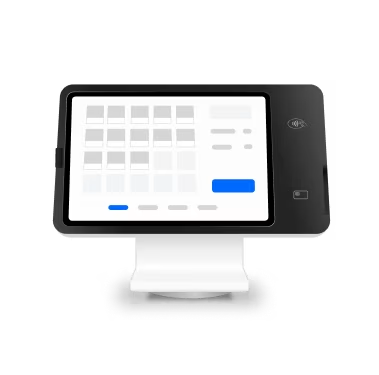
Add items from an updated Checkout grid on Square Point of Sale
What changed: The Checkout item grid in Square Point of Sale has a new look, making it easier to find and add items, categories, discounts, customers, and actions. The cart updates in real time, and a redesigned item detail view keeps the cart visible while staff choose variations and modifiers.
Why it matters: Orders come together faster, with more context on screen and fewer steps.
Access: Available on Square Point of Sale, on iOS and Android. In Square Point of Sale, go to Checkout. Sellers can turn it off in Square Dashboard under What's New > Early Feature Access; one switch covers both the item grid and Live Cart.
Customise barcode label layouts on Point of Sale for iOS
What changed: Sellers choose which fields print on a barcode label — item name, SKU, price, supplier information, and more — then adjust sizing and rearrange the content to match how their labels are used. Label layouts are set and printed from Point of Sale (POS) on Square Stand.
Why it matters: Sellers now have more design flexibility when generating barcodes on Point of Sale.
Access: Available on Point of Sale with Square Stand for sellers on Square Plus and above. In Point of Sale, open the barcode printing options to adjust the label layout.
See how to customise a barcode label layout: Article
View Square Invoices in dark mode
What changed: Square Invoices follows the device's system appearance setting, so the app displays in dark mode when the device is set to dark. Sellers who want the app to look different from the rest of their device can set the appearance in the app instead, and that choice holds regardless of the system setting.
Why it matters: A bright screen is hard on the eyes in low light, and some people read more comfortably on a dark background regardless. Following the device's appearance setting, or overriding it, means the app looks the way the seller needs it to.
Access: No setup is required for the app to follow the device's appearance setting. To set a different appearance, go to Settings > Appearance in Square Invoices and choose the override.
See how dark mode in Square Invoices works: Article
Refund a card with no original sale on record
What changed: Staff can issue refunds from Transactions in Square Point of Sale even when Square has no record of the original sale. Refunds go out by amount or against selected items, and the money lands on any card — dipped or tapped in person, or keyed in manually. Sellers set access per team-member permission, and refunds are capped at a configurable amount per transaction.
Why it matters: Some refunds have no original sale on Square to draw from — a returned deposit, or a sale taken outside the system. An unlinked refund puts the money back on a card without one, whilst permissions and a per-transaction cap control who can issue them and for how much.
Access: In Point of Sale, open Transactions to issue an unlinked refund, by amount or by item. The refunded card can be dipped, tapped, or keyed in manually.
See how to issue a refund without an original sale: Article
Drag tickets into a new sequence on Kitchen Display System
What changed: Kitchen staff can drag a ticket into a new position on Kitchen Display System (KDS) to set the prep sequence themselves. A custom sequence holds until that ticket is completed, and manual ordering applies across main, expo and station views.
Why it matters: Tickets arrive in the order they were entered, which isn't always the order the kitchen should cook them. Dragging tickets into sequence lets the kitchen decide what gets prioritised.
Access: On the KDS device, open Settings > Layout and set Ticket sequence to Manual.
See how to drag tickets into a custom order: Article
Set variation preselection and customisation skipping separately for each item
What changed: Each item has two separate settings that control what happens when it's tapped. One pre-selects the first variation, such as a size, which staff can confirm or change. The other bypasses the item details screen when every required selection is already satisfied.
Why it matters: Different items need different entry patterns. Some should pre-select a variation; some should require a deliberate choice. Setting the two behaviours separately lets each item match how it's actually rung in.
Access: In Square Dashboard, go to Items and open an item to find Automatically select first variation and Skip customisation when possible. They apply per item on Square Point of Sale in Standard, F&B, and Retail modes.
See how to set variation and customisation behaviour per item: Article
Set the modifier sequence on printed kitchen tickets
What changed: Each item carries its own modifier sequence, and tickets printed from Point of Sale follow it instead of the checkout sequence. This matches the modifier sequencing already available for Kitchen Display System. Modifier sequencing applies only to modifiers available on Point of Sale. Modifiers not available to POS will not follow the sequence on printed tickets.
Why it matters: Kitchens run on repetition, and cooks read faster when the same information lands in the same spot on every ticket. Setting the sequence per item means printed tickets match how the line actually builds.
Access: Available to Square Plus sellers on Square for Restaurants. In Dashboard, go to Item Library, select an item to open the item edit page, and set Kitchen Faced in the Modifiers section.
See how to set the modifier sequence on printed tickets: Article
Sort kitchen ticket items by seat on printers and Kitchen Display System
What changed: Sellers set printed order tickets and Kitchen Display System (KDS) chits to sort items by seat number. With Seat selected, shared and table-share items print first, followed by items in ascending seat order as a flat list — no seat headers or sections. The option is available on KDS chits, KDS printed tickets, and Square Point of Sale printed tickets on both iOS and Android.
Why it matters: Tickets are read top to bottom on the pass, and matching plates to guests takes a mental re-sort when items aren't grouped by seat. Sorting by seat puts the ticket in the same order as the plates going out.
Access: Set the sort per printer profile in Settings > Hardware > Printers, select the profile, then choose Seat under Item sort order. On KDS, the same option is available in the station's chit sort setting. No new subscription or hardware is required.
See how to sort ticket items by seat: Article