


Release notes
Vol 9 | 30 July 2026 | v 7.18
Scheduled feature installs, deeper POS customization, and more
- Add more applets to the Square Point of Sale bottom navigation
- Align prep times across stations on Kitchen Display System
- Choose how identical items appear in the cart on Point of Sale
- Customise barcode label layout and content on Square Point of Sale
- Quick printer setup hidden when printer profiles exist
- Reorder modifier sets per item on Kitchen Display System
Add more applets to the Square Point of Sale bottom navigation
What changed: Sellers customise the bottom navigation bar in Square Point of Sale by adding applets that were previously accessible only through the More menu. This gives direct, one-tap access to frequently used tools without navigating away from the main screen.
Why it matters: Sellers who rely on specific tools throughout the day — whether for managing orders, checking reports, or handling team tasks — previously had to tap into the More menu each time. Pinning those applets to the bottom navigation keeps them one tap away, which matters most during a rush when every extra screen slows service down.
Access: Sellers tap More in the Square Point of Sale bottom navigation bar, then customise which applets to add.
Align prep times across stations on Kitchen Display System
What changed: Staggered item prep times on Square Kitchen Display System co-ordinate across every station in the kitchen, so item start times account for the whole order rather than only the items on one station's screen. A station with a quick item waits for a longer dish at another station, expeditor screens follow the same timing as prep stations, and the whole order finishes together. When a longer dish is completed early or removed from an order, stations that were waiting on it get an orange alert to start straight away.
Why it matters: In a kitchen that splits orders across a grill station and a salad station, a side salad no longer comes up five minutes early and sits under a heat lamp while a steak is still cooking. Food for the same order is ready together, so it goes out hot and on time. Cooks also get an active cue the moment plans change — no need to watch other stations to know when something finishes early or drops off the ticket.
Access: Requires Square for Restaurants with Square Kitchen Display System devices. Turn on Staggered item prep times on each device under Settings > Prep timing, and set prep times on items in Square Dashboard or use a default prep time for the location. If the setting is already on, cross-station timing applies automatically.
Choose how identical items appear in the cart on Point of Sale
What changed: Sellers can turn off the Consolidate identical items in the cart setting on Square Point of Sale so that each instance of the same item appears on its own line rather than merging into a single grouped line. The setting is configurable per mode — for example, a quick-service counter mode can show items individually while a table-service mode keeps them consolidated.
Why it matters: At a quick-service counter where a customer orders three of the same sandwich with different modifications, staff previously had to open the grouped line, split the items apart, and then edit one. With each item on its own line, a staff member taps directly on the item that needs a modification — no intermediate steps to ungroup first.
Customise barcode label layout and content on Square Point of Sale
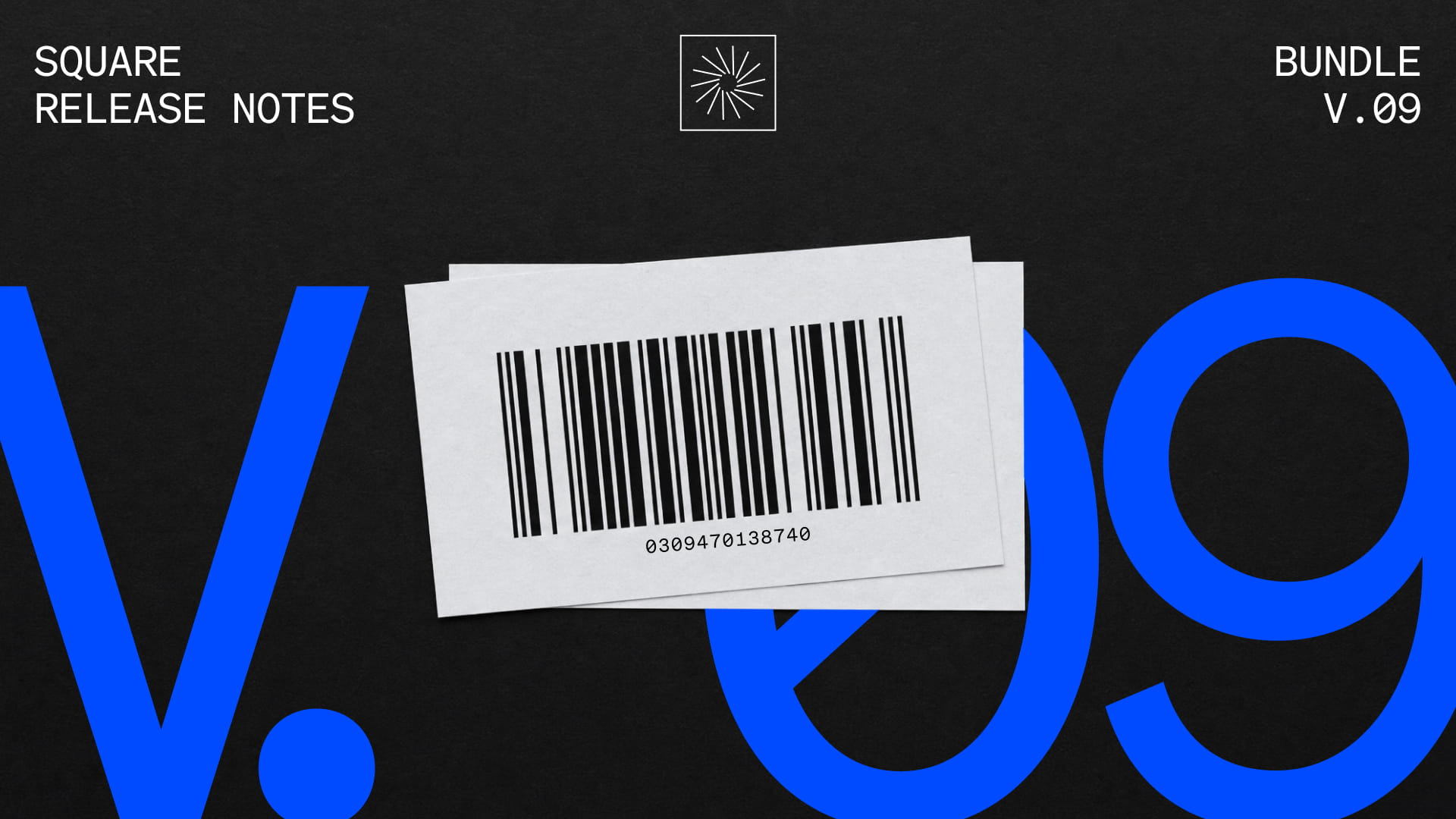
What changed: Sellers choose which fields appear on barcode labels printed from Square Point of Sale — item name, SKU, price, supplier info, and more — and arrange them to match how their operation runs. Font size and overall label sizing are adjustable, giving control over how dense or readable each label is.
Why it matters: A boutique that stocks items from dozens of suppliers may need the supplier code and unit price on every shelf label, placed exactly where staff expect to find them. Previously, getting that layout meant designing labels in third-party software and printing outside of Square. Customisable labels keep the entire workflow — from catalogue to printed label — inside Square Point of Sale.
Access: Available on Square Point of Sale (Square Register) for sellers on Square Plus and above. Set up label layouts from the barcode printing options on Square Point of Sale.
Quick printer setup hidden when printer profiles exist
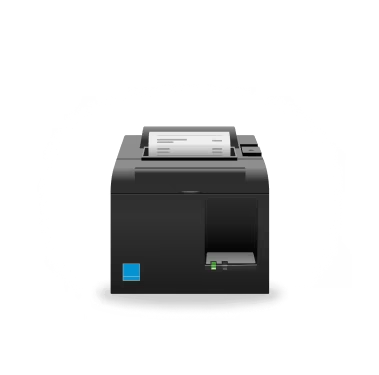
What changed: The quick setup option for printers only appears when no printer profiles exist. Sellers who already have printer profiles assign one directly to a new printer instead of seeing the quick setup prompt. This prevents quick setup from creating default profiles that conflict with an existing configuration.
Why it matters: A restaurant with separate printer profiles for the bar, kitchen, and expeditor station doesn't need a one-click setup generating a generic default profile on top of what's already configured. Removing that option keeps the printer list clean and avoids confusion when a seller adds a new printer to an established setup.
Access: No action is needed. Sellers who already have printer profiles see the profile assignment option when connecting a new printer. Sellers without any profiles still see the quick setup option.
Reorder modifier sets per item on Kitchen Display System
What changed: Sellers set a custom display order for modifier sets on a per-item basis from Square Dashboard. The chosen sequence applies to both Kitchen Display System screens and Kitchen Display System printed tickets, so modifiers appear in the same position on every ticket regardless of the order they were rung in on Square Point of Sale.
Why it matters: A burger joint lists toppings, then protein temp, then bun choice on every ticket — but when modifiers appear in whatever order the server tapped them, the grill cook has to scan the whole ticket to find the doneness call. A fixed modifier sequence means cooks read the same information in the same spot on every ticket, building muscle memory that keeps the line moving.
Access: In Square Dashboard, go to Item Library, select the item to open the Item Edit page, and set the modifier set order in the Kitchen Display System section under Modifiers.