Obtén una vista previa de la experiencia de pedidos de tus clientes en Square Kiosk
About your customer ordering experience on Square Kiosk Lite
Customers can place orders at your Square Kiosk Lite from the selection of items you add to your kiosk menu.
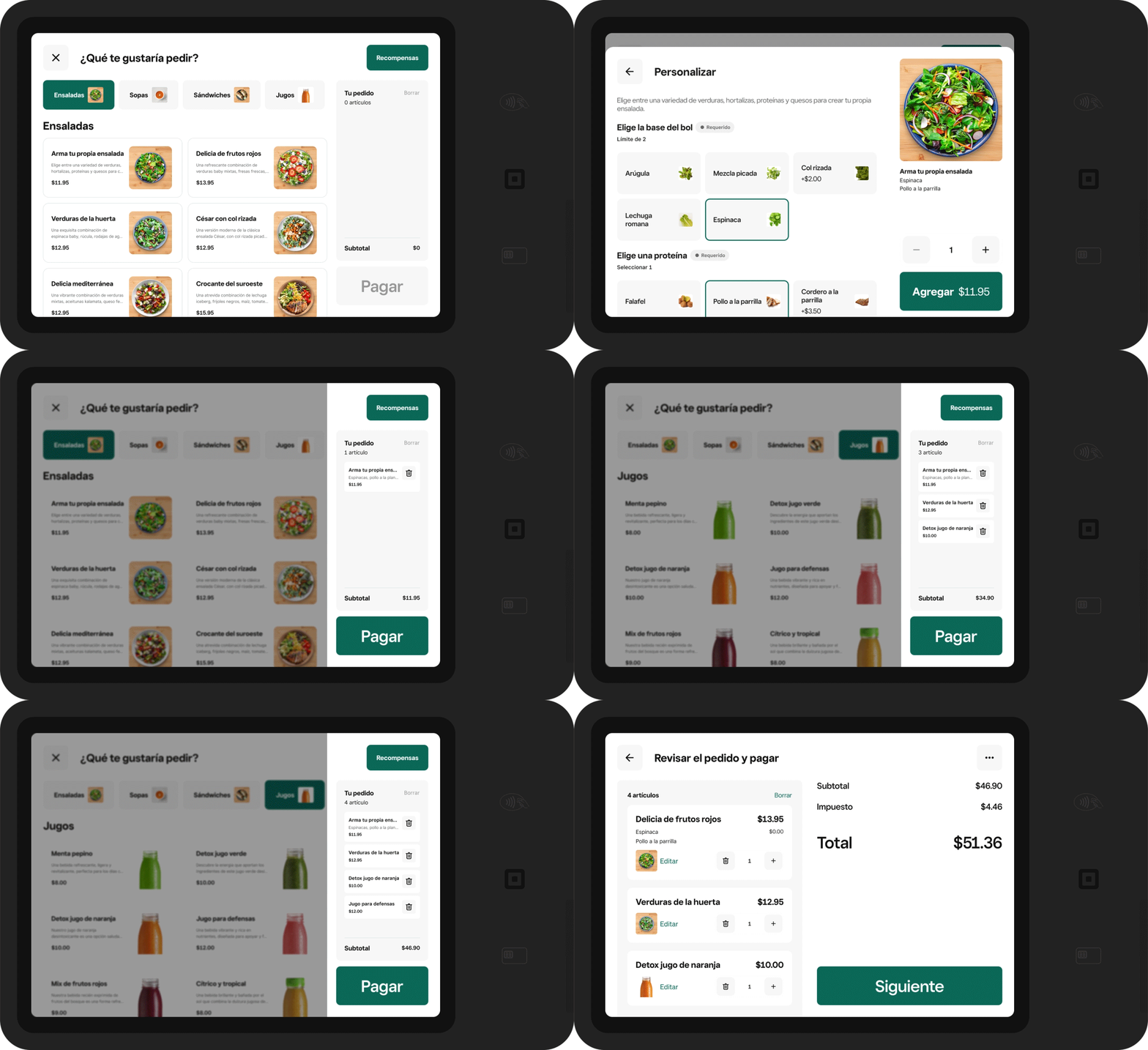
Below is a simplified example of what the customer ordering process looks like. Everything is optimized to drive more sales for your business, with features like picture-based categories, large font and tap targets, Smart Upsell recommendations, and a persistent cart that stays visible as a diner keeps adding items.
Before you begin
You can preview your customer order experience from the Square Kiosk Lite app, including how to redeem loyalty rewards. Learn how to crea un programa de fidelidad and registrarse en el programa de fidelidad de un vendedor que usa Square.
Before you can preview your exact customer ordering experience for your business, you need to set up your Square Stand hardware by creating a device code and using it to sign into the Square Kiosk Lite app. Learn how to configurar Square Kiosk Lite.
Preview your customer's ordering experience on Square Kiosk Lite
Open your Square Kiosk Lite app from the iPad plugged into your Square Stand hardware.
Tap Sign in and enter your device code.
Tap Start an order.
Select the dining option, Dine in or To-go.
Select a category.
Select items from the menu.
Customize the selection by choosing item modifiers and variations.
Tap + to increase the item quantity or tap - to decrease the item quantity.
Tap Add to add the item to the order. Added items will show under Your order.
Repeat those steps to add more items. Categories will show at the top of the screen.
When you're ready to pay, tap Pay.
Review your order and tap Next. If Smart Upsells is enabled, additional item suggestions may appear on this screen before you proceed to payment. Learn how to administrar Ventas adicionales inteligentes en Square Kiosk Lite.
If applicable, enter your table number, name, or phone number and tap Next.
Complete the payment.
- Pulsa en Recompensas en la esquina superior derecha e introduce tu número de teléfono.
- Pulsa Iniciar sesión o Únete para registrarte o iniciar sesión en tu programa de fidelidad.
- Una vez que inicies sesión, podrás consultar el total de puntos y las recompensas disponibles.
- Pulsa en Canjear para solicitar una recompensa o en Listo para volver a hacer pedidos.
- Si canjearás una recompensa de un artículo o una categoría, cierra la ventana de fidelidad y agrega el artículo correcto para asegurarte de que el pedido cumple los requisitos.
- Completa el pedido y paga.
Si no inicias sesión al hacer el pedido, puedes registrarte después de pagar pulsando en Canjear puntos.
Nota: Cuando tus clientes indiquen su número de teléfono para recibir notificaciones por mensaje de texto cuando sus pedidos estén listos, la aplicación Square Kiosk Lite vinculará automáticamente su información de fidelidad. Consulta cómo configurar los ajustes de notificación de pedidos y del proceso de pago de Square Kiosk Lite.
- Pulsa el artículo en Tu pedido.
- Haz los cambios que quieras, como agregar complementos o indicar el tamaño.
- Pulsa Actualizar.
Related articles
Editar los menús, artículos y categorías de Square Kiosk Lite
Solucionar problemas de conexión de Square Stand y fallas de energía