Set up your food & beverage business with Square
About food and beverage businesses
Square offers a comprehensive, all-in-one POS solution to help you run your food and beverage business. Use our complete suite of tools made to make it easy to streamline your business by integrating menu creation, payment processing, table and inventory management, and more in one place.
Before you begin
Make sure you have an active Square subscription. Learn how to switch to the new Square subscription plans.
Step 1: Select your point of sale hardware
If you already selected and received Square hardware, you can skip to the next step.
If you haven’t selected any Square hardware yet, you can purchase individual hardware and accessories or select a complete POS kit from Square Shop.
Step 2: Verify your identity & link your bank account
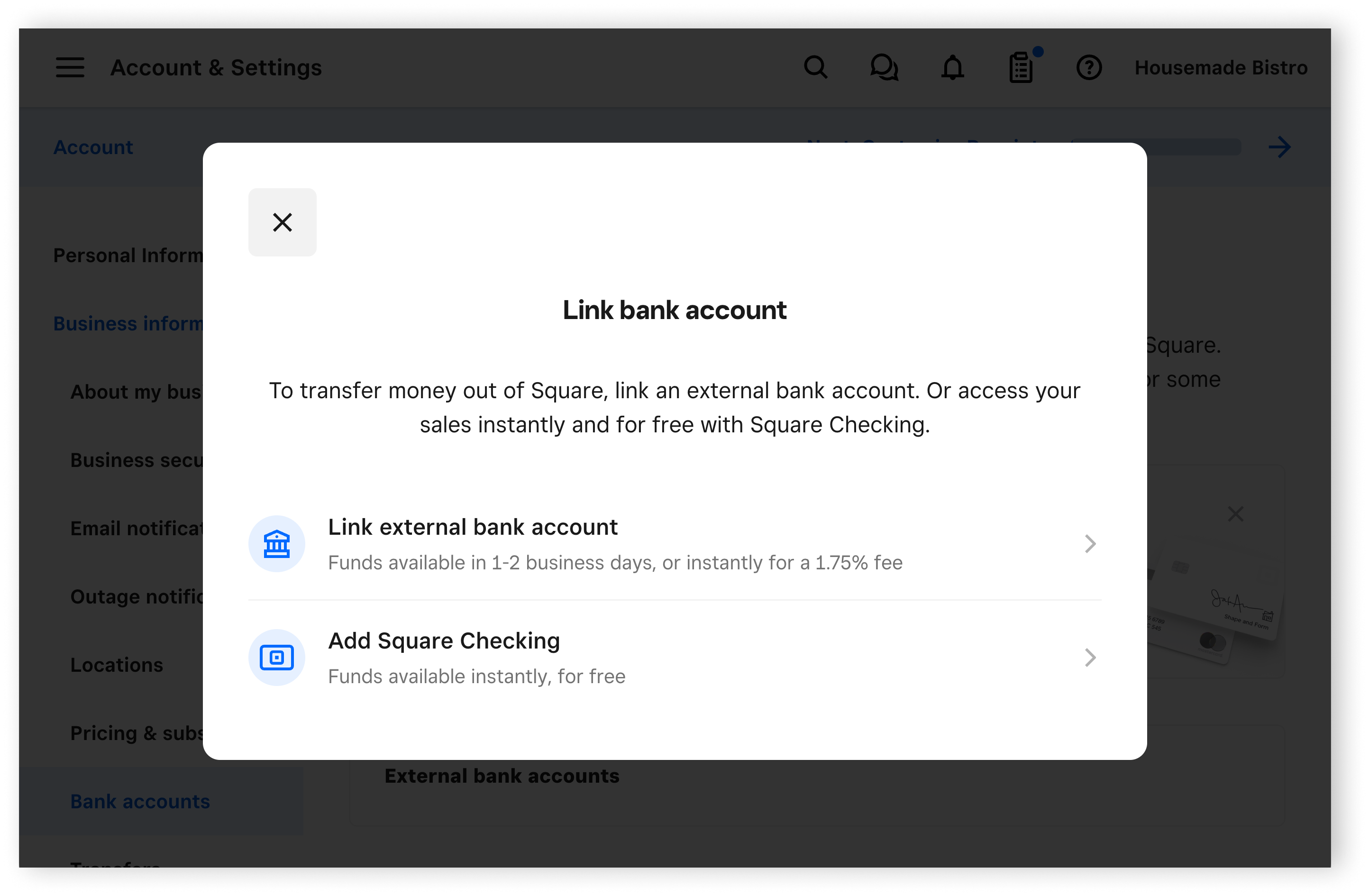
Select a transfer schedule and link your bank account to begin receiving funds from your sales, and complete your identity verification to activate your Square account. You need your bank account and routing numbers for this step. Learn how to link your bank account.
Step 3: Create a menu
A menu is a specific set of display groups and items that appear on your point of sale for a certain period of the day or a certain shift. Your menus should correspond with the physical menus in your restaurant. If you have multiple menus you use throughout the day, you should have multiple menus in your Square account.
You have three options for creating menus from Square Dashboard:
Manually create a menu: This option is best if you don’t have an existing menu and want to create items while you create a menu.
Upload an existing menu: This option is best if you already have an existing menu file saved to your computer.
Import a menu from an existing system: This option is best if you already have an existing menu on another platform like Clover or Toast and you want to transfer the menu to Square.
The upload and import options are currently only available for quick-service restaurants in the U.S.
Learn how to create and update menus.
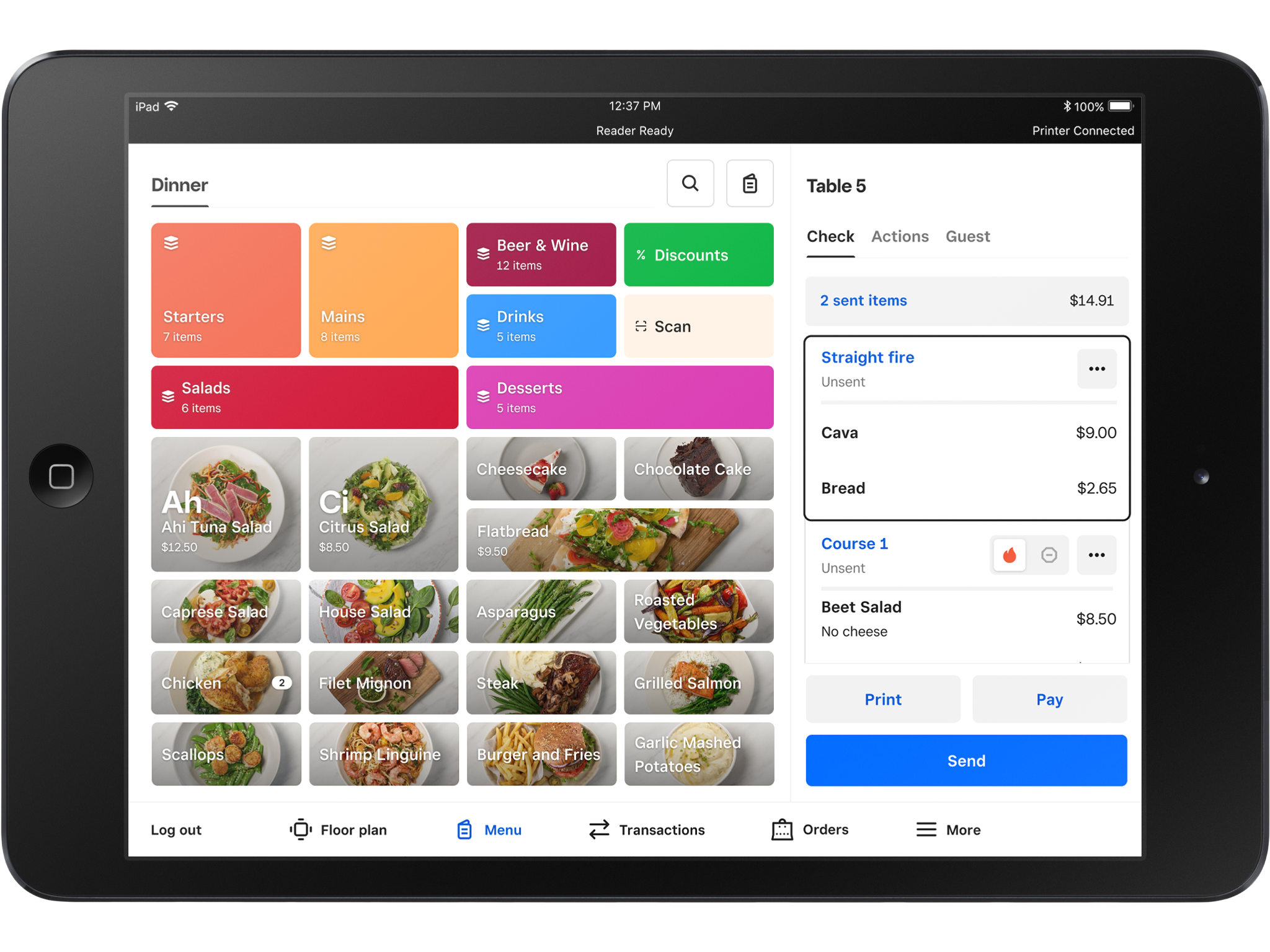
Step 4: Set up your point of sale
Once you receive your Square hardware, you can set up your restaurants point of sale. Learn how to set up your restaurants point of sale.
You have two options for signing into your point of sale:
Device code: You and your employees can sign into a shared point of sale device using a unique 12-digit code. With device codes, you can set up, monitor, and manage your point of sale app and all of the Square hardware associated with your Square account from your Square Dashboard. Learn how to set up device codes.
Email address and password: You can sign in to a shared point-of-sale device using your owner credentials while your employees sign in using their email address and password. Learn how to add and manage team members.
You can also set up passcodes for your team members. Learn how to require passcodes at point of sale.
Step 5: Download the Square Point of Sale app
Start taking payments from customers on your point of sale device by downloading the Square Point of Sale app and utilizing full service, quick service, and bar modes. If you are using a compatible device, you can download the free Square Point of Sale app from the App Store or Google Play store. Learn how to use modes with Square Point of Sale and create and assign modes.