Track your inventory
About inventory tracking
Square’s inventory management software connects with your point of sale, so your stock levels are automatically adjusted every time you make a sale. Receive daily stock alert emails so you always know which items are low or out of stock and can prepare a purchase order for more stock in time.
Before you begin
Your device needs to be compatible with Square for Retail in order to Create and manage item options with Square. Learn more about Square for Retail by device.
Once you’ve created items, you can enable inventory tracking for any item variations created by you or your team from your Square Dashboard.
Set up inventory tracking
- Sign in to Square Dashboard and go to Items & services (or Items & menus or Items & inventory) > Items.
- Tap Settings > Inventory.
- Toggle on Enable inventory tracking for new items.
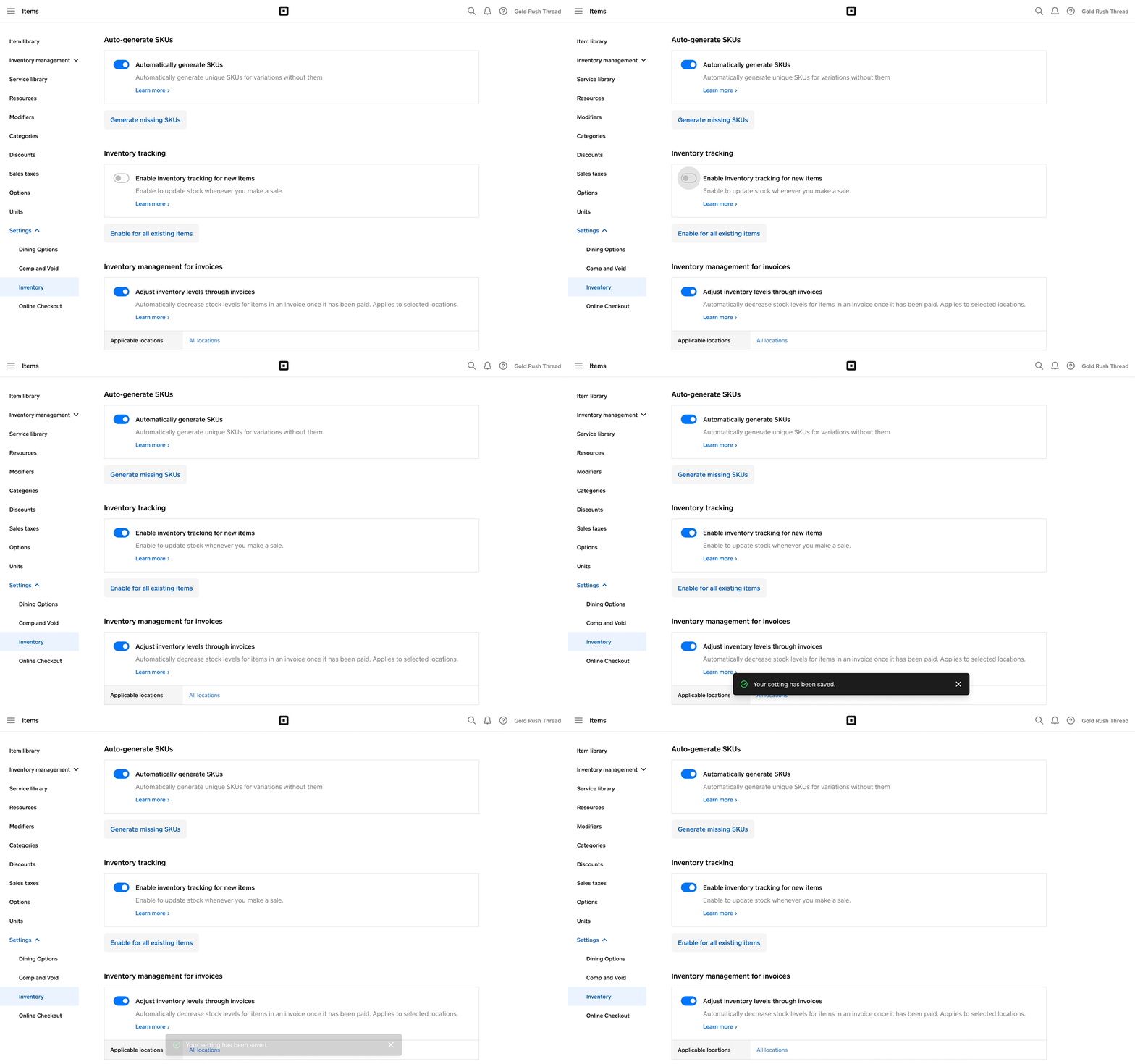
- Sign in to Square Dashboard and go to Items & services (or Items & menus or Items & inventory) > Items > Settings > Inventory.
- Ensure Enable inventory tracking for new items is toggled on.
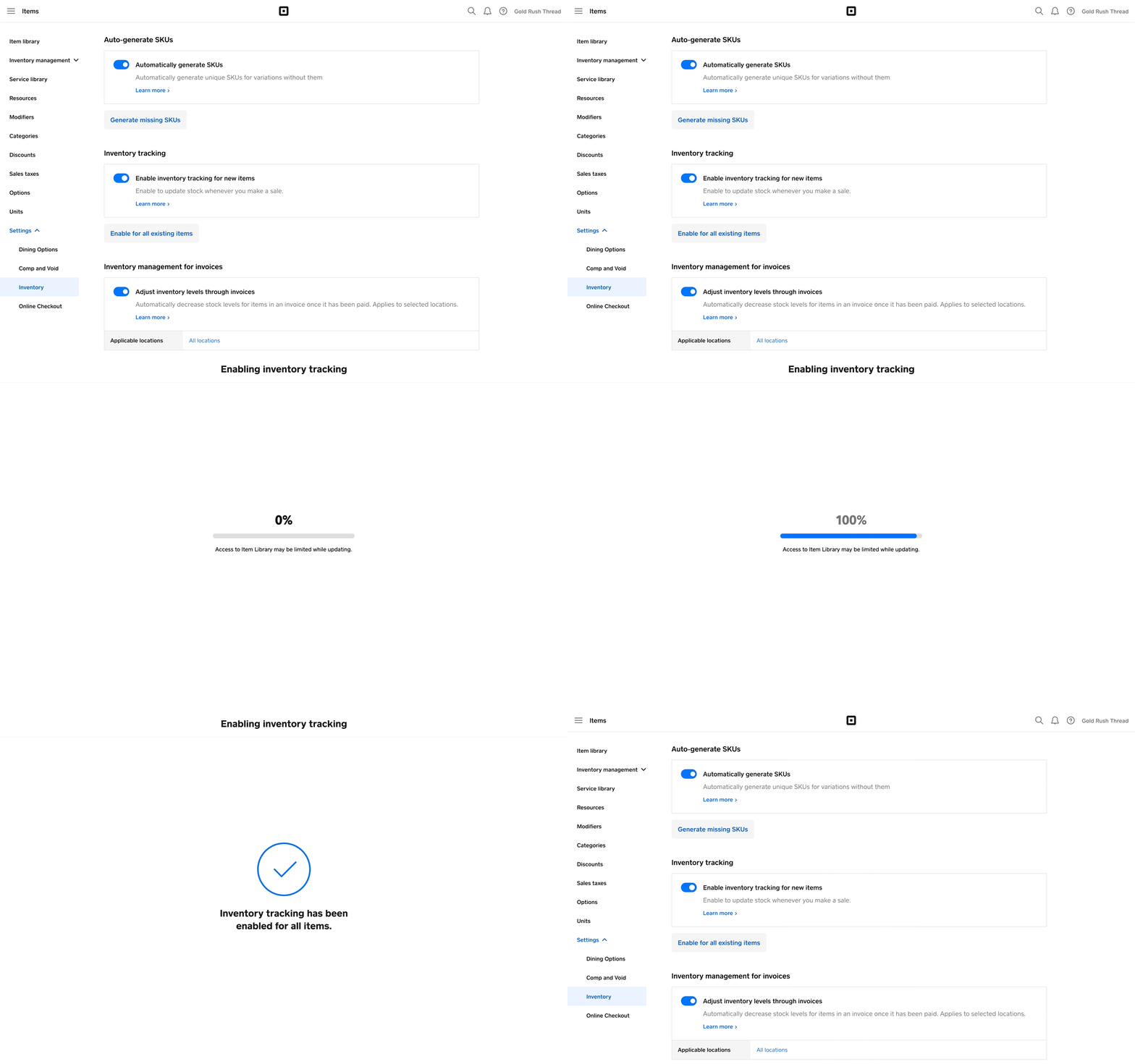
- Tap Enable for all existing items. This will turn on inventory tracking for all items and set the stock count to zero for items that have no stock added previously.
- Tap Enable tracking to confirm.
Disable inventory tracking
- Sign in to Square Dashboard and go to Items & services (or Items & menus or Items & inventory) > Items > Settings > Inventory.
- Click Enable inventory tracking for new items toggle to disable inventory tracking.
The toggle must be to the left and grayed out to disable inventory tracking. The settings will auto-save.
To disable inventory tracking in bulk, you must export and reimport your item library. To do so:
- Sign in to Square Dashboard and go to Items & services (or Items & menus or Items & inventory) > Items > Item library.
- Click Actions > Export library to export your item library.
- Paste “N” in the New Quantity [Your Location Name] column for the variations you want to disable.
- From the Item library screen, click Actions > Import library to import the newly altered file back into Square.
Print inventory
You can export your item library as an Excel (recommended) or CSV file. To do so:
Sign in to Square Dashboard and go to Items & services (or Items & menus or Items & inventory) > Items > Item library.
Tap Actions > Export Library and follow the onscreen prompts.