View your checking account activity
About viewing your checking account activity
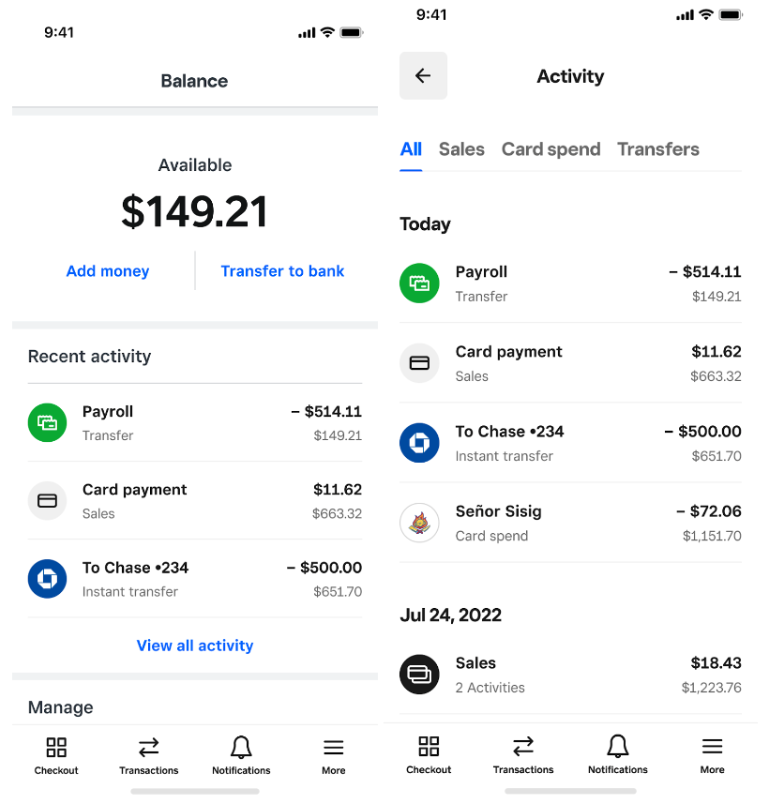
Your checking account activity includes the following details:
Sales: This includes sales, refunds, and disputes. Multiple payment processing activities that occur right after each other are grouped together under a single sales line item. You can view all of the activities within these grouped line items by selecting the respective row.
Square Debit Card spend: At the top of your activity you will be able to view any pending debit card transactions. Note that these transaction amounts may change when they complete. Below any pending transactions, you can view completed debit card transactions. Select a debit card transaction to view attached receipts and notes.
Transfers: The activity view also includes transfers made into and out of your checking balance, including next-business-day transfers, instant transfers, and transfers made using your account and routing numbers.
Before you begin
You need a Square Checking account with an active Square Debit Card. Learn how to set up a checking account and debit card.
Checking account statements are available to download the first day of the following month.
Pending inbound transfers may not immediately reflect in your checking balance.
View your account activity
- Sign in to Square Dashboard and go to Banking > Checking.
- Select a location from Locations.
- In the Recent activity section, click View all activity.
Manage receipts and notes
You can attach receipts and add notes to your Square Debit Card transactions from the activity view. Receipts and notes are included when you export your transaction history.
Learn how to capture receipts and add notes to debit card transactions.
Download your account statement
You can download your checking account statements from two places in Square Dashboard.
- Sign in to Square Dashboard and, go to Banking > Checking.
- Select a location from Locations.
- Click the gear icon > Checking settings.
- Under Documents select Account statements.
- Click the statement you want to download.
- Sign in to Square Dashboard and, go to Banking > Checking.
- Select a location from Locations.
- Click View all activity > Download > Account statements.
- Select the statement you want to download.
Edit your checking account billing address
By default, the billing address associated with your checking account and reflected on your statements is the personal home address you provided when you signed up for a Square account. If you were asked to designate a preferred billing zip code when you opened your checking account, the information you entered will be your checking billing zip code.
- Sign in to Square Dashboard and go to Banking > Checking.
- Select a location from the Locations section.
- From the location overview, click the gear icon and select Checking settings > Edit billing address.
- Update the address and select Continue.