Set up Square Register (2nd generation)

About Square Register (2nd generation)
Square Register (2nd generation) is a fully-integrated point-of-sale system that includes payment processing, software and hardware all-in-one. Ring up your customers on the seller facing touchscreen and invite your customer to pay on the customer display with a simple tap or insert.
Before you begin
You can connect, set up, mount and power up your Square Register wherever you plan to process payments at your business.
To sign in to your Square account on your Square Register, you need your Square account login credentials. Learn how to create your Square account in the Square setup guide.
To set up Square Register, you need Wi-Fi or Ethernet internet access. Take a look at Square Register technical specifications to learn about what’s in the box, dimensions, connectivity and more.
Step 1: Connect Square Register cables
Start your Square Register set up by removing the protective wrap and connecting all of your hardware components.

Carefully lay your Square Register seller display face down in order to access the two micro-USB ports on the bottom of the Square Register.
Connect the accessory hub cable to the bottom of the seller display to one of the micro USB ports.
Plug the power adapter into the hub, and attach the power adapter cable to the other side.
Plug the power adapter cable into a grounded power point.
Step 2: Connect customer display for Square Register
You can set up your customer display as docked or undocked.

In the docked position, the customer display is positioned vertically and attached to the front of the Square Register and is facing towards your customer.
- Slide the back of the customer display into the slot on the front of your Square Register.
- Press firmly on the bottom edges of the customer display until it locks in place. You will know it is locked in place when you hear the latch click.
- Double-check that each side of the display is even and levelled.


In the undocked position, the customer display is positioned horizontally on the counter top and connected to the Square Register through the included micro USB cable.
If your Register was previously in the docked position:
- Undock the customer display by pressing and holding the release latch located on the bottom of your Square Register and lift the customer display out.
- Make sure that the latch is completely released before removing the customer display as it can not be removed without the latch release.

Once the customer display is undocked from the Register:
- Grab the included micro USB cable.
- Plug one end into the customer display and the other end into the bottom of your Square Register.
Step 3: Connect to your network and update software
Square Register needs to be plugged into a power point to function. It is not battery powered. The power button is located on the bottom right edge of the seller display. Press and hold the power button until the Square logo appears on the screen.

When you turn on Square Register for the first time, you will be asked to connect to a network. You can connect your Square Register to your network through either Wi-Fi or Ethernet. : Note : You are able to connect your Square Register to a private network or an unsecured network, but you won’t be able to connect to a captive portal network. A captive portal is a network that requires you to agree to terms or conditions to access the internet connection (these networks are common at coffee shops, airports and other public internet access points).
Connect through Wi-Fi:
- Select your preferred network from the list of available networks.
- Enter the password if necessary.
Connect via Ethernet:
- Plug your Ethernet cable in the accessory hub.
- Your Square Register will automatically connect to your network once the Ethernet is plugged into the accessory hub and the hub is connected to power.
Your Square Register will require a software update when you activate it for the first time. This update is mandatory and can not be skipped. This initial software update takes around 15 minutes to complete, but future updates may take longer, depending on your network speed and the size of the update.
Software updates can be deferred to after business hours or scheduled to update automatically overnight. Learn how to update software on Square Register.
Step 4: Sign in to your Square account
If you don’t already have a Square account, you will need to create one.
- On your Square Register, tap Create account.
- Scan the QR code on the screen with your mobile device to create your account on squareup.com/signup.
- Or, tap Email a link instead to receive a sign up link to your email address.
- Once your account is created with an email and password, tap Continue to sign in on Square Register.
- Sign in with your email address and password used to create your account.
Learn how to set up your Square account.
If you already have an existing Square account, sign in to your account using either your email address and password or by creating a new device code in your Square Dashboard. Learn how to set up device codes.
After you sign in for the first time, you will be shown a brief tour of Square Register’s basic features. This tutorial can be accessed again at any time by tapping ≡ More > Support > Tours and Tutorials> Get to know your Square Register.
If you recently created your Square account, you can access the Square Point of Sale Setup Guide on your Square Register by tapping ≡ More > Support > Setup Guide. The setup guide will walk you through setting up a bank account for transfers, creating items, ordering additional hardware and more.
Step 5: Adjust your settings
Set your language, date and time preferences.
To adjust the language or date and time settings:
- Tap ≡ More > Settings > Hardware > General.
- Tap Language and select your language of choice.
- For date and time, toggle Set automatically ON and select your time zone.
- You can also set the date and time manually by toggling Set automatically OFF and selecting the date, time and time zone.
To adjust the brightness and display settings:
- Tap ≡ More > Settings > Hardware.
- Tap Customer display.
- Use the slider to control the brightness level.
- Toggle ON/OFF the idle screen options.
- If you are using the Bosstab Mount for Square Register customer display, toggle the screen orientation ON/OFF.
- Tap Main Display
- Use the slider to control the brightness level.
- Select the amount of time for the screen to be idle before timing out.
To adjust the volume settings:
- Tap ≡ More > Settings > Hardware > Sounds.
- Use the slider to control the volume level.
- Toggle Enable card network sounds ON/OFF.
Step 6: Mount Square Register and customer display (optional)
You can mount your Square Register with adhesive or screws. You can attach your Square Register’s customer display to a countertop using Bosstab Countertop Mount.
- Pick a spot to mount and use a damp cloth to clean the area where you want to secure your Square Register. Wait for the surface to dry completely.
- Grab the mounting plate and remove the paper backing from the adhesive located on the underside of the plate.
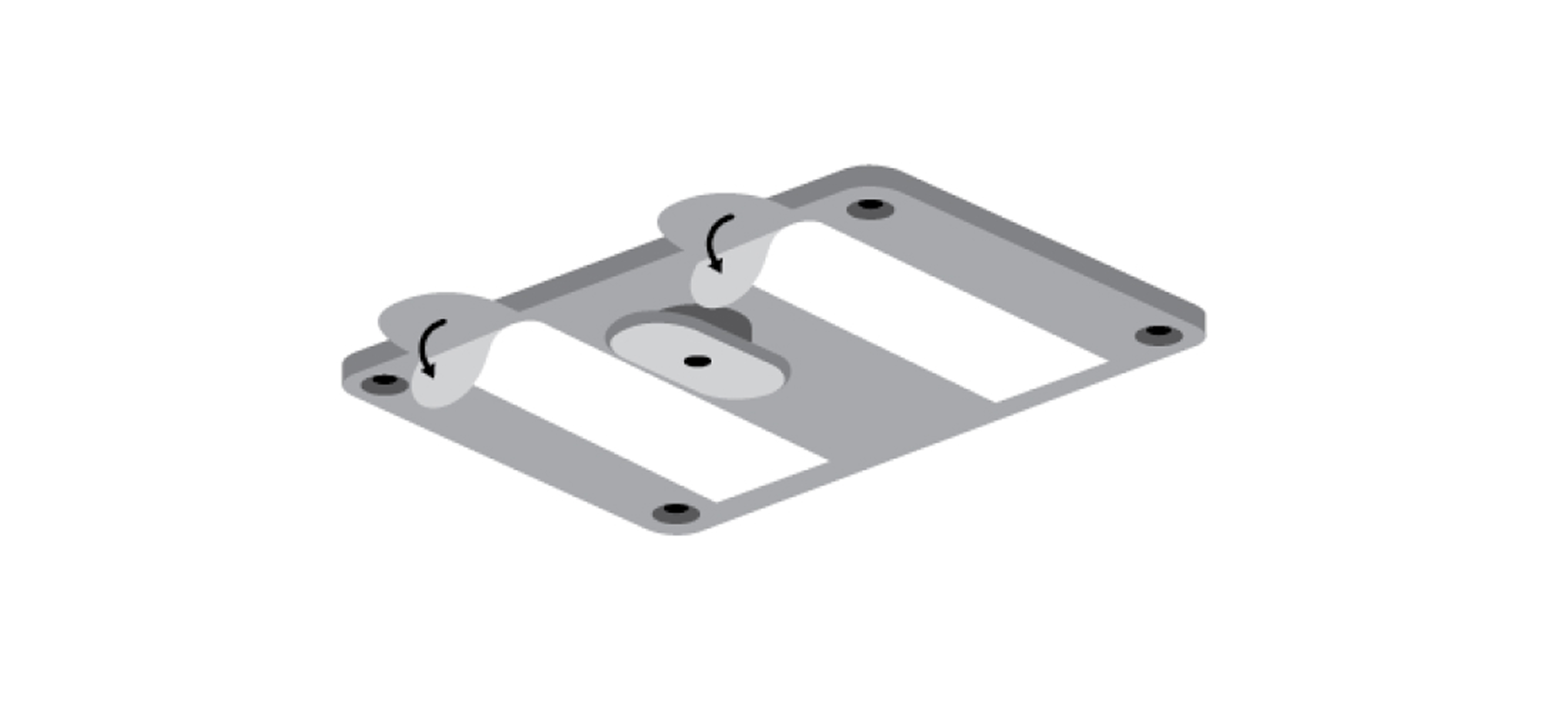
- Make sure the raised cleat of the mounting plate is on your side of the counter, not the customer’s side.
- Adhere the plate to your counter in the desired position and press down firmly for 30 seconds.
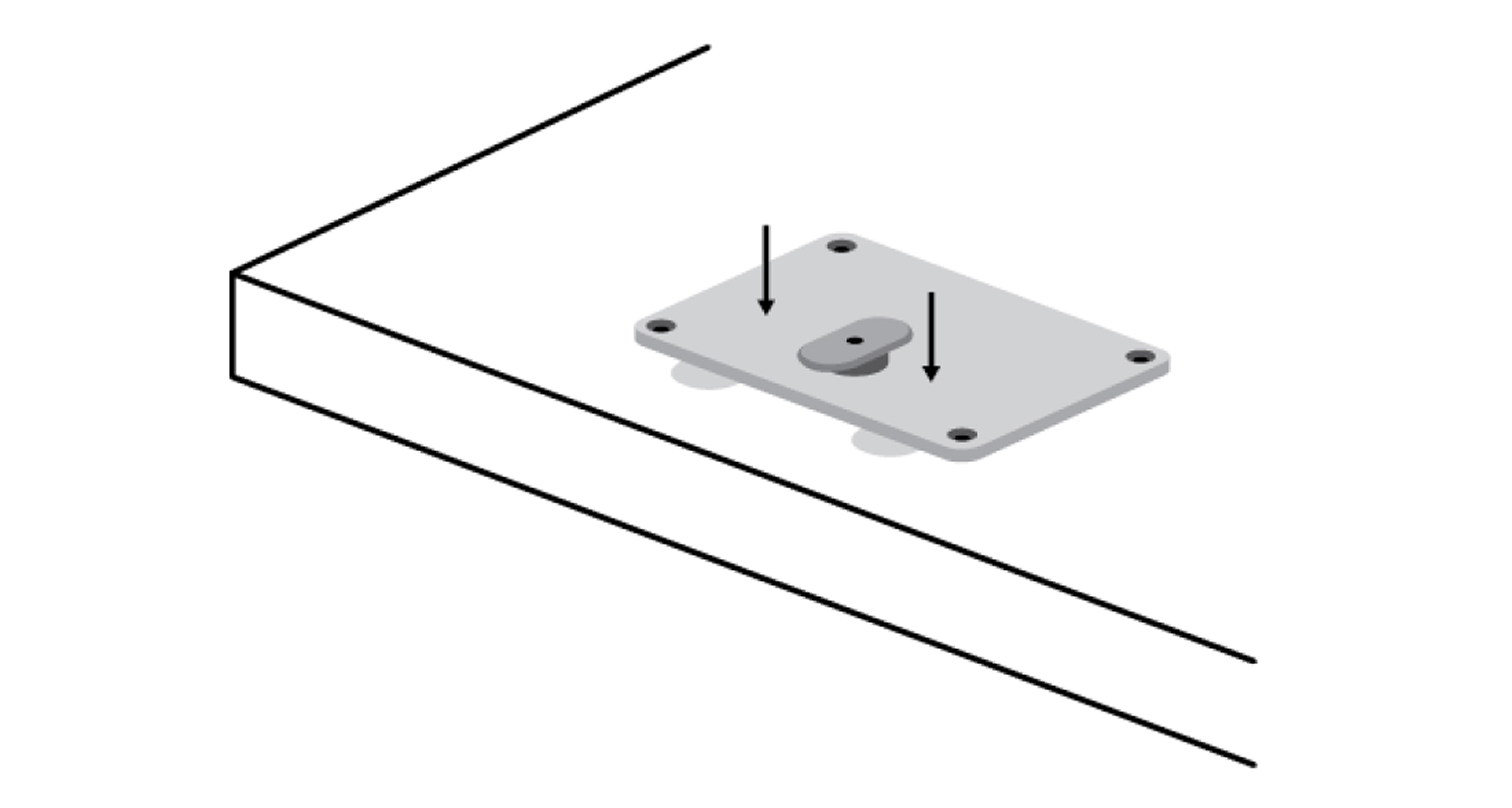
- Wait 30 minutes for the adhesive to set. If you need to remove the plate, slowly pull the tabs on the adhesive strips until it releases.
- Place your Square Register onto the mounting plate with the larger screen facing right. Make sure the cleat is positioned in its slot.
- Turn your Square Register 90 degrees clockwise so it locks in place.

To mount using screws, you need a drill and all the included tools: drill bit, thumbscrew and thumb nut.
Note: Do not attach the mounting plate to your Square Register before attaching the plate to your countertop. If you do, you won’t be able to remove the plate from your Square Register.
- Pick a spot on your counter for your Square Register, position the mounting plate, and use a pencil to mark the four screw holes on your counter.
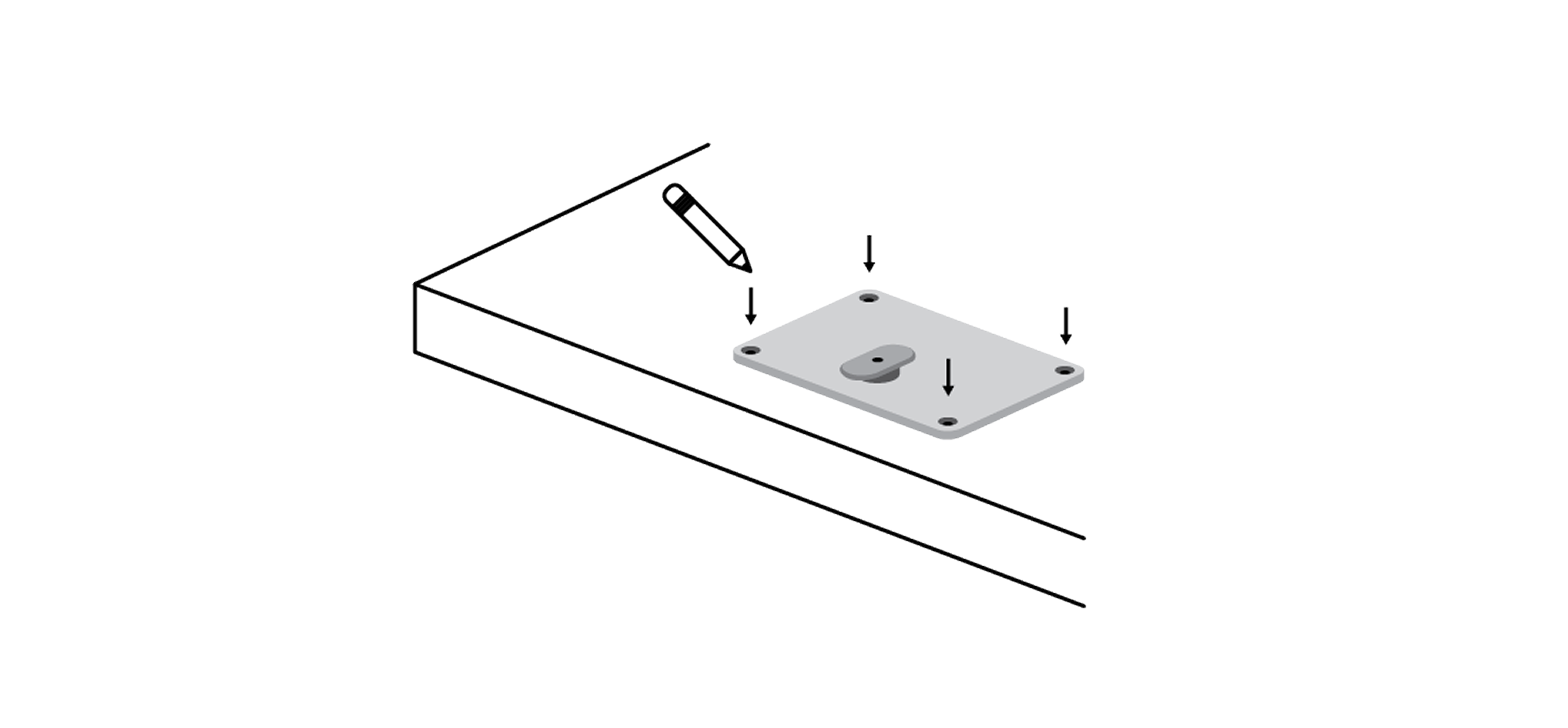
- Make sure the raised cleat is on your side of the counter, not the customer’s side. Maximum counter thickness is 1.75 inches (45 mm).
- Use your drill and drill bit to make the four holes you’ve marked for the plate.
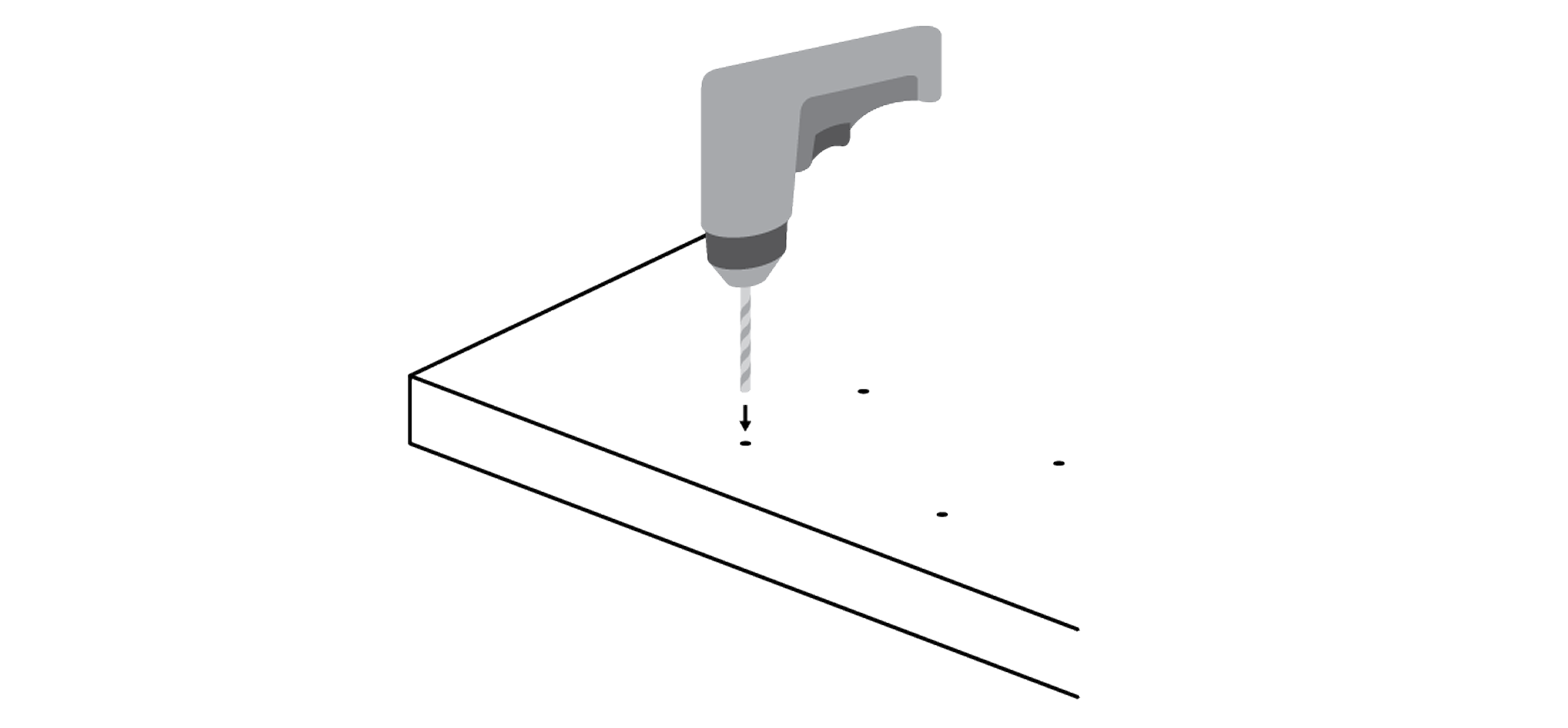
- Position the mounting plate onto the holes you’ve drilled, then insert a thumbscrew into each hole.
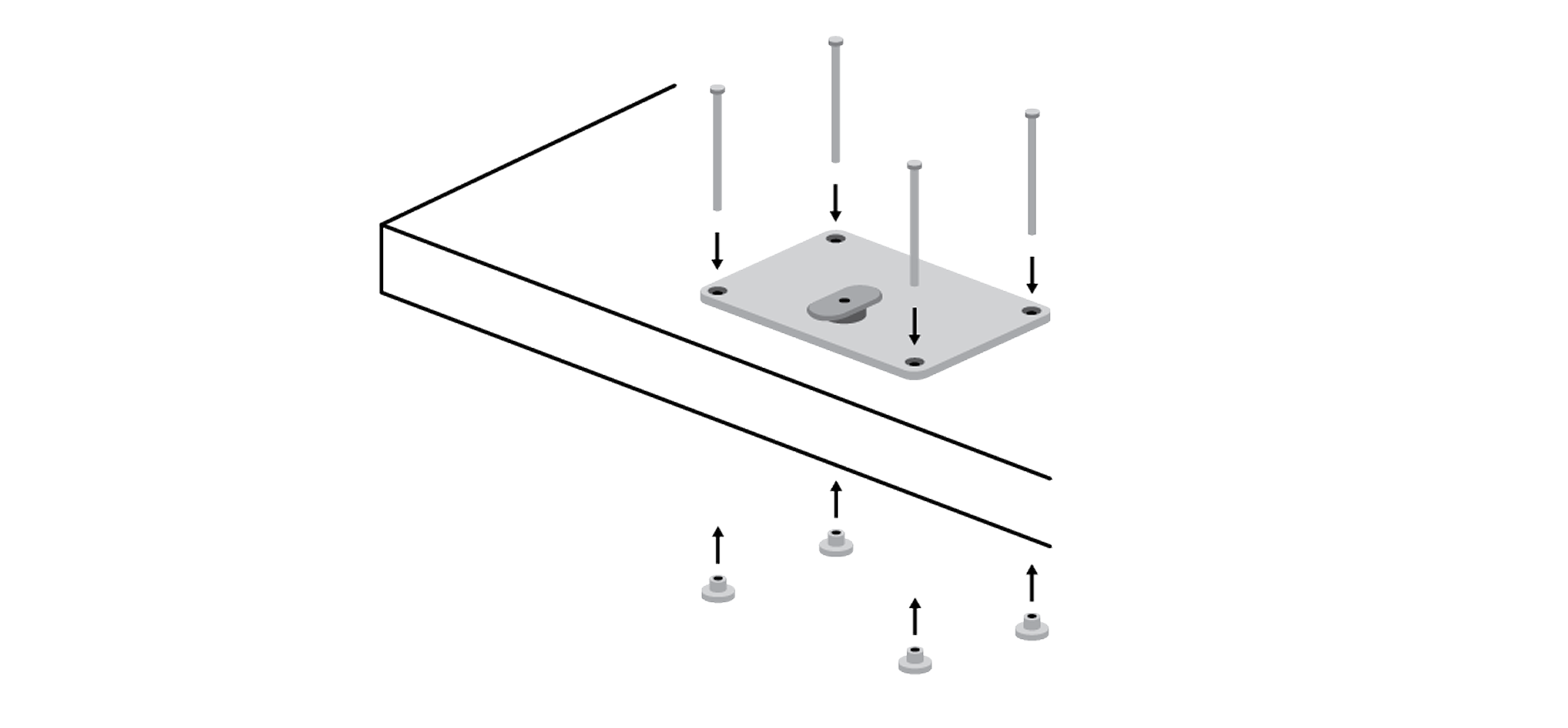
- From the underside of your counter, place a thumb nut onto each thumb screw and tighten until the thumb nut is flush against your counter.
- Place your Square Register onto the mounting plate with the larger screen facing right. Make sure the cleat is positioned in its slot.
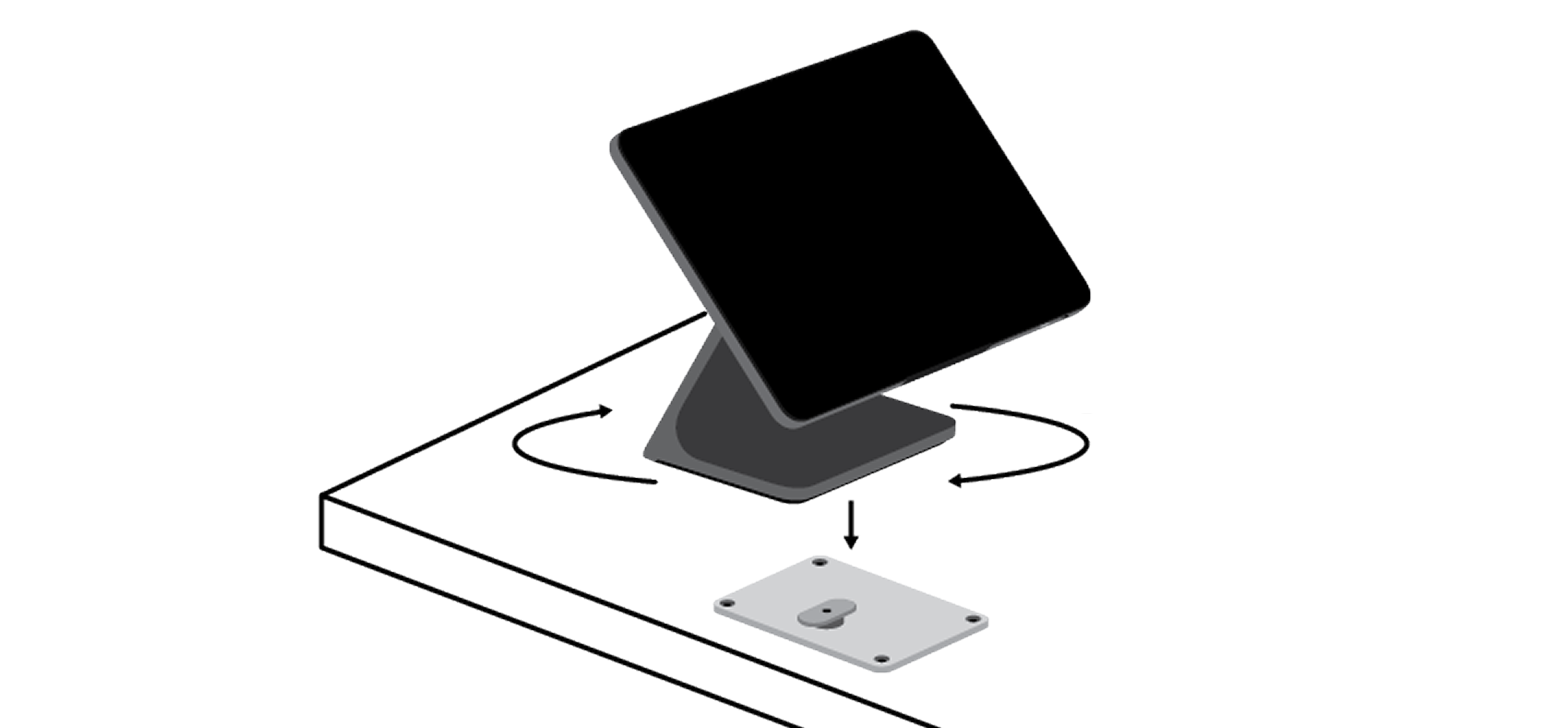
- Turn your Square Register 90 degrees clockwise so it locks in place.
To mount your Square Register’s customer display using the Bosstab Countertop Mount, you will need the tools that are included with the mount: security key, bracket mounting guide and Touch with Evo Pole.
Note: After the initial setup, you can remount your customer display by using a fresh set of Command Strips (Size: Large, approximately 0.75” wide and 3.65” long.) You can find additional mounting strips at many retailers.
- Use the security key to unscrew the security screw located on the back of the mount. This will remove the top bracket that holds the adhesive.
- Wipe the back of your Square Register customer display with a dry cloth.

- Place the bracket mounting guide over the back of your customer display.
- Peel off the adhesive paper from the top bracket.

- Place the top bracket in the cutout space of the guide. Press and hold for 20 seconds and then remove the guide.
- With the top bracket now on your customer display, reattach it to the base by using the security key and screw.

- Reconnect the cable between your Square Register and your customer display.
- If needed, you can adjust your screen orientation of the customer display by going to Settings > Hardware > Customer display on your Register.

Step 7: Select accessories for your Square Register (optional)
You can view printers, cash drawers, barcode scanner, scales and more accessories that are compatible with your Square Register.
Click an accessory option.
Click the Filter button and select Compatibility.
Select SquareRegister from the drop-down menu.
View the list of accessories compatible with your Square Register.