Add notes on payments and items during checkout
About adding notes
With Square you can add optional notes to items or custom amounts at the time of sale.
Before you begin
Create and edit item options and variations from your Square Dashboard or Square Point of Sale.
Item descriptions saved in your item library appear on digital receipts, but will not appear on printed receipts.
Item descriptions can only be created during the item creation or editing process, but can't be added during checkout.
If a note and description are present for an item within a sale, only the note displays on your customers’ receipts and in the Item Details spreadsheet. To view an item description, tap Review sale during checkout and select the item in question.
Descriptions and notes cannot be added to a payment after it’s been processed.
Add notes during checkout
- From your current sale, tap Review Sale.
- Tap an item or custom amount to add notes.
- Select the back arrow to save the note and return to the current sale.
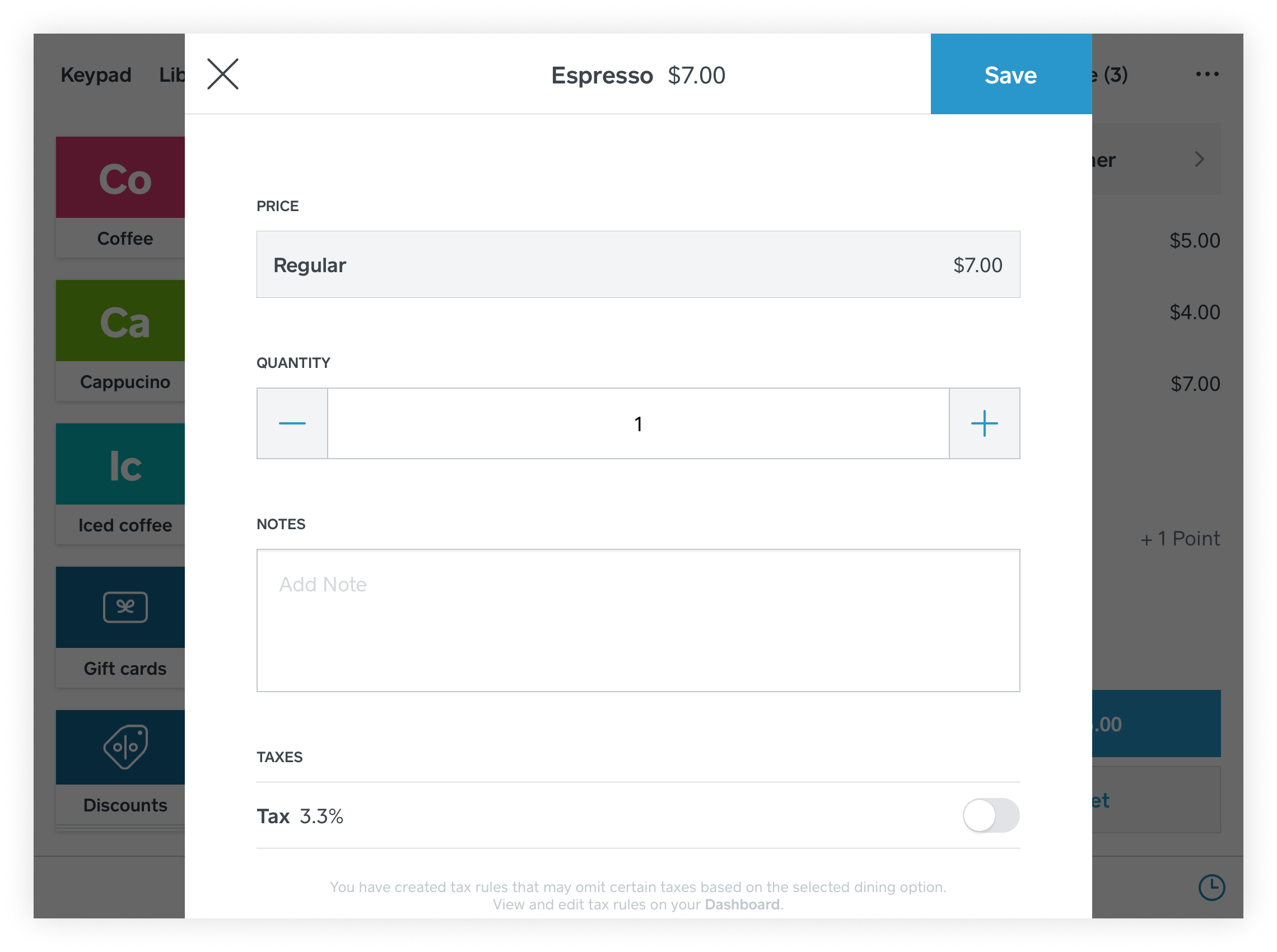
- From the current sale details on the right, select the item or custom amount from the list.
- Add notes to the Add a note field > tap Save.
Hide item notes from customer receipts
If you use item notes for internal purposes such as kitchen instructions or preparation details, you can hide them from customer-facing receipts. When turned off, item notes will still appear on order tickets and in your transaction details, but will not be printed or sent on customer receipts.
Turn off show item notes
From your Square Dashboard, select Settings > Account & Settings > Payments > Receipts.
Under receipt options, toggle Show item notes to off.
Select Save to apply your changes.
Once disabled, any notes added to items during checkout will appear on order tickets and kitchen displays but will not be visible on printed or digital customer receipts.
Note: This setting applies to all item-level notes. If you need some notes to appear on customer receipts, leave this setting off and use item descriptions instead for customer-facing information.