Switch to the new Square subscription plans
About the new Square subscription plans
Square is consolidating plans to offer your business more features and value. Currently, these products are all priced individually as separate subscriptions for legacy sellers.
You can run your entire business with one plan, offering everything from loyalty & marketing programs to food & beverage management, staff management, online selling, inventory, bookings, and advanced POS features.
The new subscription plans are available in three tiers to meet the needs of all business types, with the tools you need to run your business.
Square Free
Square Plus
Square Premium
The new Square Plus and Square Premium subscription plans are priced per-location, based on your number of active locations. The new Square Free, Square Plus, and Square Premium plans include all point-of-sale modes.
If you're on a legacy Square Online paid plan (Plus or Premium) in the US, you can migrate to the new plans through a dedicated self-serve process that automatically cancels your Square Online hosting plan and issues a pro-rated refund. Learn how to migrate from Square Online to the new Square plans.
Square Banking is included with the new Square Free, Square Plus, and Square Premium plans.
Before you begin
You can do the following from your Square Dashboard:
Switch to one of the new subscription plans.
Deactivate unused locations to manage monthly location costs.
Remove unused KDS and Kiosk devices to manage monthly device costs.
Add advanced capabilities to unlock features in your Square Dashboard.
Some features have changed tiers compared to the individually priced subscriptions. You are not able to add or remove features between the Square Free, Square Plus, and Square Premium plans.
In addition to some feature tier changes, the new subscription plans also have:
Varying processing fees based on plan tiers.
Varying availability and hours of Square Support based on plan tiers.
Additional fees for Square KDS and Square Kiosk device usage.
Additional fees if text message limits are exceeded.
Learn more about Square Free, Square Plus, and Square Premium pricing and features.
Step 1: Compare your current subscription features to the new Square Free, Square Plus, and Square Premium plan features
Before switching to one of the new subscription plans, compare your current subscription features to the new subscription plan features.
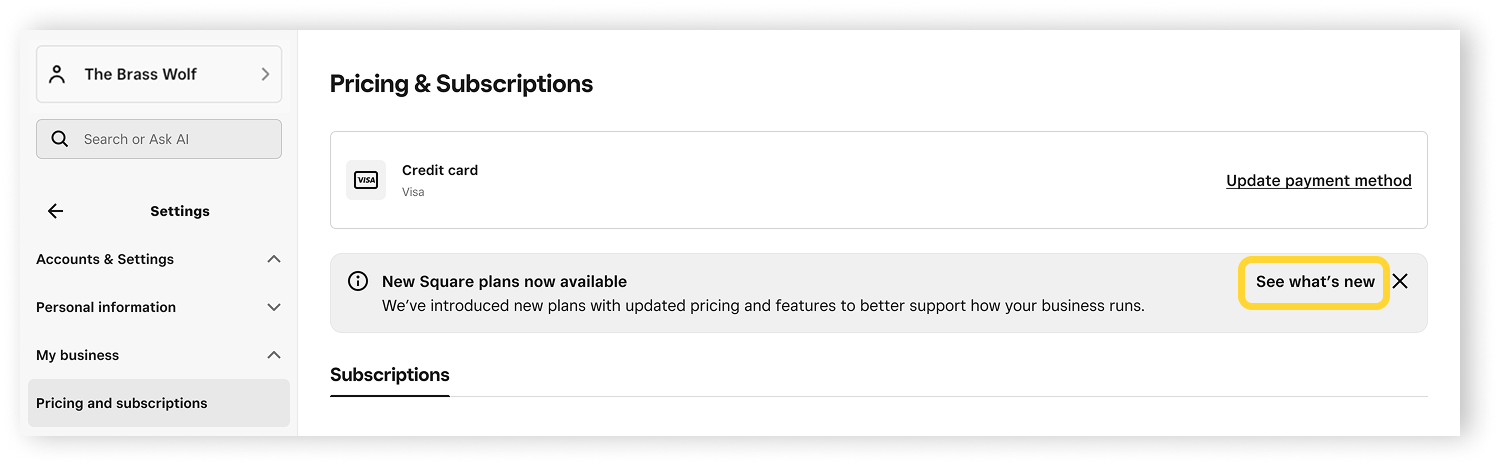
Sign in to Square Dashboard and go to Settings > Account & Settings > Pricing & subscriptions.
-
Click See what’s new in the New Square plans now available banner.
Review the details and click Choose a plan.
Select one of the new subscription plans, Square Free, Square Plus, or Square Premium.
-
Click Compare your current subscription.
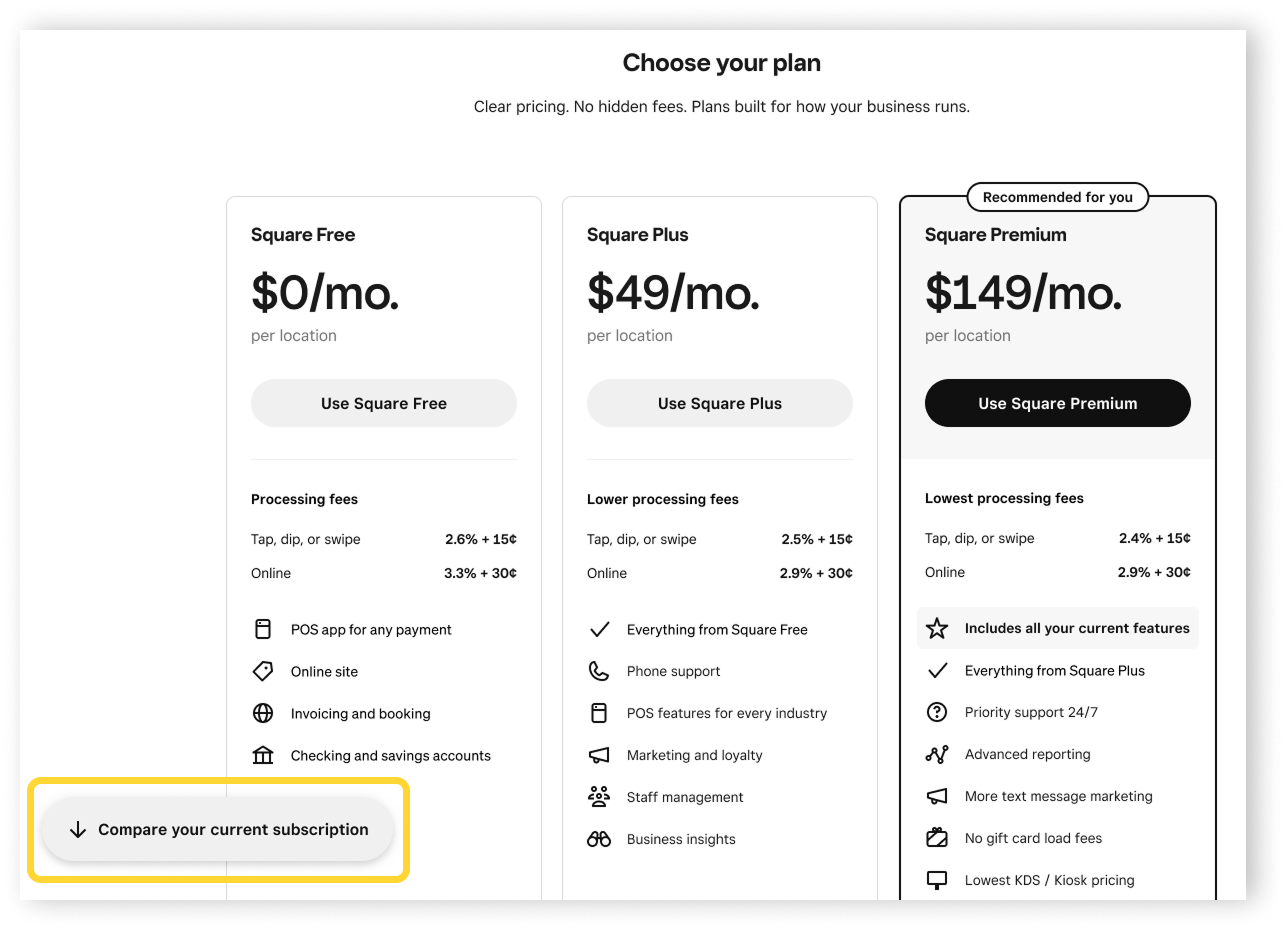
View the feature comparison table based on your current subscriptions and the new subscription plan you selected.
To switch to one of the new Square Free, Square Plus, or Square Premium plans, go to Step 2.
Step 2: Switch from a current subscription to the new Square Free, Square Plus, or Square Premium plans
If you purchased a subscription for Square Invoices Plus through Apple’s or Google’s app store, you'll need to cancel it from your mobile device to avoid duplicate billing. After you cancel it, you need to contact support so we can switch you to one of the new plans.
Follow Step 1 above or sign in to Square Dashboard and go to Settings > Account & Settings > Pricing & subscriptions. Then, click See what’s new > Choose a plan.
-
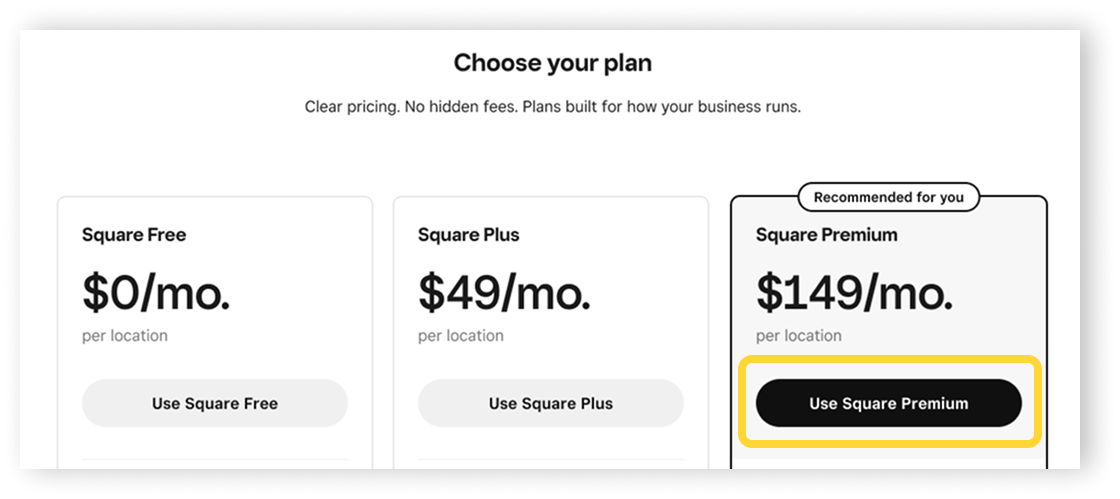
Click Use Square Free, Use Square Plus, or Use Square Premium on the new subscription plan you want to switch to.
-
If you select a new plan that doesn’t include all of your current features, you’ll see a list of those features and the new plan they are available with.
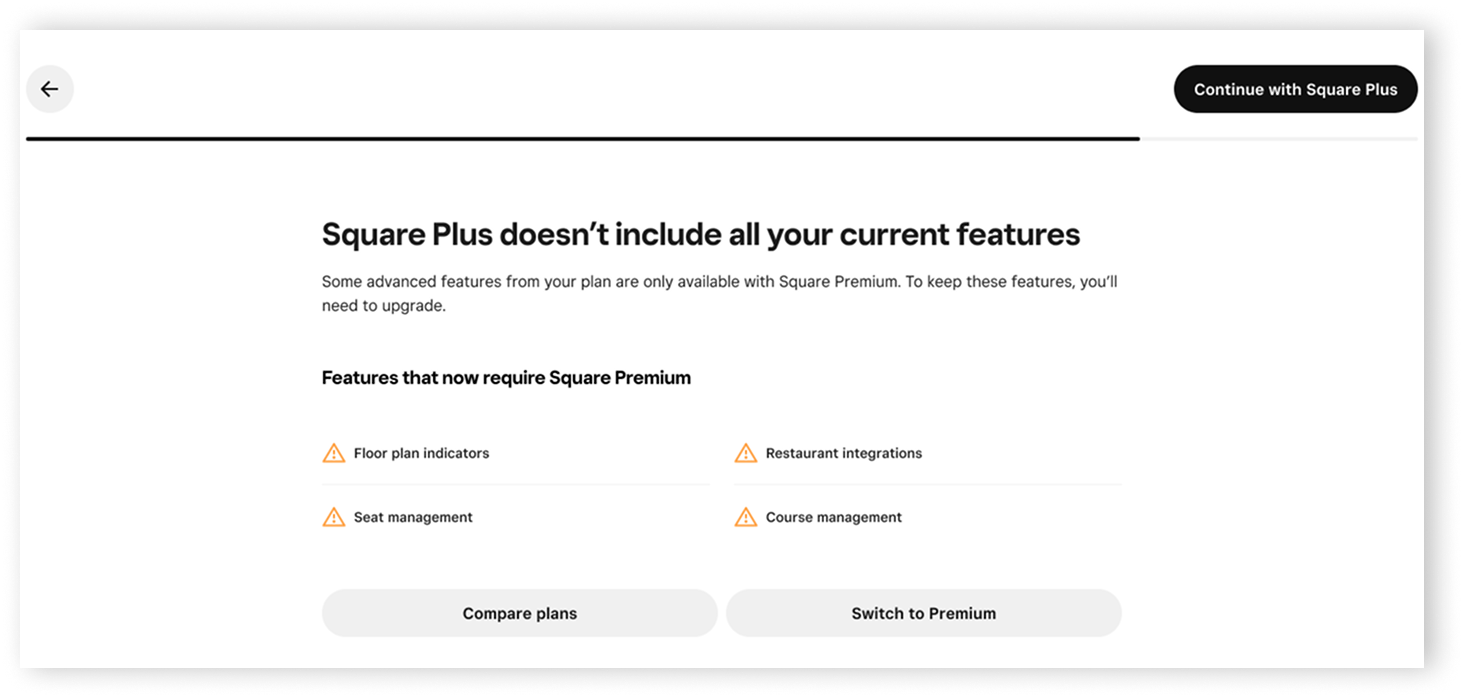
Click Switch to Premium or Switch to Plus to choose a different plan that includes all your current features.
Click Continue with the plan you want to switch to.
Enter your payment method and click Start subscription.
Click Close on the activation confirmation page.
View your new subscription plan details. You can change your plan tier at any time. Learn how to manage Square subscriptions.
You should see a message in your Square POS apps prompting you to restart. Restarting your apps should only take a minute and may require you to sign back in with your login credentials.
Open your Square POS apps and tap Restart now. If applicable, sign back in.
Step 3: Deactivate unused locations and remove unused devices (optional)
Our new plan fees for Square Plus and Square Premium are calculated per-location, based on your number of active locations. Square Free subscribers can create multiple locations at no additional cost.
You can manage the monthly per-location costs for your new Square Plus or Square Premium plan by deactivating unused locations. Learn how to create and manage multiple locations.
Square Free, Square Plus, and Square Premium plans do not include per-device POS fees. However, there are additional monthly fees per device for Square Kiosk app and Square KDS app usage.
Square Free subscribers are not able to access the Square Kiosk app or the Square KDS app.
You can manage the monthly KDS and Kiosk device costs for your new Square Plus or Square Premium plan by removing extra Square Kiosk and Square KDS devices. Learn how to
set up device codes.
Step 4: Add advanced capabilities
Based on your business type, you might have advanced capabilities already activated. To unlock additional features that aren’t specific to your business type on your Square Dashboard, you may need to activate advanced capabilities.
For example, if you’re a food & beverage business, but also use inventory features (vendor and purchase order management), you may need to activate the Inventory capabilities. This activation makes the Inventory management page visible on your Square Dashboard. As a food & beverage business, the Restaurants capabilities should already be activated.
Learn how to add advanced capabilities.
Step 5: Use the Square Point of Sale app and modes (recommended)
To get the most out of our new plans, we recommend switching to the latest version of the Square Point of Sale app if you are using any of the following Square apps on your device:
Square Restaurants POS app
Square Retail POS app
Square Appointments POS app
Square Invoices app
- Download the free Square Point of Sale app from the App Store or Google Play store. If you already have the app, update to the latest version.
- Sign in with your existing Square account login information (email address and password or device code).
- When you sign in, the app will recommend a mode that best matches your business. For example, Retail mode if you previously used Square for Retail.
- Confirm your mode or change it by tapping More > Settings.
You can access features specific to your business type from the Square POS app with modes.
For example, if you’re a food & beverage business, you can enable full service, quick service, or bar mode from the Square POS app on your device. Enabling full service or bar mode will allow you to customize your floor plan from the Square POS app, which is not available in quick service mode.
Learn how to create and assign modes.
When you switch to the Square POS app, your existing data—including items, sales, and customers—will transfer automatically. It can take up to a few minutes for the app to load for the first time, typically if you have a large item library with many variations or modifiers.
Your existing printer and KDS profiles should migrate automatically. While you shouldn’t need to create new printer profiles, it’s important to verify that your current profiles remain connected to your local devices. If they are not, you may need to re-assign them.
Learn how to set up printer profiles and set up Square KDS.