Set up pickup options for your online ordering profile
About online ordering profile pickup orders
Offer your local customers the convenience of placing pickup orders directly through your online ordering profile. Adjust pickup settings to customize the order experience, making sure it aligns with your business needs for both your staff and customers.
Before you begin
You can customize the following pickup settings for orders placed through your online ordering profile from your Square Dashboard:
Prep time
Lead time
Pickup time
Scheduled downtime
-
Order timing
Show pickup time to customers
Cut off time
Order scheduling
Order limit per pickup window
Large order limit
Ticket printing
Pickup instructions
Before you can customize your pickup settings, you need to do the following:
Create an online ordering profile. Learn how to set up and manage your online ordering profile.
Update your menu availability and item visibility to appear on your ordering profile. Learn how to create and update menus.
Set up pickup for your ordering profile
Sign in to Square Dashboard and go to Online > Ordering profile > Settings.
-
Scroll to Pickup and go to the location you want to allow pickup from.
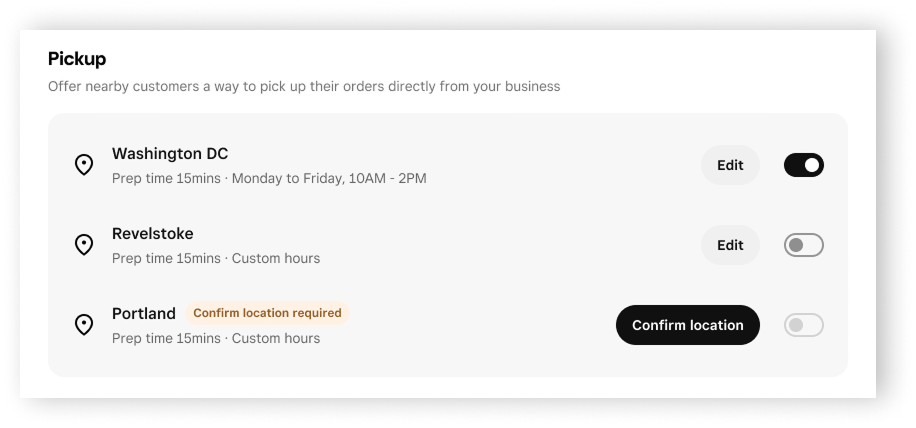
If applicable, click Confirm location.
Turn the switch on to enable pickup.
Click Edit next to the location name.
Set up and customize the following options:
Set the number of days in advance your customers must place pickup orders, if applicable.
- Turn Require orders in advance on.
- Select the drop-down menu and choose the number of calendar days.

Note: If you also allow order scheduling, the lead time cannot exceed the ordering scheduling window.
- Turn Use location hours on to make the pickup ordering hours the same as your location hours.
- Turn Use location hours off to make the pickup ordering hours different from your location hours. Adjusting these location hours will only change the hours for pickup orders placed through your ordering profile.
Add dates when pickup ordering will not be available:
- Click Add time and select a date range.
- Click the Repeat drop-down menu and choose Don’t repeat or Repeat yearly.
- Click Save.

After you add a scheduled downtime date, you can do the following:
- Click + Add time to add more scheduled downtime dates.
- Click the pencil icon to edit the created downtime date.
- Click the trash can icon to delete the downtime date.

- Turn Show pickup time to customers on to make the pickup time visible during checkout.
- Turn Cut off time on to enter a time the order needs to be placed by. Orders placed after the cut off time will be scheduled for the next day.
- Turn Allow order scheduling on to set the number of days ahead customers can schedule pickup orders. Note: The number of days cannot exceed the number of days you set for lead time.
- Turn Limit order per pickup window on to set the number of orders that can be picked up in a 15-minute window.

- Turn Set an item or price limit for orders on.
- Select Item limit or Price limit.
- Enter the maximum number of items (up to 100) or price in dollars that can be added to an order.
- Notifications will appear for the following when your customers place orders:
- Their cart reaches the limit.
- Their cart goes over the limit. They’ll need to remove items in order to checkout.
