Troubleshoot Bluetooth pairing on Square Reader
Square Reader (1st and 2nd generation) pairs to your mobile device through Bluetooth connectivity. This article provides troubleshooting for your Square Reader (1st and 2nd generation) to address issues pairing the Square Reader to your device.
Learn how to set up Square Reader.
Before you begin troubleshooting
When to troubleshoot
Square Reader pairing troubleshooting involves steps that include checking your setup, accessing your Bluetooth settings and rebooting your Square Reader. If at all possible, try to troubleshoot your Square Reader after hours. If you must troubleshoot during the workday, try to avoid peak busy hours so your customers will experience few delays.
You can restart or power off your device or Square hardware, but you need to power it back on to upload any pending offline payments before they expire. Remember to upload offline payments within 72 hours of taking your first payment.
Required components
You need your Square Reader and your mobile device. If you have multiple mobile devices that you connect your Square Reader to, you need those as well. Troubleshooting pairing on multiple devices requires you to reset the Bluetooth state on each device.
Identify your Square Reader
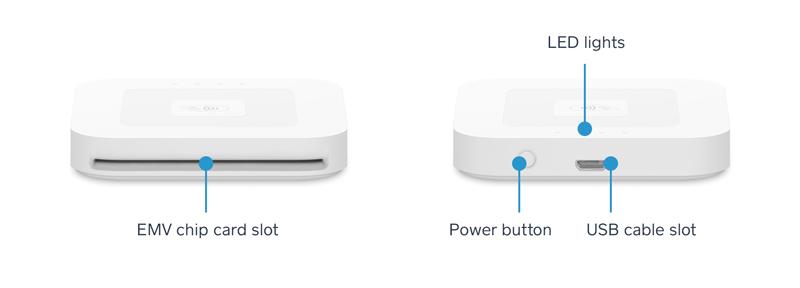
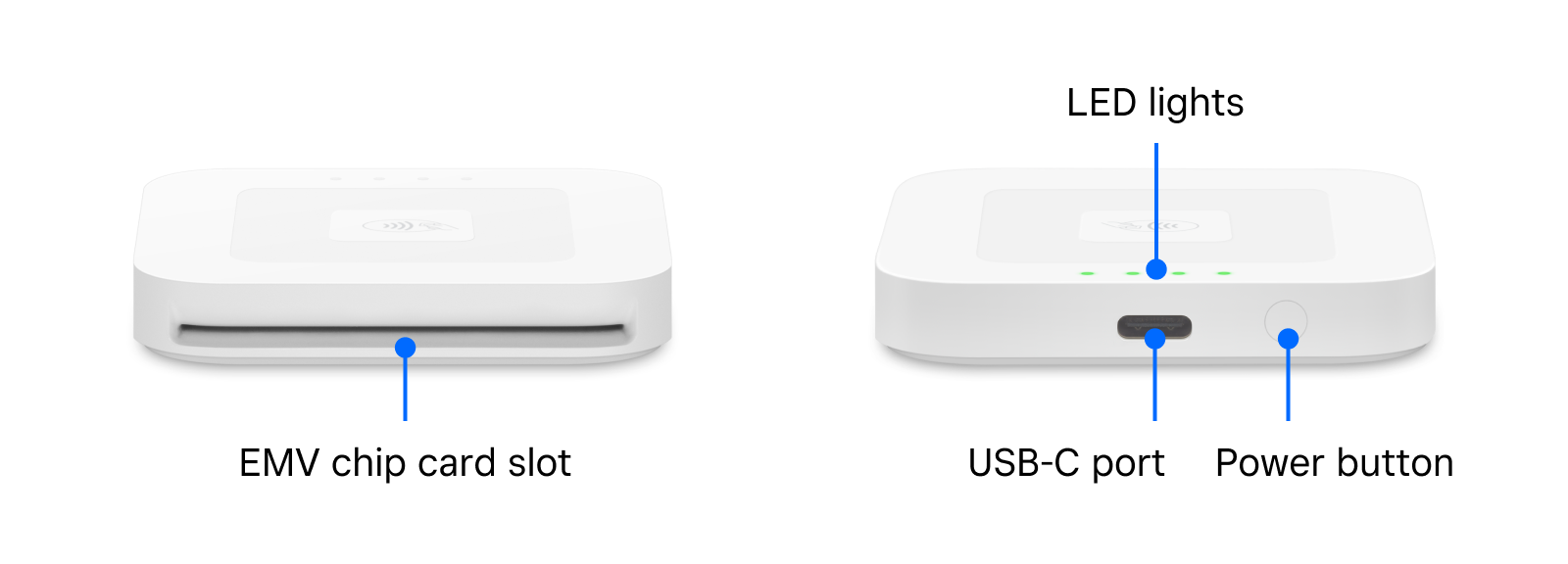
Step 1: Check your Square Reader setup
- Make sure your mobile device is compatible with the Square Reader (generation and version) you are pairing. Go to Square’s compatibility page for devices to search your device.
- The compatibility page also lists the minimum supported version of your device’s Operating System (OS). Make sure your device is running a supported OS version. If you are already on a minimum accepted version, continue to the next step in the troubleshooting guide. Make a note to update your device’s OS outside of business hours, as the process can take a long time.
Make sure you’re using the most recent version of your point of sale app. Check for updates in the App Store or Play Store.
Make sure you’re using the most recent software (iOS or Android) version on your mobile device. Check for updates in your device’s Settings app.
Make sure your mobile device is connected to the internet. This is required for your point of sale app to authenticate your Square Reader and check for firmware updates.
Fully charge your Square Reader. Make sure green lights show up when you press the reader’s button once. Do not hold down the button for longer than 1 second to check the battery level.
- Make sure there is no metal interference between your Square Reader and your mobile device. Metal can act like a barrier or a mirror, causing issues with the Bluetooth signal.
- Make sure your Square Reader is within 10 feet of your mobile device. If the distance is larger, the Bluetooth connection may be out of range and could disconnect.
If you have multiple Square Readers, check that you’re connected to the correct reader.
- Open your point of sale app and tap ≡ More.
- Tap Settings > Hardware > Square Readers.
- If your reader has previously been connected, you will see it listed in the list.
- If the serial number doesn’t match, that means your reader hasn’t been connected to this mobile device. Learn how to set up Square Reader.
Step 2: Restart the Bluetooth connection on your mobile device
This process will reset the Bluetooth connection on your mobile device, which will revert your device to a state where it can pair with the Square Reader again.
To reset the Bluetooth state on your Square Reader and mobile device:
Open the Settings app on your mobile device.
Toggle Bluetooth OFF and then back ON.
Follow additional instructions for iOS or Android devices:
- Open the Settings app on your mobile device and go to Apps.
- Tap the sort icon (the down arrow with three vertical bars).
- Tap Show system apps.
- Tap OK and all the system apps will appear in the list.
- Tap Bluetooth > Storage.
- Tap Clear data > OK to confirm and restart your device.
- Open the Settings app on your mobile device and go to Apps.
- Tap See all apps.
- Tap the three-dot menu and choose Show system.
- Scroll down and tap Bluetooth > Storage & cache.
- Tap Clear cache and restart your device.
- Open the Settings app on your Android device.
- Tap Apps > Sort icon (the down arrow with three vertical bars) > Show system apps.
- Tap OK and all the system apps will appear in the list.
- Go to the Settings on your Android device and select Apps.
- Tap ⋮ to display your system apps.
- Select Bluetooth from the list of apps, then select Storage.
- Tap Clear Cache and exit your Settings.
- Restart your mobile device by turning it off and then back on.
Step 3: Restart your Square Reader
This process will restart your Square Reader so it can re-pair from a known-good state. Restarting your Square Reader will have no effect on payments, transaction history or other information stored in your Square account.
Charge your Square Reader for at least 20 minutes.
Use your finger or a small object like a hairpin, pen cap or paper clip to firmly press and hold the button on your Square Reader for 20 seconds.
After 20 seconds, release the button. Do not let go of the power button until after the red lights have stopped flashing.
If the USB is unplugged, press the button again to turn your Square Reader on and observe any lights on Square Reader.
If Square Reader lights turn on, you’re all set.
Step 4: Re-pair your Square Reader
Open the Settings app on your mobile device and toggle Bluetooth ON.
Press and release the button on your Square Reader to turn it on.
-
Open your Square POS app and tap ≡ More > Settings > Hardware > Square Readers.
If you see your Square Reader listed, tap on the listed device and tap Forget This Reader.
Tap Connect a Reader.
Press and hold the button on the reader for at least 3 seconds. Release the button as soon as you see orange flashing lights. If you see red flashing lights, you’ve held the button too long and you’ll need to try this step again.
Tap Pair on the prompt to confirm the Bluetooth pairing request. On Android devices, quickly tap Pair and Pair & connect within 5 seconds each time you are prompted until the connection is successful.
When the connection is successful, you will see the reader listed as Ready in the Square POS app.
Step 5: Factory reset your Square Reader
Performing a factory reset will bring your Square Reader back to its original out-of-box state and will require you to pair the reader to your mobile device. The steps to perform a factory reset take about 5 minutes to complete and should only be performed after all other troubleshooting steps have been attempted.
Forget the reader from your device again by following the above Step 2: Restart the Bluetooth connection on your mobile device.
Forget the reader from your Square POS app by tapping ≡ More > Settings > Hardware > Square Readers > Forget This Reader.
Hold the reader button down for 20 seconds. Do not release the button until the red lights stop flashing.
To start the reader, push and hold the button until the green LED lights come on, then release the button.
Once again, hold the reader button down for 20 seconds. Do not release the button until the red lights stop flashing. It’s important to do this within 30 seconds of restarting the reader.
Start the reader a second time—push and hold the button until the green LED lights come on, then release the button.
After the second reboot, the reader will have performed a factory reset. The reader’s LEDs will blink green once again (without pressing the reader button) to indicate that the reset was successful.
Once the factory reset is complete, try to pair your reader (Step 4).