Set up checkout settings on Square Kiosk
About Square Kiosk checkout settings
You can configure how customers complete orders on Square Kiosk and how your team is notified. Square Kiosk supports voice confirmation, audio notifications, and presence-aware checkout functionality.
If you’re looking for information about the iPad-based self-service kiosk, this has been renamed to Square Stand with the Square Kiosk Lite app. Learn how to set up Square Kiosk Lite.
Before you begin
Square Kiosk supports tap (NFC/contactless) and dip (EMV chip card) payments.
Swipe (magstripe) transactions are not supported on Square Kiosk.
If a buyer's card only has a magnetic stripe and no chip, they will need to use an alternative payment method to complete their order.
Mobile payments, such as Apple Pay, Google Pay, and Cash App tap, are supported.
-
Before you can adjust your Square Kiosk checkout and order notification settings, you need to do the following:
Purchase and use of the new Square Kiosk requires an active Square Plus or Premium subscription. Subscribers on other plans will be able to continue to use their existing Square Stand models with their existing plan. While Square Kiosk is not currently available with legacy pricing plans, such as Restaurants POS Plus or Premium, please reach out to your Account Manager for help with Square Kiosk order and setup.
Configure checkout settings
- Sign in to Square Dashboard and go to Account Settings > Device Management.
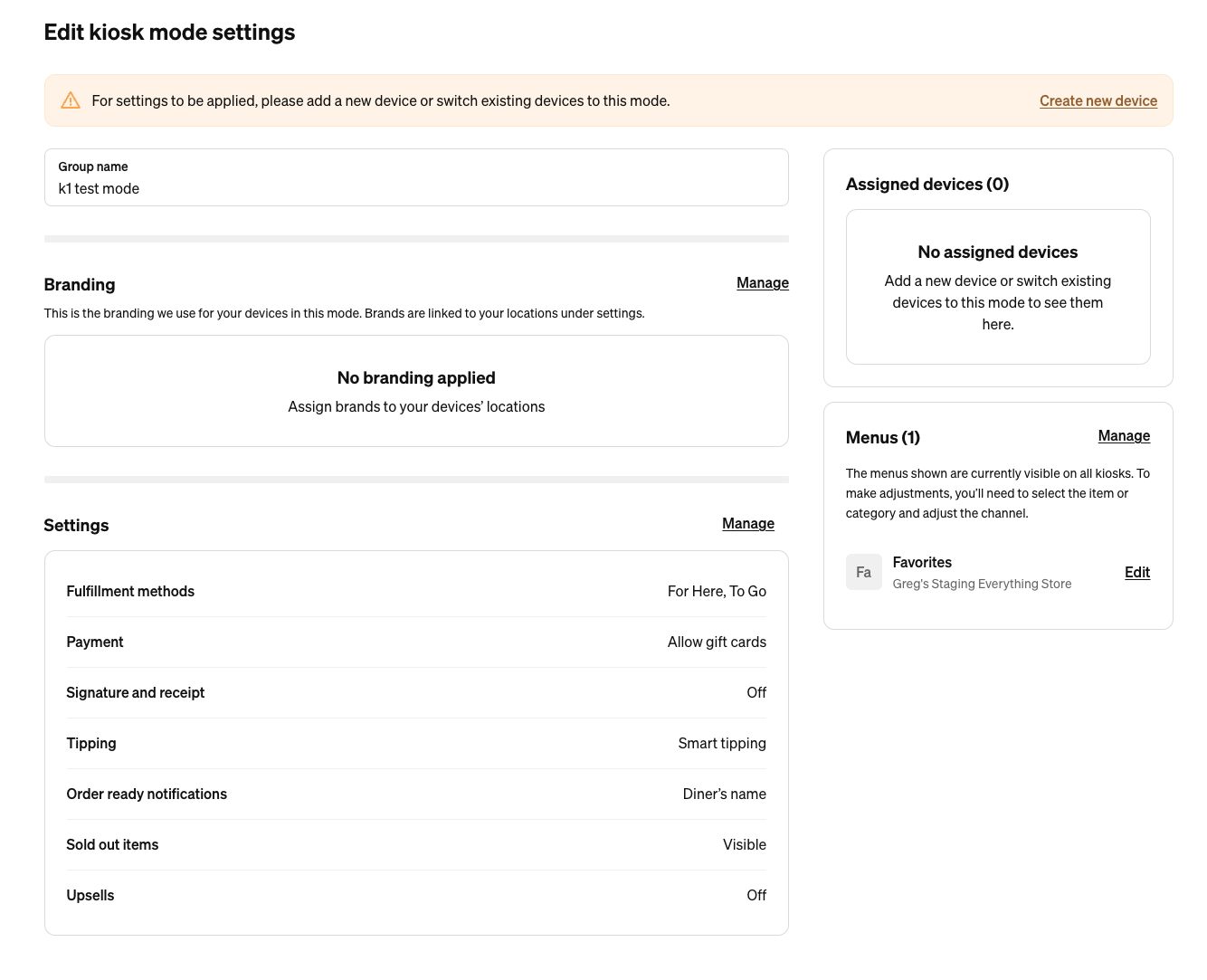
- Click Kiosk and select the Square Kiosk mode you want to edit.
- Select Manage > Tipping to adjust tipping settings:
- Preset percentages, such as 5%, 20%, or 25%.
- Custom tip amount option.
- No tip option during checkout.
- Review the remainder of your tip settings.
- Click Save.
You can configure your Square Kiosk to request a customer name or generate an order number for every order. To do so:
- Sign in to Square Dashboard and go to Account Settings > Device Management > Devices.
- Click Kiosk and select the Square Kiosk mode you want to edit.
- Click Manage > Order ready notification.
- Select how you’d like to notify your customers that their order is ready.
- Click Save.