Connect a barcode scanner to your point of sale
About barcode scanners
Connect barcode scanners so that you can quickly scan and add products to a sale, enhancing the efficiency of sales transactions and inventory management.
You can scan barcodes using a USB scanner, a Bluetooth scanner or the built-in camera on a compatible Android device. The Android camera barcode scanner lets you scan items without additional hardware.
Before you begin
You have three options for connecting barcode scanners to your Square setup:
USB barcode scanners are supported on Square Stand, Square Register and selected Android devices. If you are using an Android, your device must be running Android 9.0 software and support USB OTG (on-the-go) or host mode. You’ll need a micro USB to USB adapter to connect the scanner to your device.
Bluetooth barcode scanners are currently only compatible with iPads and iPhones.
A camera barcode scanner uses the built-in camera on your Android device. No additional hardware is required. The feature must be enabled in your point-of-sale settings.
Check to make sure your specific model of USB or Bluetooth barcode scanner is compatible with Square. See our full list of compatible barcode scanners.
Connect your barcode scanner
- Turn Bluetooth on from your iPad settings.
- Sign in to your Point of Sale app.
- Tap ≡ More > Settings > Hardware > Barcode Scanner > Connect Barcode Scanner.
- Turn the barcode scanner on by holding the power button (small button) on the scanner until you hear two beeps (low to high).
- Scan the barcode below, or the barcode displayed on your Square Point of Sale screen, by holding the trigger button (large button) until you hear three beeps (low to high).
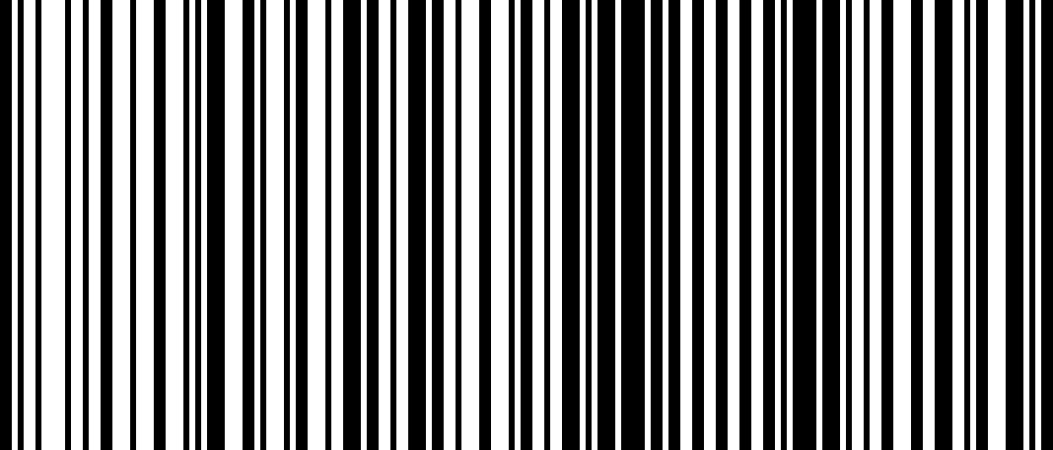
- After you’ve successfully scanned the above barcode, tap Next on the dialogue screen.
- Return to the Bluetooth settings on your iOS device, and select the Socket scanner from available devices there.
- Navigate back to your Point of Sale app, and follow the on-screen prompts to complete the pairing flow.
- Open the Point of Sale app on your device.
- Plug your barcode scanner into the hub of your Square hardware or into your Android device using an on-the-go (OTG) adapter.
- The app will notify you that an accessory has been attached.
Use your Android device’s built-in camera to scan barcodes directly from Square Point of Sale. To enable the camera scanner:
- Open the Square Point of Sale app on your Android device.
- Tap ≡ More > Settings > Hardware.
- Toggle the Camera Barcode Scanner on.
To scan a barcode:
- Press the volume key on your Android device to activate the camera scanner.
- You will see a green barcode icon in the POS status bar if the current page can be scanned.
- Point the camera at the barcode you want to scan.
- The item is automatically added to the sale once the barcode is recognised.
To set a USB barcode scanner up with Virtual Terminal, simply plug it into your computer. Your device should recognise it and connect to Virtual Terminal within a few seconds. Learn how to accept payments with Virtual Terminal.
Disconnect your barcode scanner
If you’d like to connect your Bluetooth Socket Mobile SocketScan S700 to a different iOS device, you’ll need to unpair the scanner from the current mobile device. To do so:
- Hold the trigger button (large button) and the Power button (small button) down together until you hear 3 beeps.
- Release both buttons.
To use the same barcode scanner with multiple devices, you have to delete Socket CHS from your iPad. Try the following tips:
- Go to your iPad settings and tap the barcode scanner from the list.
- Tap Forget this Device > OK.
- Then pair the scanner to a different iPad.