Set up your DoorDash integration with Square
About DoorDash and Square
The DoorDash integration allows you to easily connect your DoorDash account and manage everything from one centralised location in Square. All DoorDash orders placed on DoorDash will flow through to your Square account so you can manage orders, update menus, menu hours and prices, and see DoorDash orders in your Square reports.
Before you begin
The DoorDash and Square integration is only supported for sellers based in the United States, Canada, and Australia who use Square for Restaurants or sellers with full service, quick service or bar mode enabled in the Square Point of Sale app.
Before you can activate the DoorDash and Square integration, you need to create a DoorDash account and have at least one menu created in your Square account.
Unsupported features with the DoorDash and Square integration
Nested modifiers
Dasher/driver lookup: Dasher status is not shared through the integration but is still visible on the Business Manager app or Order Manager App on an Android tablet.
Contacting customers directly: To communicate with a customer, you will have to go through DoorDash.
Item substitutions: To substitute items in an order, you’ll have to go through the DoorDash merchant portal.
Rich text descriptions: DoorDash does not support rich text descriptions so any text emphasis like bold, italic or underline will not be shown on DoorDash. Line breaks are also not supported so all text will be shown on a single line.
Step 1: Set up your DoorDash Menu
DoorDash uses its own algorithm to sort items within menu sub-categories based on popularity, overriding Square’s configured sort order. However, DoorDash preserves the order of sub-categories (eg, Appetisers, Drinks) as set in Square.
To make your menu ready to publish on DoorDash, you have two options:
Update an existing menu
Create a new menu
Learn how to create and update menus.
Step 2: Integrate DoorDash with Square
Activate the DoorDash integration when your business is closed or not providing services. Activating the integration will automatically disconnect any existing DoorDash integrations in your account, whether they are through an order aggregator or the current Square/DoorDash integration.
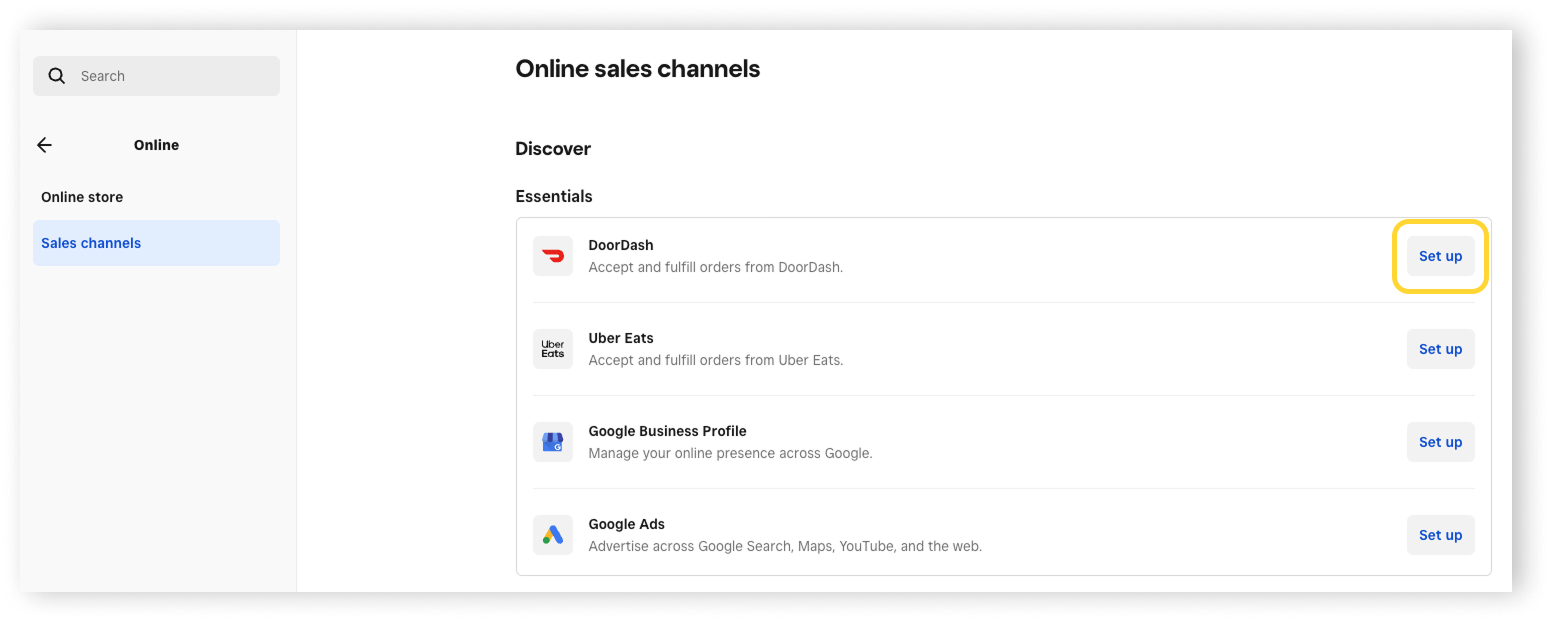
Sign in to Square Dashboard and go to Channels.
-
Click Connect next to DoorDash and follow the on-screen prompts.
-
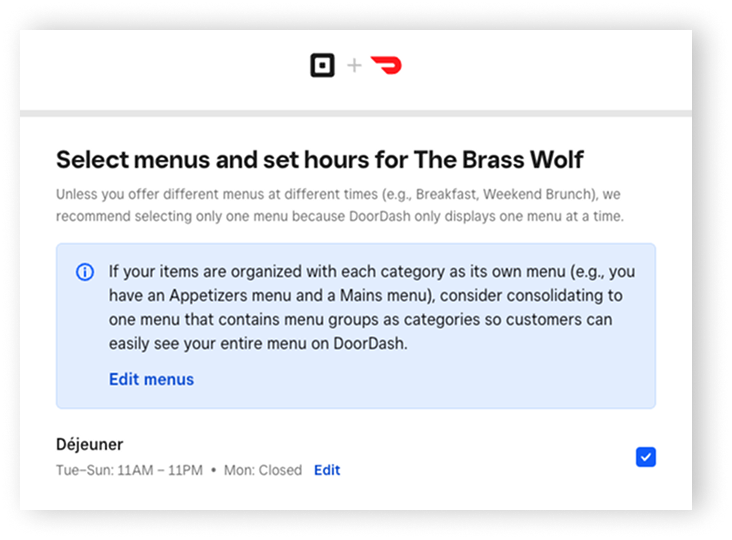
Select your location and desired menus and menu hours.
-
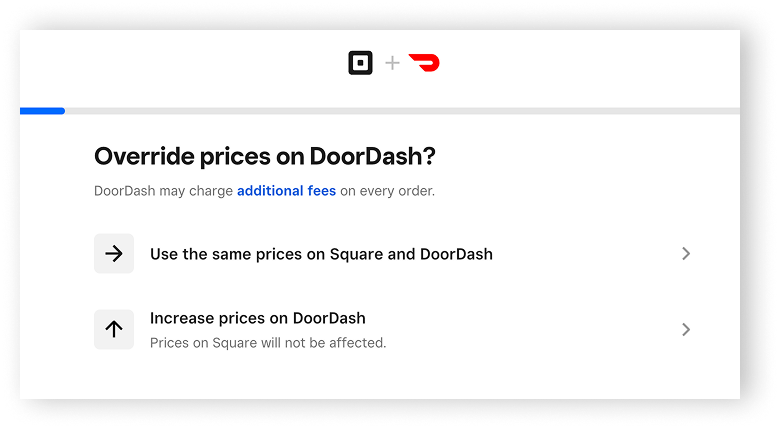
For each menu you select, you can keep prices the same or boost them using the price override functionality. Price increases can be set up separately by pickup or delivery.
Review your menus and prices before going live on DoorDash. Click Update to edit, if applicable.
Click Log in to sign into your DoorDash account.
Complete the sign in, verification, and review the terms and conditions.
-
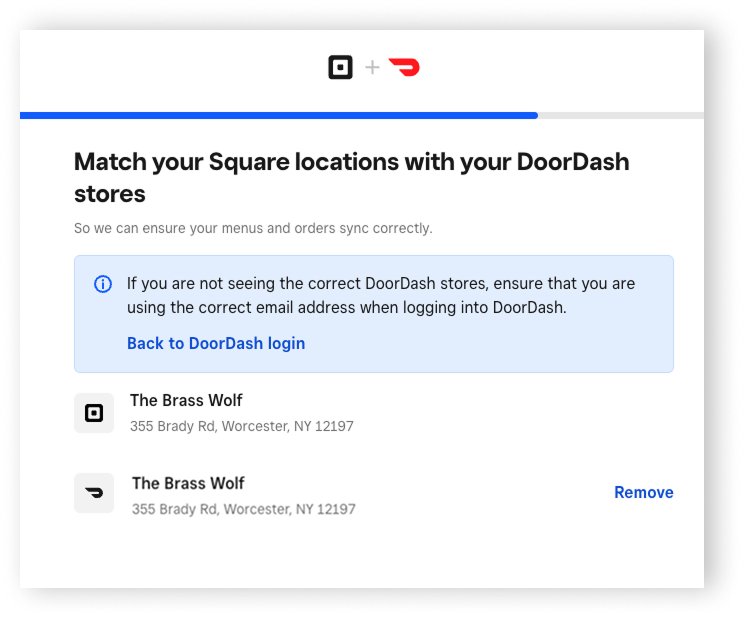
Match your DoorDash stores to your selected Square locations.
Confirm your menus and menu hours are correct.
Click Next. You’ll see a ’DoorDash is processing your menus’ notification as DoorDash confirms that your menus meet all their requirements. This process can take up to 5 minutes to complete.
Click Activate.
DoorDash and Square integration Support
You can contact us in our Square Community for support requests related to the Square and DoorDash integration.
For issues related to driver status, partial cancellations, adjustments or refunds, or communicating with DoorDash customers directly, contact DoorDash support on 1800 958 316.