Set up your DoorDash integration with Square
About DoorDash and Square
The DoorDash integration allows you to easily connect your DoorDash account and manage everything from one centralized place in Square. All DoorDash orders placed on DoorDash will flow through to your Square account so you can manage orders, update menus, menu hours and prices, and see DoorDash orders in your Square reports.
Once you integrate DoorDash and Square, you may notice that the order of modifiers on DoorDash does not always match the order displayed in Square. This difference is due to the way DoorDash prioritizes modifiers in their menu setup. DoorDash sorts modifiers by displaying required modifiers first. This means that even if you arrange your modifiers in a specific order within Square, DoorDash may reorder them if some modifiers are marked as required.
Before you begin
The DoorDash and Square integration is only supported for sellers based in the U.S. and Canada who use Square for Restaurants or sellers with full service, quick service or bar mode enabled in the Square Point of Sale app. DoorDash orders from Marketplace, Caviar and Storefront are all supported with this integration.
Before you can activate the DoorDash and Square integration, you need to create a DoorDash account and have at least one menu created in your Square account.
You also need to make your menu ready to publish on DoorDash, you have two options:
Update an existing menu
Create a new menu
Learn how to create and update menus.
The following features are not supported with the DoorDash and Square integration:
Nested modifiers
Dasher/driver lookup: Dasher status is not shared through the integration but is still visible on the Business Manager app or Order Manager app on an Android tablet.
Contacting customers directly: To communicate with a customer, you will have to go through DoorDash.
Item substitutions: To substitute items in an order, you’ll have to go through the DoorDash merchant portal.
Rich text descriptions: DoorDash does not support rich text descriptions so any text emphasis like bold, italic or underline will not be shown on DoorDash. Line breaks are also not supported so all text will be shown on a single line.
Note: DoorDash uses its own algorithm to sort items within menu sub-categories based on popularity, overriding Square’s configured sort order. However, DoorDash preserves the order of sub-categories (e.g., Appetizers, Drinks) as set in Square.
You can cancel an order from your Square Dashboard or Square POS. This will void the ticket, update in DoorDash and notify the customer accordingly. When you cancel an order from your Square Dashboard or Square POS, and a courier hasn’t been dispatched, the order will be refunded. To make a substitution, please contact the customer via your DoorDash Merchant Portal.
Integrate DoorDash with Square
Activate the DoorDash integration when your business is closed or not providing services. Activating the integration will automatically disconnect any existing DoorDash integrations in your account, whether they are through an order aggregator or the current Square/DoorDash integration.
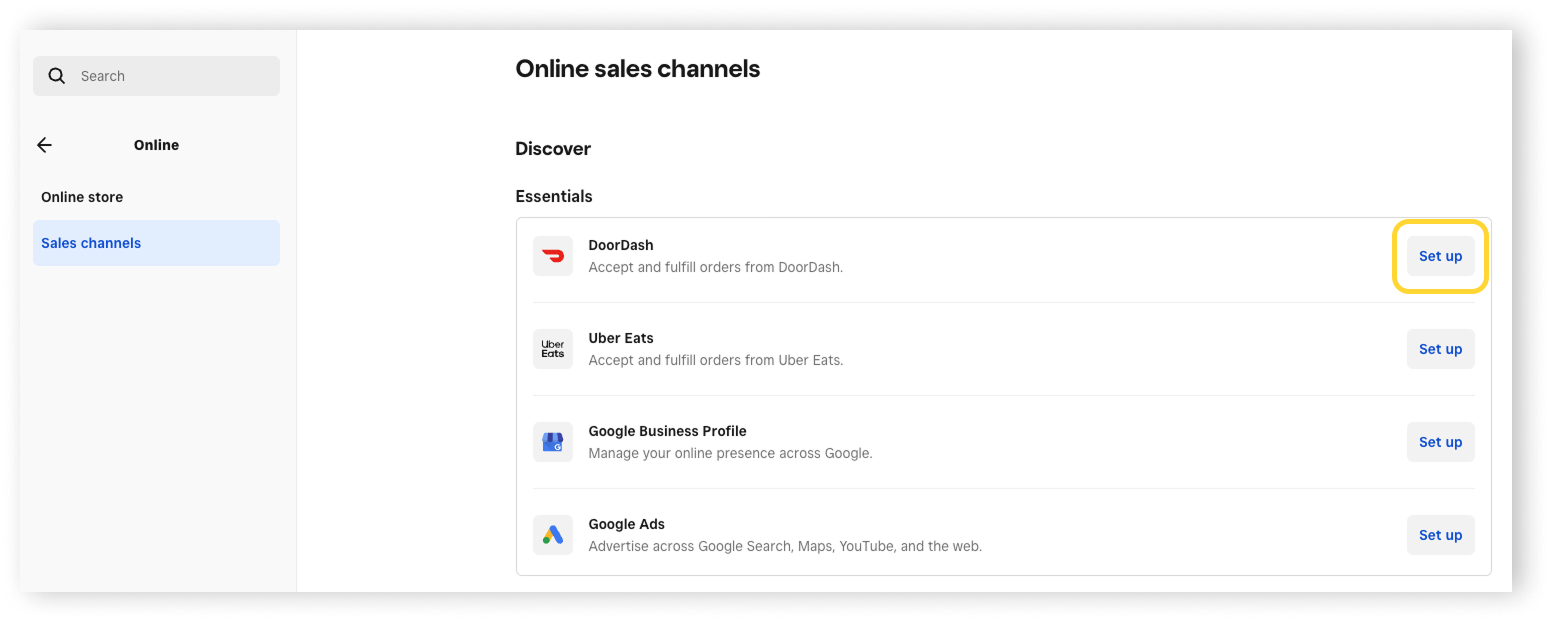
Sign in to Square Dashboard and go to Channels.
-
Click Connect next to DoorDash and follow the onscreen prompts.
-
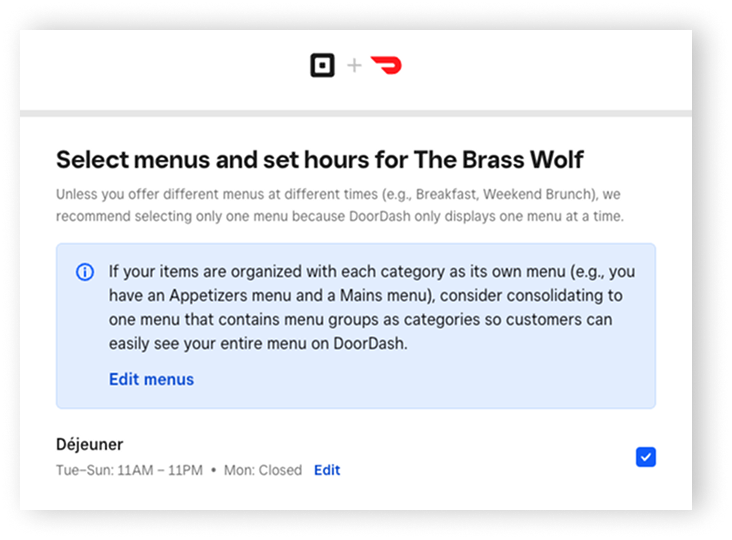
Select your location and desired menus and menu hours.
-
For each menu you select, you can keep prices the same or boost them using the price override functionality. Price increases can be set up separately by pickup or delivery.
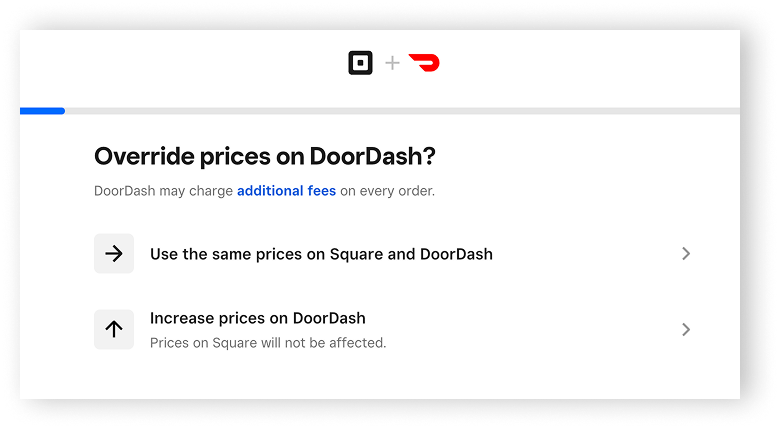
Review your menus and prices before going live on DoorDash. Click Update to edit, if applicable.
Click Log in to sign in to your DoorDash account.
Complete the sign-in and verification, and review the terms and conditions.
-
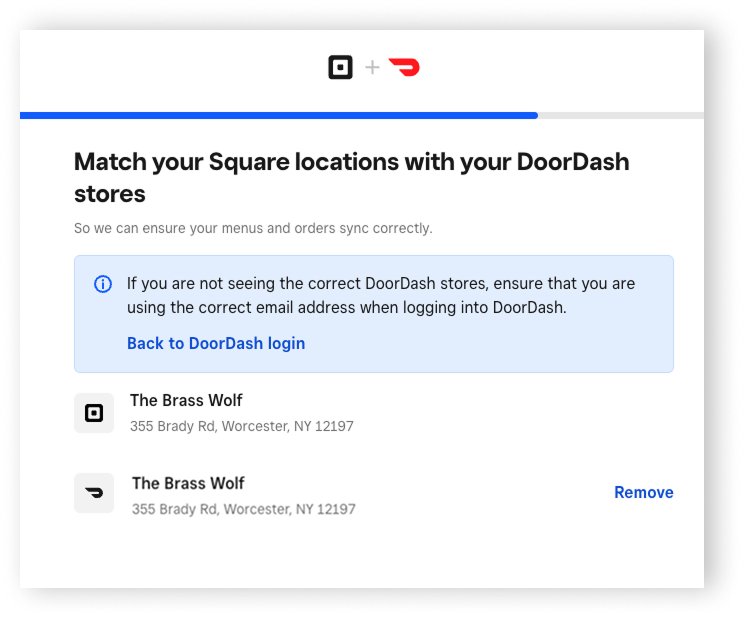
Match your DoorDash stores to your selected Square locations.
-
Note: If you selected the wrong location(s) or signed in to a different DoorDash account than the one you want, you can go back now to change that. Once the integration is activated, you’ll have to fully disconnect the integration and restart onboarding if you want to change locations or DoorDash account.
-
Confirm that your menus and menu hours are correct.
Click Next. You’ll see a “DoorDash is processing your menus” notification as DoorDash confirms that your menus meet all their requirements. This process can take up to five minutes to complete.
Click Activate.
Manage DoorDash and Square integration
You can update your prices by changing menu item prices that are on DoorDash—your price override setting will still apply.
To update your price override settings in Square:
- Sign in to Square Dashboard and go to Online > Sales channels.
- Click Manage next to DoorDash.
- If applicable, select the location you want to update.
- Click Update next to Settings.
- Make changes to your price override settings, such as increased price amount, rounding amount, and turn on the option to increase modifier prices.
- Click Update > Done.
Your menu order from Square will match the menu order on DoorDash, though DoorDash may sort items differently based on popularity. Modifiers will maintain the same sort order from Square onto DoorDash, including within an order once placed, with some exceptions. You can adjust the menu order in Square, and these changes will sync to DoorDash.
Note: If you want to change the ordering of items, you can make changes in your DoorDash Merchant Portal.
To preview your menu on DoorDash from Square:
- Sign in to Square Dashboard and go to Online > Sales channels.
- Click Manage next to DoorDash.
- If applicable, select the location you want to preview.
- Click the three dots ••• next to the menu you want to view.
- Click Preview menu on DoorDash.

Modifiers marked as required will always appear at the top of the list on DoorDash, regardless of their position in Square. Adjusting the settings in Square to reflect the correct requirements will help maintain consistent modifier order between both platforms.
- Identify required modifiers: Check if the modifier in question is set as “required” in Square. Learn how to create and edit item modifiers.
- Update the modifier settings: To change the order on DoorDash, try setting the Minimum to 0 and the Maximum to 1 for modifiers that you do not want prioritized as required. This will ensure that DoorDash does not treat them as required modifiers and should display them in the intended order.
To edit your menu hours:
- Sign in to Square Dashboard and go to Online > Sales channels.
- Click Manage next to DoorDash.
- If applicable, select the location you want to update.
- Click the three dots ••• next to your menu.
- Click Edit menu hours.
- Make changes and click Update > Done.
To hide your menu on DoorDash:
- Sign in to Square Dashboard and go to Online > Sales channels.
- Click Manage next to DoorDash.
- If applicable, select the location you want to update.
- Click the three dots ••• next to your menu.
- Click Hide menu on DoorDash > Hide.
- To unhide your menu, click Show menu on DoorDash.
- Click Done.
To add a menu to your location:
- Sign in to Square Dashboard and go to Online > Sales channels.
- Click Manage next to DoorDash.
- If applicable, select the location you want to update.
- Click the three dots ••• next to your location name.
- Click Pause and select a time frame to pause DoorDash ordering.
- Click Done.

If you have menu photos in your Square account, DoorDash can automatically pull them from Square, review them to ensure they meet the required specs and upload them to your DoorDash menu.
- Take photos of your food (or review current photos) using DoorDash Photo Quality Guidelines.
- Sign in to Square Dashboard and go to Items & services (or Items & menus or Items & inventory) > Menus.
- Select a menu and then select an item in the menu.
- Click upload to add a photo or drag and drop an image.
- Click Save.
DoorDash will review and approve the photos within 5 days. When you update your POS menu photos, the new photo URLs will update during the next menu refresh.
For DoorDash integration orders, the default prep time can only be set through DoorDash, not Square. Learn more about DoorDash’s tablet suggested prep time feature.
Item prep times set up in your Square Dashboard only affects Square Online orders, not DoorDash orders. Learn how to set up items for your online store.
To add a location to connect to DoorDash:
- Sign in to Square Dashboard and go to Online > Sales channels.
- Click Manage next to DoorDash.
- Click the three dots ••• at the top right corner of the screen.
- Click Add location and select your location.
- Click Next and follow the prompts.
To remove the DoorDash integration:
- Sign in to Square Dashboard and go to Online > Sales channels.
- Click Manage next to DoorDash.
- If applicable, select the location you want to remove the integration on.
- Click the three dots ••• at the top right corner of the screen.
- Click Remove integration > Remove DoorDash.

DoorDash and Square integration Support
You can reach out to us in our Square Community for support requests related to the Square and DoorDash integration.
For issues related to driver status, partial cancellations, adjustments or refunds, or communicating with DoorDash customers directly, contact DoorDash support.