Order and activate your Square Card
About Square Card
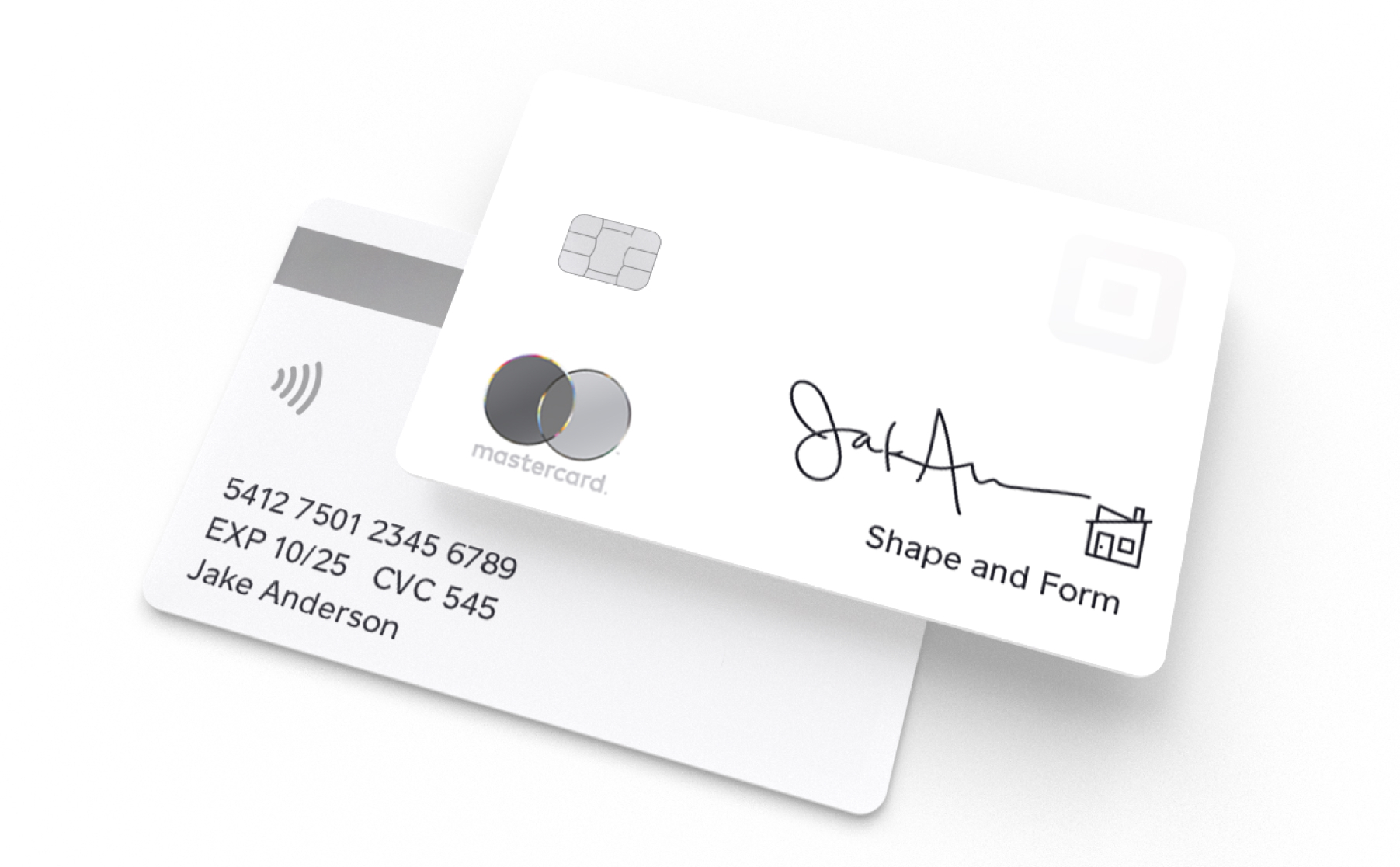
Square Card is a business expense card that’s connected to your Square balance. When you process a payment, the money you earn is reflected in your Square balance. You can spend that money with your Square Card anywhere internationally where Mastercard® cards are accepted, including in person, online and at ATMs.
It’s free to order and personalise your Square Card, and it’s free to use your card to make purchases.
Before you start
Square Card eligibility requires verification through our banking partner. If your information can’t be verified, you won’t be able to use Square Card but you can still set up and edit transfer options.
Once you order a card, it will arrive in 5 working days.
As soon as you order your card, automated transfers to a linked bank account stop since you’ll automatically have access to your virtual card. You can still initiate a transfer at any time with free next-day transfers or instant transfer for a fee.
The maximum you can spend is £10,000 per transaction, £25,000 per day and £150,000 per month.
If you’re using your card to withdraw cash, there are daily and monthly withdrawal limits and the limits applicable to your Square Card may be viewed from the Money section of the Square Point of Sale app or Square Dashboard.
Square doesn’t charge ATM fees, but ATM providers may charge a fee when making a withdrawal.
When withdrawing funds from an ATM, the ATM may state that your balance is £0.00, which is incorrect. You can check your available funds from the Money section of the Square Point of Sale app.
There are no foreign transaction fees when using a GBP Square Card to pay in other currencies.
All currency conversion is handled by Mastercard at the applicable exchange rate at the time of the transaction. You can review the details in section 4.10 of the Square Card Terms.
Daily limits reset at 17:01, weekly limits are reset on Sundays at 17:01, and monthly limits reset at 17:01 on the last day of each month.
Order a card
- Sign in to Square Dashboard and go to Money > Square Card.
- Select a location from Locations.
- Click Get started.
- Verify that your name and business name match the account owner’s name on your Square account. For security reasons, Square Card is only issued to account owners.
- Personalise your card and verify your delivery address.
- Create your 4-digit PIN.
- Open the POS app and tap Money > Square Card.
- Select Get started.
- Verify that your name and business name match the account owner’s name on your Square account. For security reasons, Square Card is only issued to account owners.
- Personalise your card and verify your delivery address.
- Create your 4-digit PIN.
Activate your card
- Sign in to Square Dashboard and go to Money.
- Select a location from Locations.
- Click Square Card > Activate physical card.
- Enter your Square Card expiry date and CVC number > Continue.
- Create your 4-digit PIN if you haven’t done so already and click Done.
- Open the POS app and tap Money > Square Card.
- Select Activate physical card.
- Enter your Square Card expiry date and CVC number.
- Create your 4-digit PIN if you haven’t done so already and click Done.
When you receive your new Square Card in the post, it comes with a QR code. To activate your card with the QR code:
- Open the camera on your mobile device and scan the QR code.
- Tap the link that appears onscreen and sign in to your Square account.
- After signing in, the Square Point of Sale app installed on your mobile device will automatically open. Your card is instantly activated in the app.
If you don’t have the Square Point of Sale app installed, stay in your browser:
- Select the card you want to activate from the Square Card list and tap Activate physical card.
- Enter your debit card CVC and expiry date.
Reorder your card
- Sign in to Square Dashboard and go to Money.
- Select Square Card.
- Go to Get help > Problem with card and select the relevant reason.
- Choose to Order a replacement with the same design or design a new card.
- Confirm your delivery address.
- Select Deactivate card and replace and a new card will be sent to you.
- Add your Square Card to your digital wallet while you wait for your physical card to arrive.
- Open the Point of Sale app and select Money > Square Card.
- Tap Get help with Square Card.
- Select the relevant reason.
- Tap Deactivate card.
- Tap Order replacement card, then follow the steps, and a new card will be sent to you.
- Add your Square Card to your digital wallet while you wait for your physical card to arrive.